The Page indexing report can list URLs under three canonical-related reasons: Duplicate without user-selected canonical, Duplicate, Google chose different canonical than user, and Alternate page with proper canonical tag. They sound alike. They mean very different things, and only two of them ever need work.
All three come from the same process. When Google finds several URLs with the same or very similar content, it groups them and picks one as the canonical, the version it indexes and shows in search. The others are treated as duplicates. Your job is to tell Google clearly which URL you prefer, and to make every other signal on the site agree with that choice.
This guide explains each status, shows you how to check what Google picked, and walks through fixing canonical tags, redirects, internal links and sitemaps so your preferred URLs get indexed.
Quick answer
- Alternate page with proper canonical tag: usually nothing to do. Your canonical tag works.
- Duplicate without user-selected canonical: add a
rel="canonical"tag on each duplicate pointing at your preferred URL, and a self-referencing one on the preferred URL. - Duplicate, Google chose different canonical than user: inspect the URL, compare User-declared canonical with Google-selected canonical, and remove the conflicting signals.
- Make redirects, internal links, sitemaps and hreflang all point to the same preferred URL.
- Request indexing for key URLs and recheck after about two weeks.
Before you start
You need access to Search Console (any permission level to view; Owner or Full user to request indexing). You also need a way to edit canonical tags, which on most sites means an SEO plugin or your platform's SEO settings. Many platforms handle canonicals automatically. Shopify, Squarespace and Wix generally output self-referencing canonicals on their own, and WordPress SEO plugins such as Yoast and Rank Math let you override the canonical per page.
To check the HTML yourself, use your browser's View page source or developer tools. If you plan to add redirects, export the current redirect list from your server, plugin or platform first, so you can undo changes.
Understand the three statuses
| Status | What Google's help says | Action |
|---|---|---|
| Alternate page with proper canonical tag | This page correctly points to the canonical page, which is indexed | None, unless the canonical is wrong |
| Duplicate without user-selected canonical | This page is a duplicate of another page and doesn't indicate a preferred canonical; Google chose another page | Declare the canonical you want, or confirm Google's choice is fine |
| Duplicate, Google chose different canonical than user | You marked a canonical, but Google indexed the page it considers canonical instead | Find and fix the conflicting signals |
Google's help page says plainly that Alternate page with proper canonical tag needs no action. URLs there are working as intended: a mobile version, a parameter variant or a print page that correctly points at the main URL. Check a few samples to make sure the canonical target is the page you want, and then move on to the rows that need work.
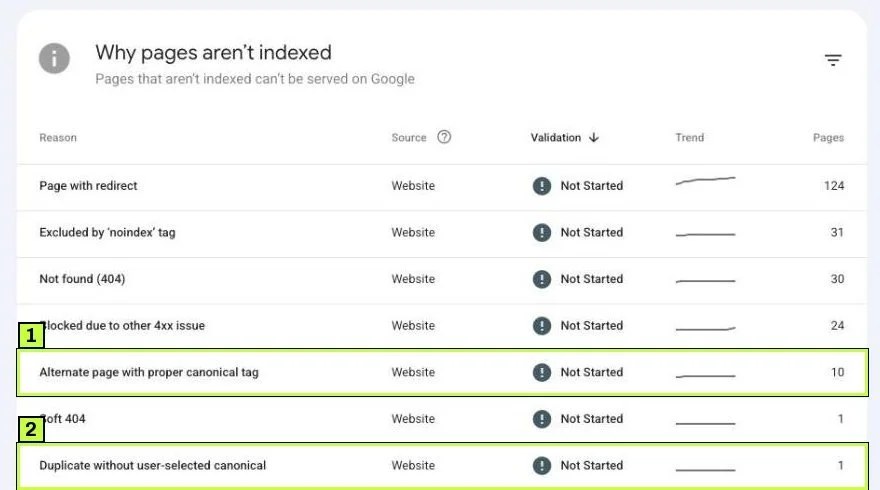
Duplicate, Google chose different canonical than user only appears when your site declares canonicals that Google overrides, so you may not see it at all. If you do, it sits in the same table.
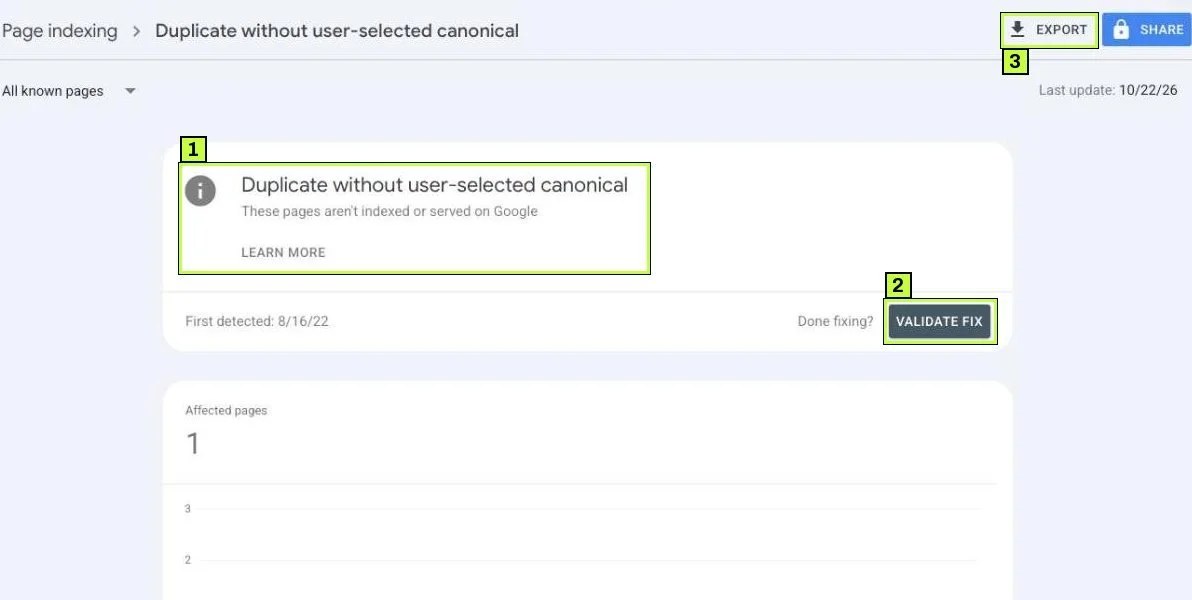
Click the duplicate reason to open its detail page. You'll see the reason, a First detected date, a LEARN MORE link to Google's help, and VALIDATE FIX for after you've made changes.
Step 1: Find out which URL Google picked
Scroll down the detail page to Examples and copy a few URLs. Paste each into the Inspect any URL in bar at the top of Search Console. Expand Page indexing and look at the Indexing section.
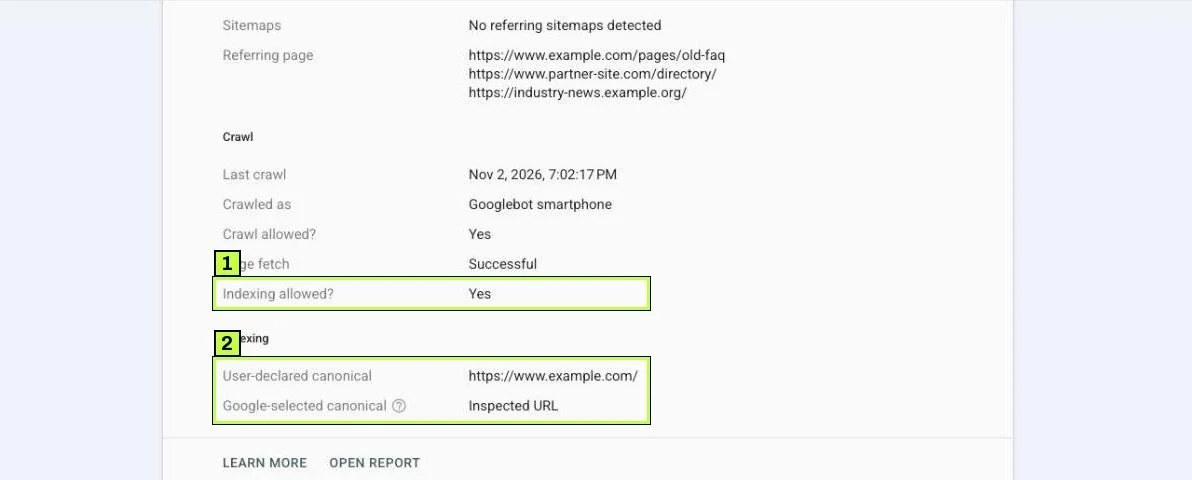
- User-declared canonical shows the canonical your page declares, or None if it declares nothing.
- Google-selected canonical shows the URL Google chose. Inspected URL means Google picked the page you're looking at. A different URL means Google treats this one as a duplicate. Google's help notes this value can be a few hours out of date.
Inspect the Google-selected URL too, to confirm that one is indexed.
Now decide. Google's help says Duplicate without user-selected canonical isn't an error, so if Google's choice is the URL you want indexed, the status is harmless, though making it explicit is still good practice. If Google picked the wrong URL, you have work to do.
Typical duplicate groups include:
- The
httpandhttpsversions, orwwwand non-wwwversions of the same page. - URLs with and without a trailing slash (
/servicesand/services/). - Tracking or filter parameters (
?utm_source=,?ref=,?sort=). - Uppercase and lowercase variants.
- Product URLs reachable through several category paths.
- Printer-friendly, AMP or old mobile versions.
- Near-identical pages, such as location pages with one word changed.
Step 2: Add canonical tags
A canonical tag goes in the <head> of the page. Google's docs recommend absolute URLs: relative paths are supported but can cause problems over time. Put it on the duplicate, pointing at the preferred URL, and also on the preferred URL, pointing at itself.
<!-- On https://www.example.com/services/?ref=footer -->
<link rel="canonical" href="https://www.example.com/services/">

<!-- On https://www.example.com/services/ (self-referencing) -->
<link rel="canonical" href="https://www.example.com/services/">
For PDFs and other non-HTML files, you can send the canonical as an HTTP header instead:
Link: <https://www.example.com/guides/pricing.pdf>; rel="canonical"
Google recommends picking one method and sticking with it, because using several at once is more error prone. Never declare different canonical URLs for the same page through different methods.
On WordPress, open the page in the editor and find your SEO plugin's panel (usually below the content or in the sidebar). Yoast and Rank Math both keep a Canonical URL field under an advanced settings tab. Leave it blank on the main page to keep the default self-reference, or enter the full preferred URL on a duplicate. Save, then view the page source to confirm exactly one canonical tag appears. Field names and tab names vary by plugin and version, so check your plugin's help if you can't find it.
On Shopify, Squarespace and Wix, canonicals are generated automatically and usually point to the clean URL. If they're wrong, the fix is usually a theme or app issue, so check with your developer.
Rules that trip people up:
- Use absolute URLs (
https://www.example.com/page/), not relative paths (/page/). - Don't point canonicals at URLs that redirect, return 404 or carry
noindex. - Output only one canonical tag per page. A theme and a plugin each adding a different one sends a conflicting signal Google may not follow.
- Keep the canonical in the raw HTML
<head>. Google's docs ask you to make sure JavaScript doesn't change it; if you can't set it in the HTML at all, set it only with JavaScript.
Step 3: Use redirects for true duplicates
If a duplicate URL serves no purpose, such as the http version of your site or an old URL after a redesign, redirect it instead of tagging it. Google's docs rank redirects as a strong canonical signal, alongside rel="canonical", while a sitemap listing is only a weak one. A permanent 301 redirect also sends visitors to the right place. Here's an Apache .htaccess example that forces HTTPS and www:
RewriteEngine On
RewriteCond %{HTTPS} off [OR]
RewriteCond %{HTTP_HOST} !^www\. [NC]
RewriteRule ^(.*)$ https://www.example.com/$1 [L,R=301]
Many hosts and CDNs have a setting in their dashboard for forcing HTTPS and choosing www or non-www. Use that if it exists, since it's harder to get wrong than a handwritten rule.
Keep canonical tags for duplicates that need to exist for users, like filtered views or tracking URLs. Use redirects for duplicates that shouldn't exist at all.
Step 4: Fix the "Google chose different canonical" cases
When you've declared a canonical and Google still picks another URL, your other signals usually point somewhere else. Google weighs redirects, canonical tags, internal links, sitemaps and hreflang together, plus the content itself. In URL inspection this shows up as a User-declared canonical that doesn't match the Google-selected canonical. Check each signal in turn, starting with the content.
| Signal | What to check | Fix |
|---|---|---|
| Content | Are the two URLs nearly identical? | Merge them and redirect one, or make each clearly distinct |
| Internal links | Do menus, breadcrumbs or posts link to the other URL? | Update links to point at your preferred URL |
| Sitemap | Does the sitemap list the non-preferred URL? | List only preferred, canonical URLs |
| Redirects | Does the preferred URL redirect anywhere, or does the other one redirect to it inconsistently? | Make redirects point one way, in one hop |
| Protocol and certificate | Is the preferred URL on HTTPS with a valid certificate and no mixed content? | Fix the certificate; redirect HTTP to HTTPS |
| hreflang | Do hreflang tags reference the other URL? | Point hreflang at the canonical URLs only |
| Duplicate tags | Does the page output two canonical tags? | Remove the extra one from theme or plugin |
The most common case on small sites is two pages that really are the same. Think of a 2025 and a 2026 version of the same checklist, or two service pages with the same copy, and Google won't index both. Merge them into one page and redirect the other.
A less common but serious case is a canonical pointing to an unrelated or spammy domain. Google's troubleshooting guide lists hacking as a cause: attackers can inject a redirect or a cross-domain canonical, and Google may then pick the malicious URL. If the Google-selected canonical is a site you don't recognize, check your theme and plugins for injected code right away.
Step 5: Line up internal links and sitemaps
Even with good canonical tags, internal links are a strong hint. If your menu links to /services but the canonical says /services/, you're sending mixed messages that Google has to sort out on its own.
- Search your site (or a crawl export) for links to non-preferred versions: plain
http, missingwww, missing trailing slash, parameters. - Update menus, footers, breadcrumbs and in-content links.
- Check your XML sitemap under Indexing > Sitemaps. Every URL in it should return 200 and be its own canonical.
- If you run a bilingual site, confirm each language page has a self-referencing canonical and hreflang tags that point to the other language's canonical URL.
<!-- On https://www.example.com/services/ -->
<link rel="canonical" href="https://www.example.com/services/">
<link rel="alternate" hreflang="en" href="https://www.example.com/services/">
<link rel="alternate" hreflang="es" href="https://www.example.com/es/servicios/">
Don't canonicalize your Spanish page to the English one. Google's docs say to pick a canonical in the same language, and a cross-language canonical can drop the translated page from search.
Step 6: Don't use these as canonical fixes
Google's docs warn against several shortcuts:
- robots.txt blocking. Google says not to use robots.txt for canonicalization. It can't see the canonical tag on a blocked URL.
noindexon duplicates. Google doesn't recommend it for choosing a canonical within one site, because it blocks the page from Search entirely instead of consolidating signals. See our robots.txt and noindex guide for whennoindexis the right tool.- The Removals tool. Google says not to use it for canonicalization. It hides URLs temporarily; it doesn't choose a canonical.
- Canonicals pointing at URL fragments (
#section). Google's docs say not to specify a fragment as canonical.
Still not working? Common causes
| Symptom | Likely cause | Fix |
|---|---|---|
Google picks the http version |
Invalid HTTPS certificate, mixed content, or sitemap lists http URLs |
Fix the certificate; force HTTPS; update the sitemap |
Google picks non-www when you want www |
Internal links and redirects are inconsistent | Pick one version; redirect the other; update links |
| Product pages canonicalized to a category | Theme sets the canonical to the collection URL | Fix the theme template so products self-canonicalize |
Paginated pages (/page/2/) canonical to page 1 |
Plugin setting | Let each paginated page self-canonicalize |
| Spanish page canonicalized to English | Plugin or template copies the English canonical | Self-canonical on each language plus hreflang |
| Two canonical tags in the source | Theme and SEO plugin both output one | Disable one of them |
| Canonical changes after page load | JavaScript rewrites the tag | Set it server-side in the HTML |
| Canonical points to an unknown domain | Hacked or injected code | Clean the site, change passwords, then request indexing |
| Many near-identical location pages | Template pages with a city name swapped | Add unique content or consolidate |
| Status stays after fixes | Google hasn't recrawled yet | Request indexing on key URLs; wait about two weeks |
If you're seeing Crawled - currently not indexed on the pages you consolidated into, the issue may be content quality rather than canonicals. Our guide to fixing Crawled – currently not indexed covers that.
How to confirm it's fixed
- View the page source of both the preferred and duplicate URLs. Confirm exactly one canonical tag with the right absolute URL.
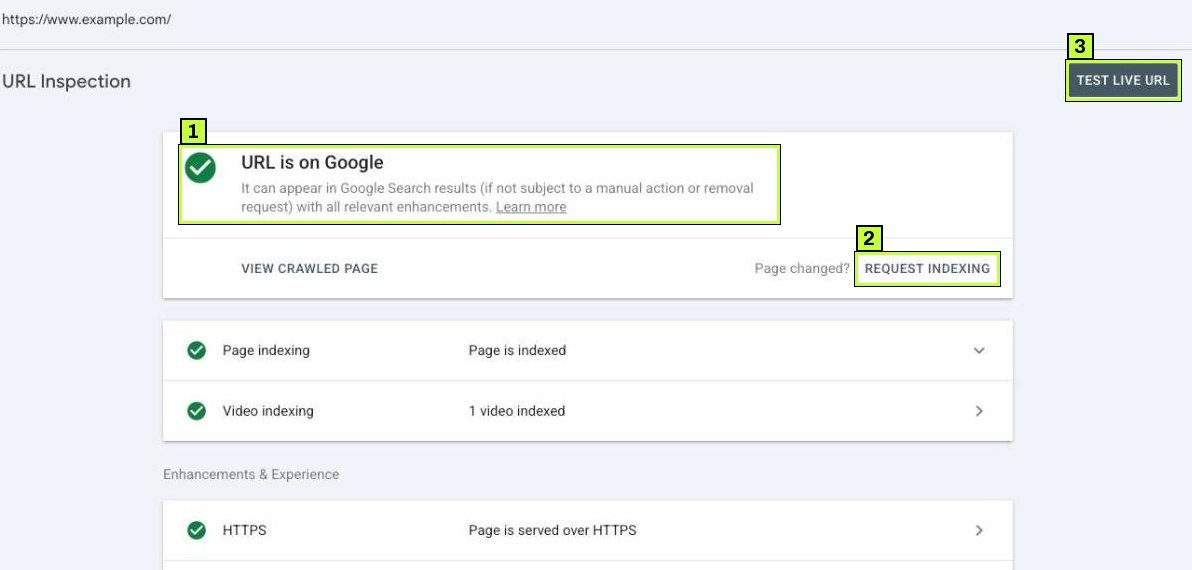
- Run Test live URL on the duplicate to confirm Google can fetch it and that Indexing allowed? says Yes. Google's help is clear that the live test can't predict which URL Google will pick as canonical, so the source check in step 1 is your real proof the tag is there.
- Request indexing on the preferred URL.
- Re-inspect after about two weeks. Google's troubleshooting guide says it may hold pages in a duplicate cluster for up to two weeks after you fix content issues. You want Google-selected canonical to match User-declared canonical.
- Check Page indexing. Duplicates you tagged should move to Alternate page with proper canonical tag, and preferred URLs to Indexed.
- Click Validate fix on the duplicate reason once your changes are live, and click it only once.
Large sites may take longer, because Google has to recrawl many URLs before the report catches up.
FAQ
Is "Alternate page with proper canonical tag" an error?
No. It means your canonical tags work, and those URLs are correctly pointing at their main versions, which are indexed.
Can I force Google to use my canonical?
No. Google's docs describe rel="canonical" as a strong signal, not a command. You make it stick by having every other signal agree, especially redirects, links and sitemaps.
Should every page have a self-referencing canonical?
Yes, it's good practice. It protects against parameter and tracking URLs being treated as separate pages.
Does duplicate content cause a penalty?
Not in the usual sense, since Google simply picks one version to show. The cost is that the wrong URL might be shown, or signals get split across copies.
Should I canonicalize my Spanish pages to the English ones?
No. Translated pages aren't duplicates. Give each language a self-referencing canonical and connect them with hreflang.
Stuck on this one? We fix these for clients every week. Book a free audit
Sources
- support.google.com: /webmasters/answer/7440203
- developers.google.com: /search/docs/crawling-indexing/consolidate-duplicate-urls
- developers.google.com: /search/docs/crawling-indexing/canonicalization-troubleshooting
- support.google.com: /webmasters/answer/9012289
- developers.google.com: /search/docs/crawling-indexing/canonicalization
