In the Page indexing report you see Discovered - currently not indexed next to a number of URLs that won't go away. When you inspect one, Last crawl reads N/A, which means Google knows the page exists, probably from your sitemap or a link, but it hasn't fetched it.
Google's help page explains the usual reason: Google wanted to crawl the URL, but expected that doing so would overload the site, so it rescheduled the crawl. On small sites, though, the cause is more often about priorities than server load. Google found the URL, compared it with everything else waiting in line, and decided it could wait.
So the fix splits into two questions: can your server handle more crawling? and are you giving Google a clear, short list of pages worth crawling, with links that show they matter? This guide covers how to check both and what to change.
Quick answer
- Inspect a few affected URLs to confirm Last crawl is empty and nothing blocks them.
- Open Settings > Crawl stats > Open report and check host status, Average response time and the By response breakdown for server trouble.
- Cut crawl waste: stop generating or linking to parameter, filter, tag and duplicate URLs.
- Link important stuck pages from your homepage, menus and related, already-indexed pages.
- Keep your sitemap clean (only indexable, canonical URLs with honest
lastmoddates), request indexing for a few key pages, and wait two to four weeks.
Before you start
You need Owner or Full user access in Search Console to request indexing. Google's help says the Crawl stats report is available only for root-level properties, meaning a Domain property or a URL-prefix property at the site root such as https://www.example.com/. If you only have a subfolder property, ask the owner to add you to the root.
Have access to your hosting dashboard or server logs, and to your CMS and SEO plugin. Your developer or host will need to be involved if the problem turns out to be server speed or errors. Before changing robots.txt or removing URLs, save a copy of the current robots.txt file and your sitemap.
Step 1: Check how big the problem is
Go to Indexing > Pages and scroll to Why pages aren't indexed. Find Discovered - currently not indexed and note its Source: Google systems. That means nothing on your site is broken in a strict sense; Google chose to wait.
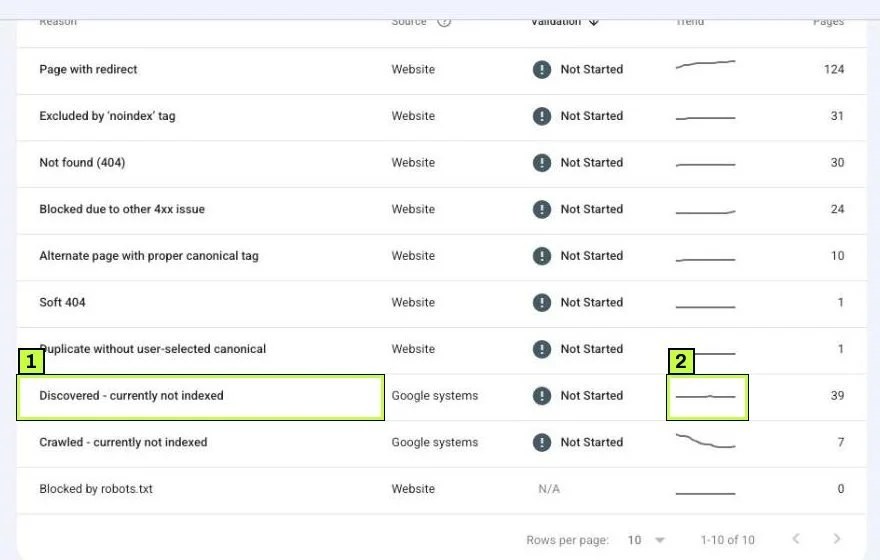
Click the row. The detail page shows First detected, a VALIDATE FIX button and an Affected pages chart over time.
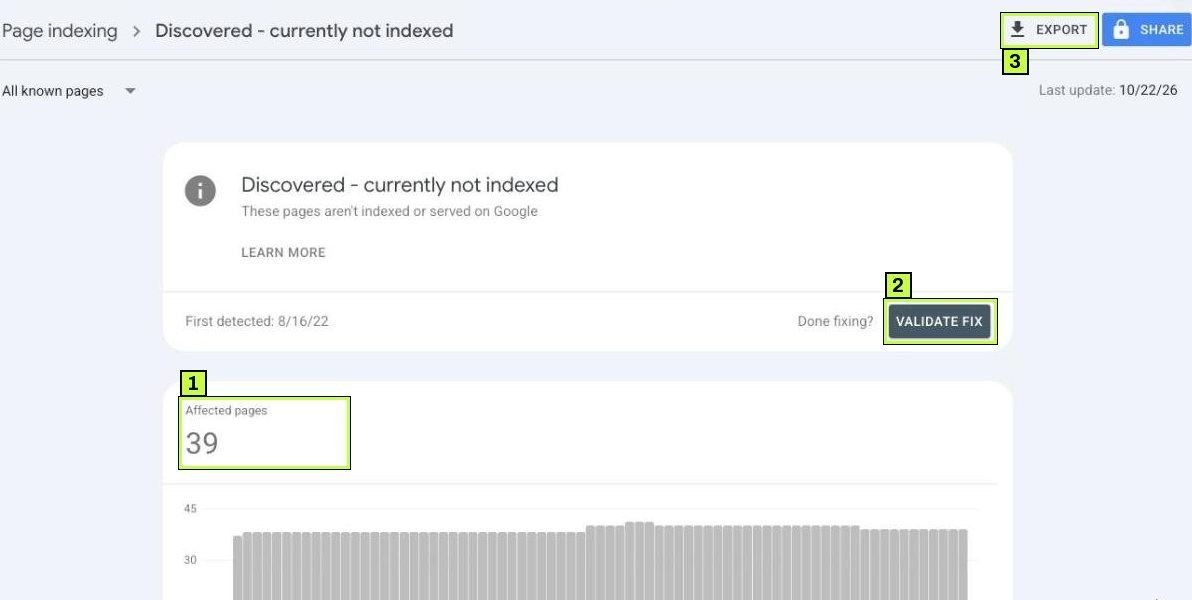
A flat line like the one in this example account usually means a steady backlog. A steadily rising line means Google keeps finding new URLs faster than it wants to crawl them.
Export the list and sort by URL path. Two very different situations tend to show up.
- A handful of new pages, like last week's blog posts. This is often just a queue, and it resolves on its own within days or weeks.
- Hundreds or thousands of similar URLs with parameters (
?color=,?sort=,?sessionid=), filter combinations, calendar pages or tag archives. That's crawl waste. It's the main thing to fix.
Step 2: Inspect a sample of URLs
Paste three to five affected URLs into the Inspect any URL in bar at the top of Search Console. Pick both important pages and junk-looking ones so you can compare how Google found each. The Page indexing row will name the reason, and when you expand it, the Discovery section shows where the URL came from.
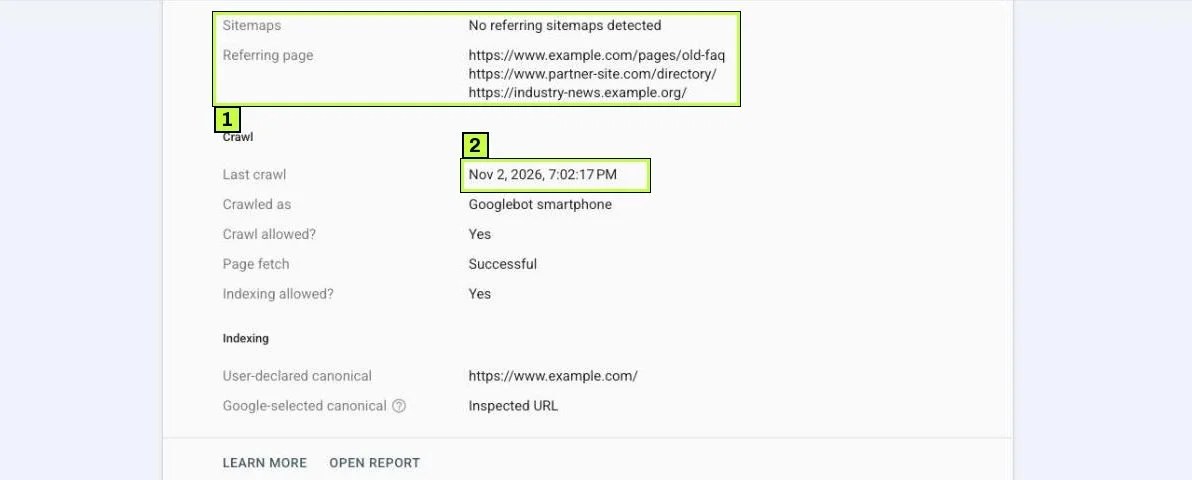
- Sitemaps tells you whether the URL came from a sitemap you submitted. No referring sitemaps detected on an important page means it's missing from your sitemap.
- Referring page shows pages that link to the URL. For junk URLs, this is often the clue to the source of crawl waste, such as a filter link on a category page.
Run Test live URL on the important ones. If the live test fails because robots.txt blocks the URL, or the server returns an error, fix that first. If the live test returns URL is available to Google and the URL simply hasn't been crawled yet, move on to the server checks.
Step 3: Check server health in Crawl stats
Click Settings in the left menu. Under Crawling, find Crawl stats and click Open report. The report covers roughly the last 90 days of Googlebot activity.
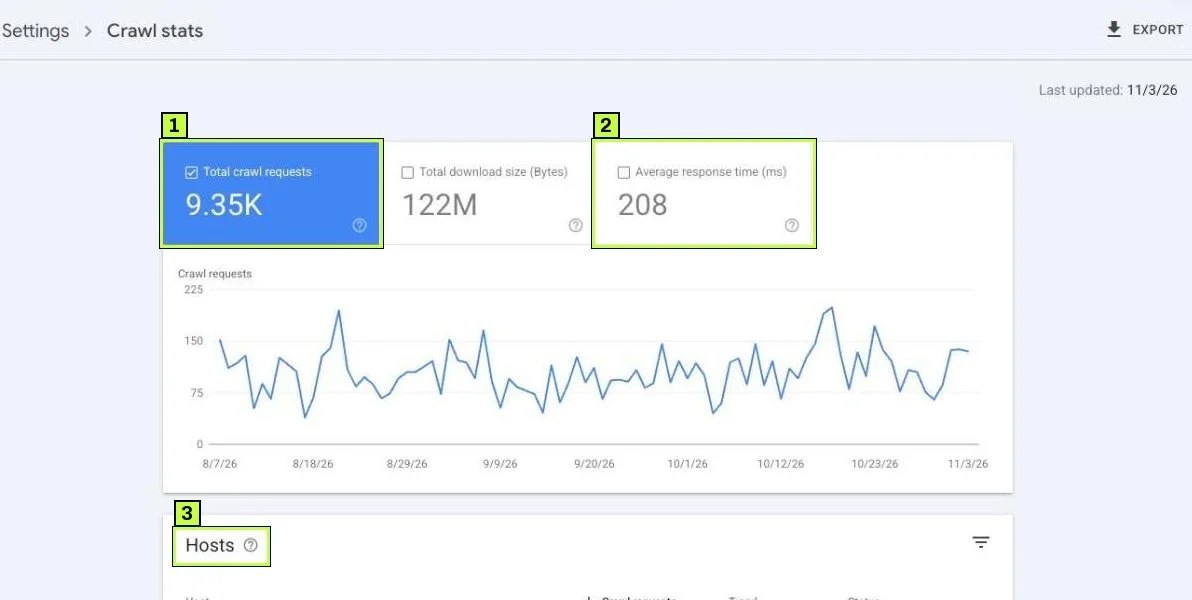
At the top are three tiles: Total crawl requests, Total download size (Bytes) and Average response time (ms). Below the chart, a Domain property lists each host (for example www.example.com and other subdomains) in a Hosts table with a status; click a host to see its details. Google's help says host status covers three availability checks: robots.txt fetching, DNS resolution and Server connectivity.
Further down, Crawl requests breakdown groups crawls By response, By file type, By purpose and By Googlebot type.
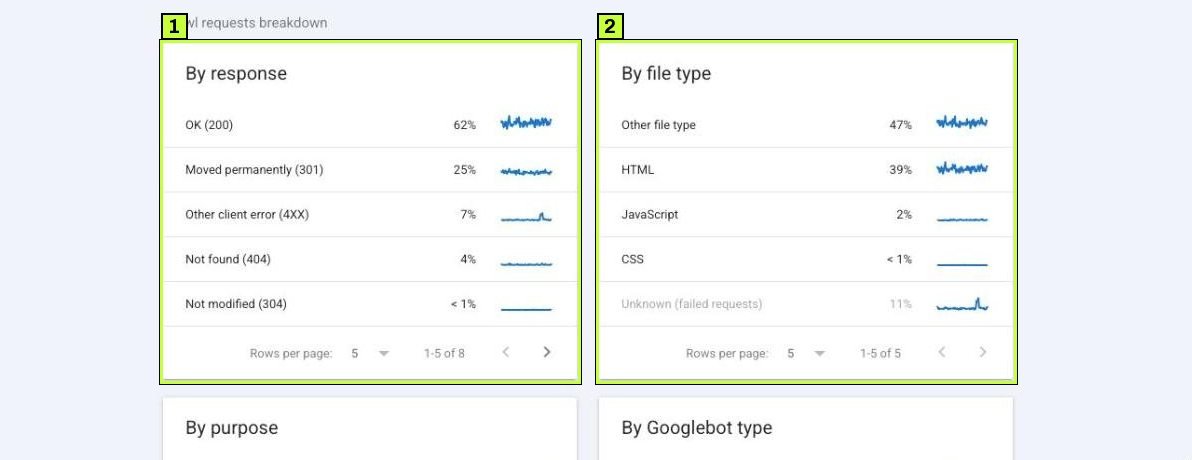
Here's how to read the report and what each warning means for you.
- Host status shows problems. Failures in robots.txt fetching, DNS resolution or server connectivity cause Google to slow down or pause crawling. Share the affected dates with your host so they can match them to their logs.
- Response time is high or climbing. Google's crawl budget guide says crawling goes up when the site responds quickly and goes down when it slows or errors. Slow database queries, an overloaded shared host or a missing page cache are the usual causes. Caching and a better hosting plan often help more than any SEO change.
- Many 5xx or 429 responses under By response. The same guide says server errors and rate-limiting signals such as HTTP 429 lower the crawl limit. Find out what's failing, whether it's a plugin, a firewall rule or rate limiting, and fix it.
- A large share of crawls go to redirects or 404s. Google is spending time on dead ends, so update internal links so they point straight at the final URL.
Check that your firewall, CDN or security plugin isn't rate-limiting or challenging Googlebot. Bot protection settings sometimes treat Google's crawler like an attacker, and verified Googlebot traffic should get normal responses.
If host status is clean and response times are steady, server capacity probably isn't your issue. Focus on the next two steps.
Step 4: Cut the URLs Google doesn't need
Every unnecessary URL Google knows about competes with your real pages for attention. Google's crawl budget guide puts managing your URL inventory first among the things you control. Small sites don't usually hit crawl limits, but a store with filter links can generate thousands of URLs from a few dozen products.
Work through the patterns you found in Step 1.
| Source of extra URLs | Fix |
|---|---|
| Faceted filters and sort options | Don't output crawlable links for every combination; use canonical tags to the main category; block pure sort parameters in robots.txt if needed |
| Session IDs or tracking parameters in internal links | Remove them from internal links; keep UTM tags off internal navigation |
| Endless calendar or date archives | Limit the range, or noindex and stop linking far-future pages |
| Tag archives with one post each | Merge tags, or noindex and drop them from the sitemap |
| Duplicate http/https or www/non-www versions | 301-redirect to one version everywhere |
| Internal search result pages | Don't link to them; disallow /search or /?s= in robots.txt |
| Soft 404s and thin empty pages | Return a real 404, or add content |
| Permanently removed pages | Return 404 or 410 |
A note on robots.txt. Google's crawl budget guide suggests robots.txt for URLs you never want crawled, because a noindex page still gets requested and then dropped. But blocking also hides any canonical or noindex on those pages, and the guide warns against using robots.txt to temporarily shift crawling to other pages. Only block URL patterns that have no value at all, and never block pages you want indexed. Our robots.txt and noindex guide explains the trade-off. This example stops crawling of sort and session parameters only:
User-agent: *
Disallow: /*?*sort=
Disallow: /*?*sessionid=

Sitemap: https://www.example.com/sitemap.xml
Test before you trust it. Check any new rule against a few important URLs with URL inspection before you rely on it. A misplaced wildcard can block a whole section.
Step 5: Make important pages easy to reach
Google decides what to crawl partly by how important a URL seems. Orphans suffer most. Pages that appear only in a sitemap, with no internal links, look unimportant.
For each important page stuck in this status:
- Link it from the homepage, main navigation or a category or hub page.
- Add two or three contextual links from related pages that are already indexed.
- Keep it within a few clicks of the homepage. Deep pagination (page 14 of the blog) is a weak path.
- Use normal
<a href>links. Links that only work through JavaScript click handlers may not be followed.
<!-- Crawlable -->
<a href="/guides/roof-maintenance/">Roof maintenance guide</a>

<!-- Risky: no href for Google to follow -->
<span onclick="go('/guides/roof-maintenance/')">Roof maintenance guide</span>
External links help too, since a mention from a relevant site tells Google a page is worth fetching.
Step 6: Clean up your sitemap and request indexing
Open Indexing > Sitemaps and check your submitted sitemaps. Each should list only URLs that return 200, are indexable and are their own canonical. Remove redirects, 404s, noindex pages and parameter URLs. A sitemap full of junk dilutes the signal.
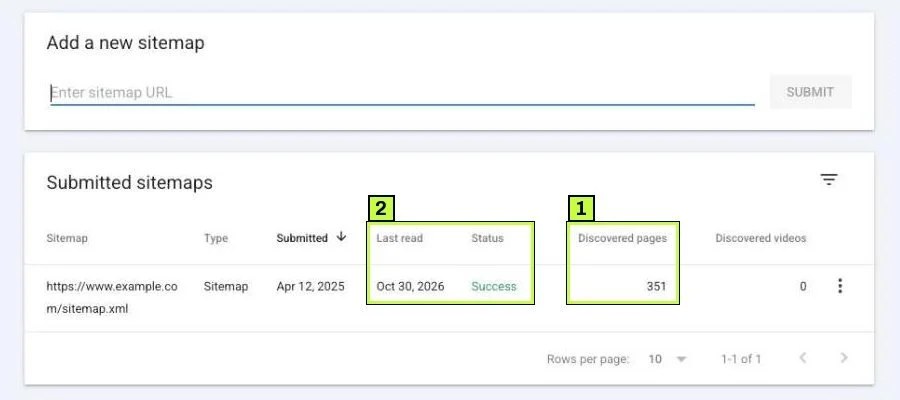
If a sitemap lists far more URLs than you have real pages, it's probably full of variants or parameters. To see how many sitemap URLs are stuck, open Indexing > Pages and switch the All known pages dropdown at the top to your submitted pages or a specific sitemap.
Use lastmod honestly and update it only when the page content really changes. Google's crawl budget guide recommends <lastmod> for updated content, and dates that change on every build make the field useless.
<url>
  <loc>https://www.example.com/guides/roof-maintenance/</loc>
  <lastmod>2026-10-30</lastmod>
</url>
Then inspect your five to ten most important stuck URLs and click Request indexing on each. That's enough. Google limits these requests per property per day, and its recrawl docs say requesting the same URL repeatedly won't get it crawled faster.
Still not working? Common causes
| Symptom | Likely cause | Fix |
|---|---|---|
| Count jumps by thousands overnight | A new filter, calendar or parameter is spawning URLs | Find the pattern in the export; remove the links or canonicalize |
| New blog posts sit here for weeks | Few internal links; site posts more than Google wants to crawl | Link new posts from the homepage and related posts; publish fewer, stronger pages |
| Crawl stats show many 5xx errors | Server overload, plugin errors, hosting limits | Fix errors, add caching, upgrade hosting |
| Crawl stats show 429 responses | Firewall, CDN or WAF rate-limits Googlebot | Allow verified Googlebot in your bot rules |
| Response time over a second or two | Slow server, no page caching, heavy database queries | Add page caching and a CDN; optimize the slowest templates |
| Inspection shows No referring sitemaps detected and no referring page | Orphan page missing from the sitemap | Add it to the sitemap and link it from navigation or related pages |
| Product variants all stuck | Each variant has its own URL with near-identical content | Canonicalize variants to the main product URL |
| Status turns into Crawled - currently not indexed | Google crawled, then decided not to index | See Fix "Crawled – currently not indexed" |
| Pages stuck after a migration | Old and new URLs both live, redirect chains | Single-hop 301 redirects; update internal links and sitemaps |
Large sites and crawl budget
Google's crawl budget guide is aimed at large sites (roughly a million or more unique pages that change weekly, or 10,000 or more that change daily) and at sites where a large share of URLs sit in this exact status. Google calls those numbers a rough estimate. If that's you, read it in full. The same steps apply at bigger scale: server capacity first, then URL inventory, then internal linking. Return 404 or 410 for permanently removed pages rather than leaving them blocked, because the guide notes that blocked URLs stay in the crawl queue much longer.
It's normal for a new page to wait
A new page in this status for a few days isn't a problem. Google's recrawl docs say crawling can take anywhere from a few days to a few weeks, so only start investigating if pages stay here for several weeks or the count keeps growing.
How to confirm it's fixed
- Re-inspect key URLs after one to two weeks. You want a Last crawl date to appear. After that, the status should change to indexed, or to Crawled - currently not indexed if Google crawled but passed on the page.
- Check Crawl stats again. Response times should be steadier and host status clean. Total crawl requests often rise once the server responds faster.
- Watch the Discovered trend in Indexing > Pages. It should flatten, then fall as junk URLs drop out and good ones get crawled.
- Click Validate fix on the reason once your changes are live. Google's help says validation typically takes up to about two weeks but can take longer. Expect it to end as Failed if leftover junk URLs are still listed.
- Check Performance for impressions on the newly indexed pages.
Give it two to four weeks for small sites. Crawling changes take time to show up in the report, and parameter URLs can linger in the list long after you've stopped linking to them.
FAQ
Is "Discovered – currently not indexed" bad?
Not on its own. A few recent URLs in this status is normal. It becomes a problem when important pages stay here for weeks, or the count keeps climbing.
Does submitting my sitemap again help?
Rarely. Google rereads sitemaps on its own; its help suggests resubmitting only after big changes or after fixing a fetch error. Fixing what's in the sitemap does more.
Should I block these URLs in robots.txt?
Only if they have no value and you never want them crawled, like endless sort variants. Never block pages you want indexed, and remember blocking hides your canonical and noindex tags.
Will faster hosting fix it?
Sometimes. If Crawl stats shows slow responses or server errors, it often helps a lot. If the server is already fast, the problem is more likely URL waste or weak links.
How many pages can I request indexing for per day?
Google doesn't publish an exact number, only that there's a daily limit per property. Use it for your most important pages and let the sitemap handle the rest.
Stuck on this one? We fix these for clients every week. Book a free audit
