You added schema to your site, but nothing changed in Google. Or you ran a test and got "No items detected", a red "Missing field" error, or a warning you don't understand. Maybe a plugin added three different Organization blocks and you're not sure which one Google reads.
Schema markup is structured data: a short block of code that tells search engines what a page is about in a format machines read easily. Google recommends the JSON-LD format, placed inside a <script> tag. When the markup is valid and matches the visible page, the page can become eligible for rich results such as product prices and ratings, breadcrumbs, event dates or video thumbnails.
Eligible is the key word. Valid markup doesn't guarantee a rich result. This guide shows you how to choose a type Google still supports, write the JSON-LD, add it on common platforms, and test it with three tools so you know exactly where a problem sits.
Quick answer
- Check Google's search gallery to confirm the rich result you want still exists, and read its required properties.
- Write a JSON-LD block that describes only what's visible on the page.
- Add it to the page's HTML (theme, plugin, code injection, or a template), ideally once per page type.
- Test the code or live URL in the Rich Results Test for Google features and in the Schema Markup Validator for general schema.org syntax.
- After Google recrawls, check URL inspection and the reports under Enhancements (or Shopping) in Search Console.
- Fix errors in the template, then click VALIDATE FIX on the issue.
Before you start
You need:
- Edit access to the site's templates, an SEO plugin, or the platform's code injection area.
- Access to the Search Console property, so you can see the rich result reports.
- The facts you want to mark up: business name, logo URL, address, phone, product prices, event dates and so on. They must match what's on the page.
Back up before you start. On WordPress, export plugin settings or take a site backup. On Squarespace and Shopify, copy any existing code injection or theme file into a text file first.
Check what's already there. Many themes and SEO plugins add schema automatically. Adding your own on top can create duplicates or conflicts.
Step 1: Choose a schema type Google still supports
Open Google's Search gallery of structured data features. It lists the types that can produce a rich result today. As of November 2026 it includes Article, Breadcrumb, Carousel, Course list, Dataset, Discussion forum, Education Q&A, Employer aggregate rating, Event, Image metadata, Job posting, Local business, Math solver, Movie, Organization, Product, Profile page, Q&A, Recipe, Review snippet, Software app, Speakable, Subscription and paywalled content, Vacation rental and Video. Check the live page, because the list keeps shrinking.
Several features have been retired:
- FAQ: Google announced that FAQ rich results no longer appear in Google Search as of May 7, 2026, and removed the FAQ documentation in June 2026. Its notice also said it would drop the FAQ search appearance, the Search Console report and Rich Results Test support in June 2026.
- HowTo: removed from search results back in 2023.
- Seven more in 2025: Google phased out Book actions, Course info, Claim review, Estimated salary, Learning video, Special announcement and Vehicle listing to simplify the results page.
You can keep FAQPage or other retired markup if you already have it. It's still valid schema.org, and Google's deprecation notice said you can remove it but don't have to. Just don't add it expecting a rich result.
Pick by page type:
| Page type | Useful schema | What it can enable |
|---|---|---|
| Homepage | Organization (or LocalBusiness), WebSite | Logo and business details in Google |
| Blog post or news | Article (BlogPosting, NewsArticle) | Better title, date and image understanding |
| Product page | Product with Offer, AggregateRating | Price, availability, ratings |
| Any deep page | BreadcrumbList | Breadcrumb trail in results |
| Event page | Event | Dates and location in results |
| Video page | VideoObject | Video thumbnail and key moments |
For each type, open its documentation page in Search Central. Note the required and recommended properties. Missing required properties make the item invalid. Missing recommended ones only produce warnings.
Step 2: Write the JSON-LD
JSON-LD sits in a script block. It doesn't change how the page looks. Here is an Organization example for a homepage:
<script type="application/ld+json">
{
  "@context": "https://schema.org",
  "@type": "Organization",
  "name": "Example Studio",
  "url": "https://example.com/",
  "logo": "https://example.com/img/logo-512.png",
  "sameAs": [
    "https://www.linkedin.com/company/example-studio",
    "https://www.instagram.com/examplestudio"
  ],
  "contactPoint": {
    "@type": "ContactPoint",
    "contactType": "customer service",
    "email": "hello@example.com"
  }
}
</script>
And a breadcrumb for an inner page:
<script type="application/ld+json">
{
  "@context": "https://schema.org",
  "@type": "BreadcrumbList",
  "itemListElement": [
    {"@type": "ListItem", "position": 1, "name": "Guides", "item": "https://example.com/guides"},
    {"@type": "ListItem", "position": 2, "name": "Schema markup", "item": "https://example.com/guides/schema"}
  ]
}
</script>
Rules that prevent most errors:
- Use straight double quotes, not curly quotes from a word processor.
- No trailing comma after the last item in an object or list.
- Use absolute URLs, starting with
https://. - Use ISO 8601 dates, like
2026-11-05or2026-11-05T09:00:00-06:00. - Only mark up content people can see on that page. Google's guidelines say not to mark up hidden or misleading information.
- Don't add review stars about your own business to your own site. Google doesn't show self-serving review snippets for Organization or LocalBusiness.
Test the snippet before you publish it. Open the Rich Results Test (search.google.com/test/rich-results), switch from the URL tab to the CODE tab, paste the whole block including the <script> tags, and click TEST CODE. The test uses the smartphone crawler by default. You get the same results screen as a URL test, shown in Step 4. If you only want a syntax check for types Google doesn't use for rich results, paste the same code into the Schema Markup Validator.
Step 3: Add the markup to your site
Put JSON-LD in the <head> or the <body>. Both work. What matters is that it's in the HTML Google renders, and that each page gets markup that matches it.
WordPress
Most SEO plugins (Yoast, Rank Math, All in One SEO and others) output Organization, WebSite, Article and BreadcrumbList automatically. Configure them in the plugin's schema or "Knowledge Graph" settings first. Fill in the business name, logo and social profiles there.
For extra types the plugin doesn't cover, use the plugin's custom schema feature if it has one, or a code snippets plugin that adds code to specific pages. Avoid pasting site-wide schema into a page builder module on every page.
Shopify
Most current themes already output Product markup on product pages. Before adding anything, test a product URL in the Rich Results Test. If Product is detected, edit the existing theme snippet instead of adding a second block. Theme files live in Online Store > Themes > Edit code (labels can vary by admin version). Copy the theme first with Duplicate.
Squarespace
Squarespace adds some basic structured data on its own. For extra markup:
- Site-wide (for example, Organization on all pages): in Squarespace 7.1, open the Pages panel, scroll to Custom Code and click Code Injection. Paste the script in the HEADER box ("Enter code that will be injected into the 'head' tag on every page of your site") and click Save at the top left. The old path through Settings > Advanced > Code Injection now redirects to the same screen. Code injection isn't available on every plan.
- One page only: open the page's Settings > Advanced and use Page Header Code Injection.
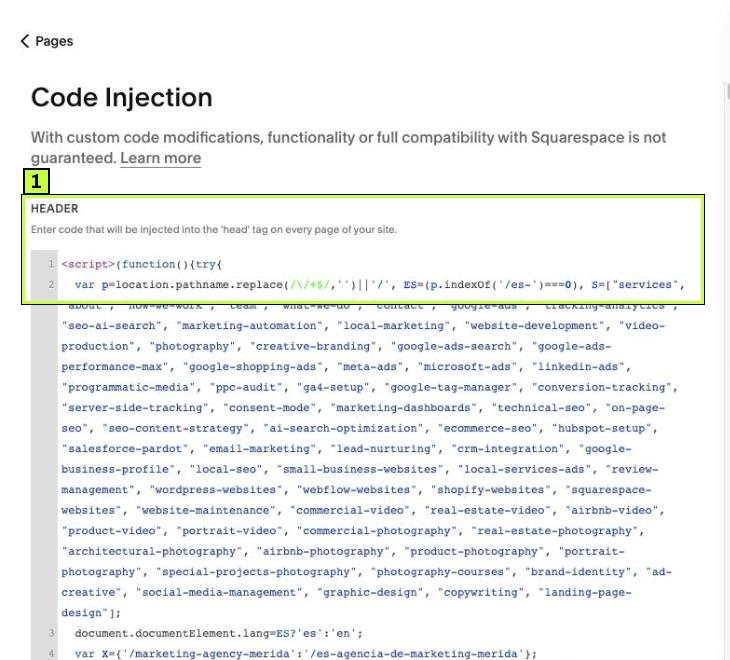
Click Save, then test a live URL. Keep each JSON-LD block in its own <script> tag so one mistake doesn't break other code in the box.
Google Tag Manager
You can inject JSON-LD with a Custom HTML tag. Google can read structured data added with JavaScript once it renders the page. It's a fallback, though. Rendering can be delayed or fail, and the markup won't exist for tools that don't run JavaScript. Use it only when you can't edit the templates.
Custom sites
Generate the JSON-LD from the same data that fills the page. A product template should print the price from the product record, not a hard-coded number. That keeps markup and visible content in sync.
Step 4: Test the live page with two validators
After you publish, test the live URL. Use both tools, because they answer different questions.
Rich Results Test answers: "Can this page get a Google rich result?" It only reports the types Google supports for rich results, and it checks Google's required properties.
Open it, keep the URL tab, paste the live URL and click TEST URL.
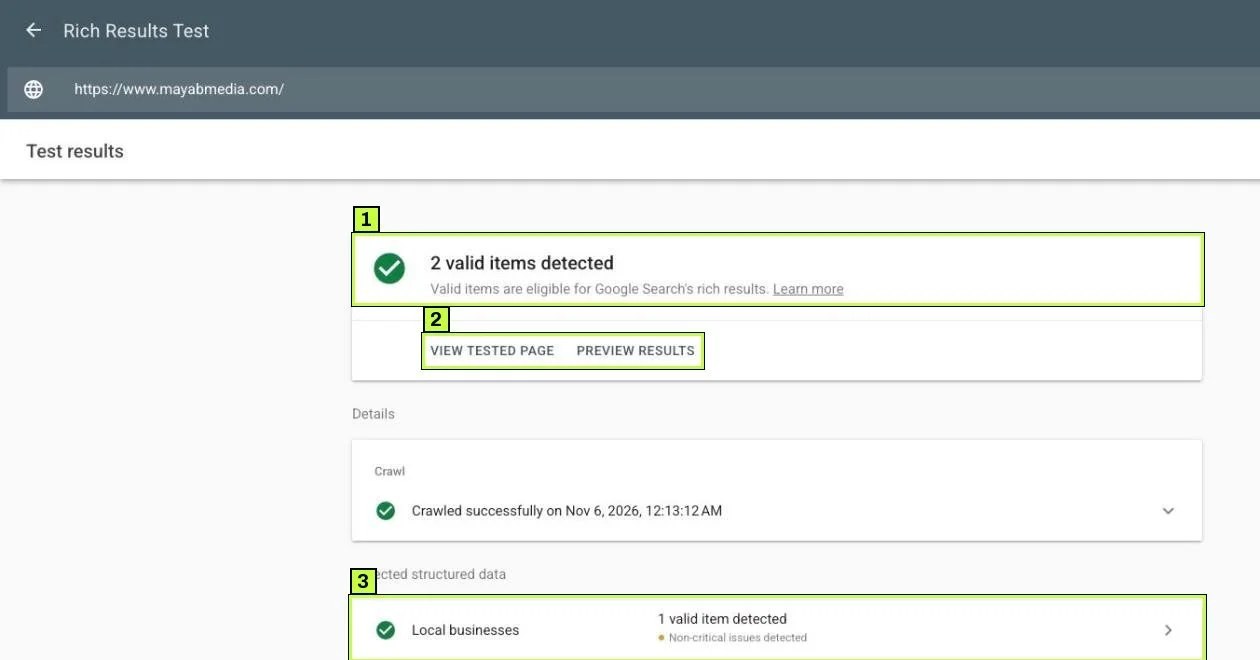
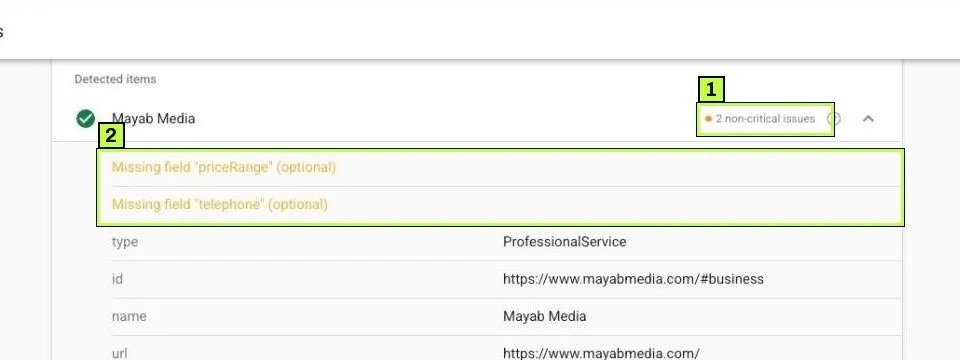
Click a type to open its items. Each item shows its issues first, then a table of the properties Google read:
Schema Markup Validator (validator.schema.org) answers: "Is this valid schema.org?" It reads every type, including ones Google doesn't use for rich results, and flags syntax problems and unknown properties. It's the right tool for checking markup like Organization details, sameAs links or nested types.
Read the results this way:
- Critical issues (errors) in the Rich Results Test make the item invalid for that feature. The summary then says items are invalid instead of valid.
- Non-critical issues (shown in orange, labeled "(optional)") mean a recommended property is missing. The item can still be eligible.
- No items detected means Google didn't find markup it supports. Check that the script is in the rendered HTML (click VIEW TESTED PAGE > HTML), and that the type is one Google still supports.
- Duplicate blocks show as two items of the same type. Remove one source, usually the manual one if a plugin already covers it.
Step 5: Monitor in Search Console
After Google recrawls the pages, two places in Search Console show what it found.
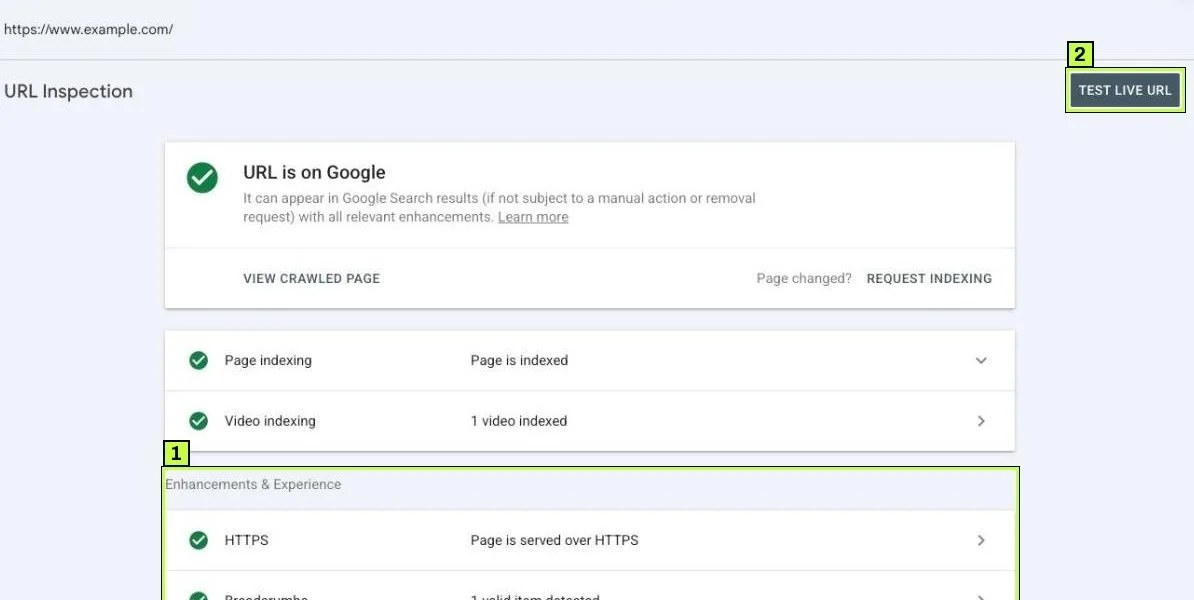
URL inspection. Paste a URL in the Inspect any URL bar at the top. Under Enhancements & Experience, the result lists HTTPS plus each structured data type Google detected on the indexed version, such as Breadcrumbs with "1 valid item detected". Click TEST LIVE URL to check a version you just changed.
Rich result reports. In the left menu, look under Enhancements (for example Breadcrumbs, Events, Review snippets or Videos). Product markup reports sit under Shopping (such as Product snippets and Merchant listings). A report only appears once Google finds markup of that type on your site.
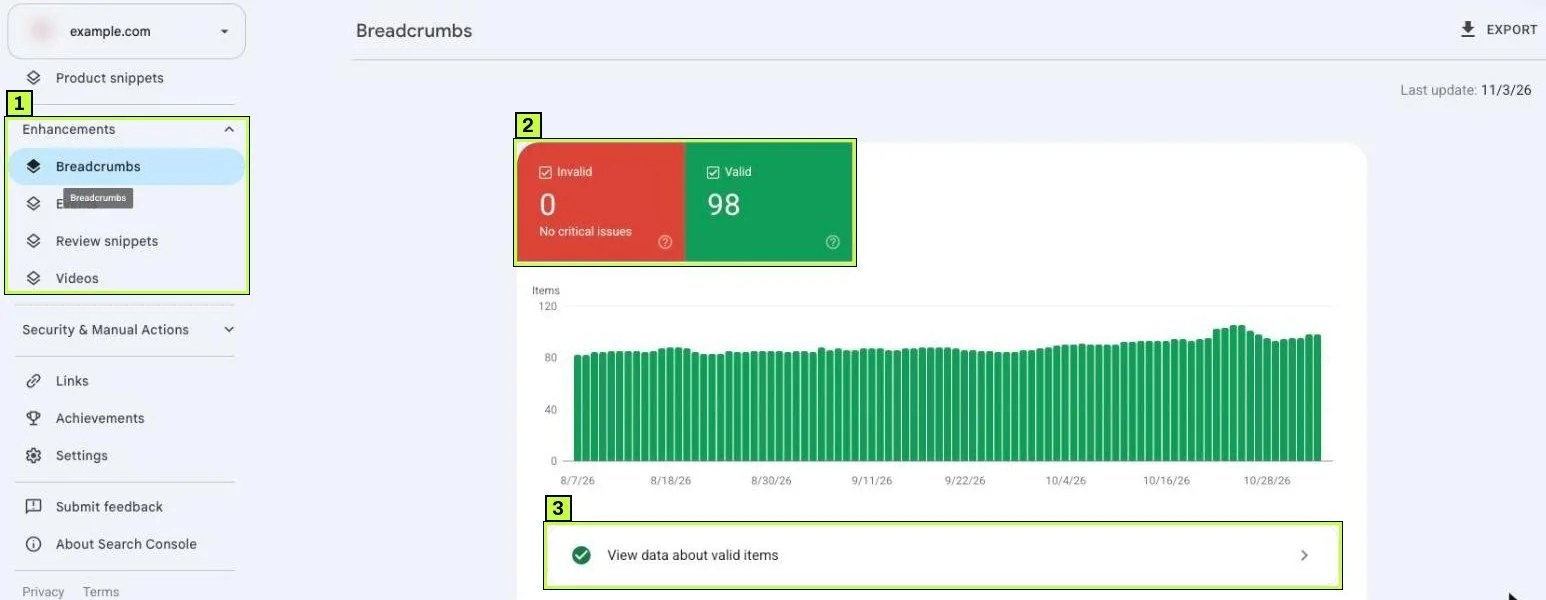
Below the chart, problems are grouped by issue. Critical ones make items invalid; non-critical ones only limit how the result can look. Click an issue to see example items, then fix the template that produces them.
The reports count items, not pages, and they show a sample. One page can hold several items. After you fix the template, open the issue and click VALIDATE FIX. Google rechecks the affected items over the following days or weeks.
Still not working? Common causes
| Symptom | Likely cause | Fix |
|---|---|---|
| "No items detected" in the Rich Results Test | Type isn't a Google rich result (for example, FAQPage now), or the script isn't in the rendered HTML | Check the search gallery; check View tested page > HTML |
| Unparsable structured data | Syntax error: curly quotes, trailing comma, missing bracket | Paste the code into the Schema Markup Validator to find the line |
| Two Organization or Product items | Plugin and theme or manual code both output markup | Keep one source and turn the other off |
| Valid markup but no rich result | Eligibility isn't a guarantee; Google picks when to show it | Make sure the content is high quality and the markup matches it; give it time |
| Rich result disappeared | Feature retired (FAQ, HowTo, the 2025 group) or a template change broke markup | Check the search gallery and re-test a live URL |
| Price or rating mismatch warning in Merchant Center or Search Console | Markup hard-coded, page shows different values | Generate markup from the same data as the page |
| Markup added with GTM not detected | Tag didn't fire for Googlebot or rendering timed out | Move the JSON-LD into the page template |
| "Invalid object type for field" error | Wrong nesting, such as a plain string where an object is required | Follow the example structure in Google's doc for that feature |
| Manual action for structured data | Markup describes hidden content or fake reviews | Remove the misleading markup, then request a review in Security & Manual Actions |
Markup that matches the page
Most persistent problems come from markup that drifts away from the page. A sale ends, the visible price changes, and the hard-coded JSON-LD still shows the old price. Or a review widget is removed but the rating markup stays. Tie the markup to the page data and these go away.
Schema and AI search
Structured data helps search engines understand entities like your business, products and authors. It doesn't replace clear content. Use it to label facts that are already on the page.
How to confirm it's fixed
Right after you publish:
- Test two or three live URLs per page type in the Rich Results Test. Each should show the expected types as valid, with no critical issues.
- Run the same URLs through the Schema Markup Validator to catch syntax problems the Rich Results Test ignores.
- Check that there's only one block per type unless you meant to have more.
Over the next one to four weeks:
- Use URL inspection on a key page. The indexed version should list the structured data you added.
- Watch the matching report under Enhancements or Shopping. Valid items should rise and invalid items should drop.
- If you clicked Validate fix, wait for the status to end as Passed.
If your pages aren't indexed yet, Google can't read their markup either. Start with how to get Google to index your site. If pages are indexed but slow, see how to fix Core Web Vitals.
FAQ
Is JSON-LD better than Microdata?
Google supports JSON-LD, Microdata and RDFa, and recommends JSON-LD because it's easier to add and maintain. It lives in one block instead of being spread through your HTML.
Should I remove my FAQPage markup?
You don't have to. FAQ rich results stopped showing on May 7, 2026, but the markup is still valid schema.org and Google says removing it isn't required. Just don't expect it to produce a rich result, and don't spend time adding new FAQ markup for that purpose.
How long until rich results appear?
It depends on when Google recrawls the page and whether it chooses to show a rich result. Expect days to a few weeks for important pages. Some valid pages never get one.
Does schema markup improve rankings?
Google treats it as a way to understand pages and to enable rich results, not as a direct ranking boost. The benefit usually comes from more useful search listings.
Can I put schema in Google Tag Manager?
You can, and Google can read it after rendering. It's less reliable than markup in the HTML. If you use GTM for tracking, see our guide on installing Google Tag Manager correctly.
Stuck on this one? We fix these for clients every week. Book a free audit
Sources
- developers.google.com: /search/docs/appearance/structured-data/intro-structured-data
- developers.google.com: /search/docs/appearance/structured-data/search-gallery
- support.google.com: /webmasters/answer/7552505
- developers.google.com: /search/updates
- developers.google.com: /search/blog/2025/06/simplifying-search-results
- validator.schema.org: /
- search.google.com: /test/rich-results
