You launched the site, waited a few days and searched for your business name, and nothing came up. Or maybe only the homepage shows up and the service pages are nowhere. This is the most common question we hear from new site owners, and the cause is usually simple once you know where to look.
Google doesn't index a site because it exists. It has to find the URLs, crawl them, decide they're worth keeping and then store them. Any break in that chain keeps pages out of search, and a new domain with no links pointing at it can sit unnoticed for weeks.
The fix is mostly setup work: you prove you own the site in Google Search Console, hand Google a sitemap, check that nothing blocks crawling, and request indexing for your most important pages, then you wait and watch the reports. This guide walks through each step in order, using screenshots of the current Search Console screens.
Quick answer
- In Search Console, open the property menu, choose Add property > Add a website, pick Domain and verify it with a DNS TXT record.
- Find your sitemap URL (often
/sitemap.xml) and submit it under Indexing > Sitemaps. - Inspect your homepage with URL inspection, run Test live URL, then click Request indexing.
- Make sure no
noindextag, robots.txt rule or password page blocks Google. - Link your key pages from the homepage and menu, then check Indexing > Pages after one to two weeks.
Before you start
You need a few things in place before the steps work.
- A Google account that you'll keep. Use a business account you'll keep, not a personal one you might lose.
- Access to your domain's DNS, which lives where you bought the domain or where you point its nameservers (your registrar, Cloudflare, your host), because you'll add one TXT record there.
- Admin access to your website platform (WordPress, Shopify, Squarespace, Wix or a custom build) so you can check privacy and SEO settings.
- About 45 minutes, plus waiting time for DNS and for Google.
Once verified, you're an Owner of the property. That matters: Google's help pages say only owners can submit sitemaps in the Sitemaps report, and only owners or full users can request indexing.
There is little to back up, since you're only adding a DNS record and changing settings, not editing content. Still, take a screenshot of your DNS records before you touch them, so you can undo a mistake.
Step 1: Add your site to Search Console
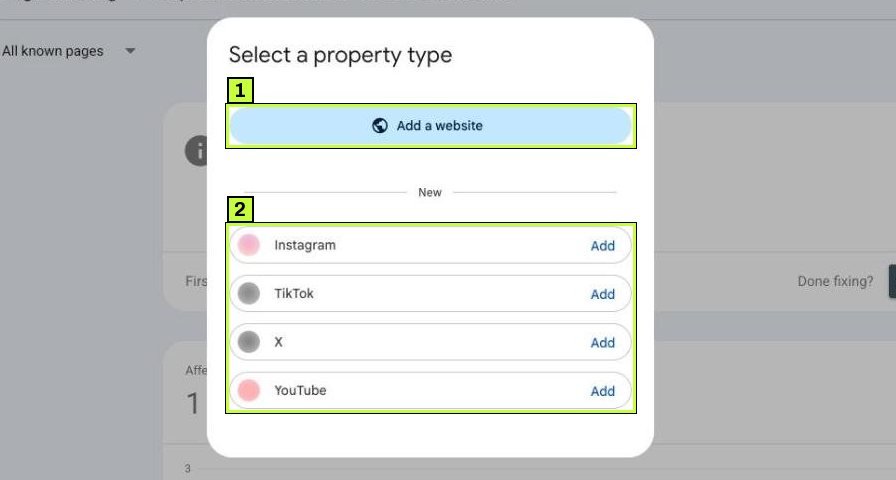
Go to Search Console and open the property selector at the top left. Choose Add property. The first window, Select a property type, now lists Add a website at the top and, under a New divider, social channels (Instagram, TikTok, X, YouTube). For a website, click Add a website.
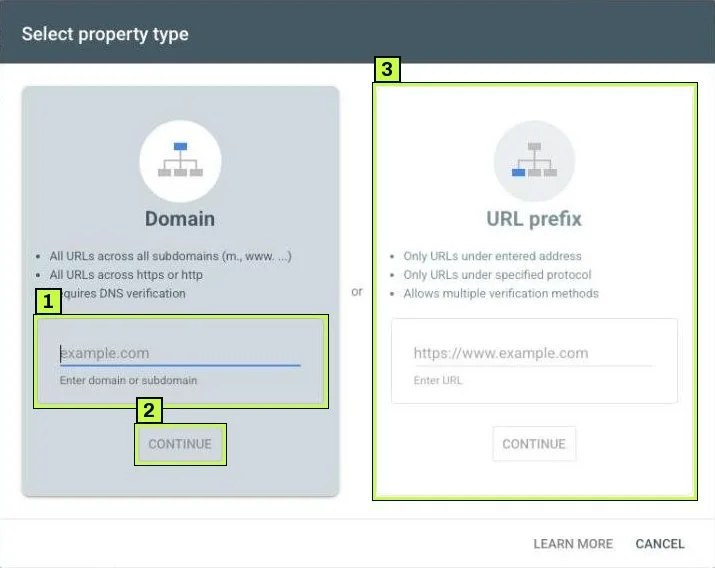
The next window asks you to choose between two property types:
- Domain covers all URLs across all subdomains (
m.,www.and so on) and acrosshttpsandhttp. It requires DNS verification. - URL prefix covers only URLs under the exact address and protocol you enter, such as
https://www.example.com/, and it allows several verification methods.
Pick Domain if you can reach your DNS. It saves you from tracking several separate properties later, and reports like Crawl stats only work on root-level properties.
Step 2: Verify ownership with a DNS TXT record
After you click Continue, Search Console shows a TXT record that starts with google-site-verification=. Copy the whole value. For some DNS providers Google offers to add the record for you after you sign in to the provider; otherwise, add it by hand. The exact wording of this window changes from time to time, so follow the instructions it shows.
In your DNS provider, create a new record:
Type:  TXT
Name:  @   (or leave blank, depending on the provider)
Value: google-site-verification=AbC123exampleTokenXyZ
TTL:   Default / Auto
Save it, go back to Search Console and click Verify. If it fails, don't panic, because DNS changes can take anywhere from a few minutes to a couple of days to show up. Wait a few hours, confirm the record with a public DNS lookup tool, and click Verify again.
Keep the TXT record in place for good. Google rechecks verification periodically, and if the record disappears you can lose access to the property.
You can confirm the method later under Settings > Ownership verification. A verified Domain property shows You are a verified owner and lists Domain name provider as the method used.
No DNS access? Use a URL prefix property instead, which you can verify with an HTML file upload, an HTML meta tag in your homepage <head>, your Google Analytics tag or your Google Tag Manager container. Make sure you type the exact version your site resolves to (with or without www, https or http).
Step 3: Find and submit your sitemap
A sitemap is a file that lists the URLs you want indexed, and most platforms create one for you.
| Platform | Typical sitemap URL |
|---|---|
| WordPress (core) | /wp-sitemap.xml |
| WordPress with Yoast or Rank Math | /sitemap_index.xml |
| Shopify | /sitemap.xml |
| Squarespace | /sitemap.xml |
| Wix | /sitemap.xml |
Open the URL in your browser first, and you should see a list of links or an index of smaller sitemaps. If you get a 404, check your SEO plugin or platform settings to see whether the sitemap is switched off or lives at a different address.
You can also find it in example.com/robots.txt, which often has a line like Sitemap: https://www.example.com/sitemap.xml.
In Search Console, go to Indexing > Sitemaps. In the Add a new sitemap box, enter the sitemap's address and click Submit. On a Domain property the box says Enter sitemap URL, so paste the full URL (https://www.example.com/sitemap.xml). On a URL-prefix property the prefix is already filled in and you only type the rest of the path.
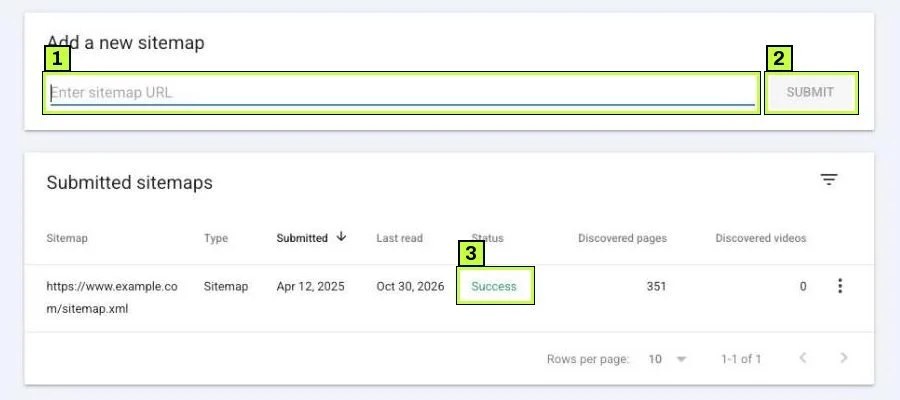
The Submitted sitemaps table has the columns Sitemap, Type, Submitted, Last read, Status, Discovered pages and Discovered videos. Status is one of three values:
- Success: Google fetched and processed the file.
- Has errors: the file was read but some entries had problems. Click the row for details.
- Couldn't fetch: Google couldn't retrieve the file at all.
You normally submit once, since Google rereads the sitemap on its own. Google's help suggests resubmitting only after big changes or after you fix a fetch problem. Submitting it again every day does nothing.
Step 4: Inspect your homepage and request indexing
Paste your homepage URL in the bar at the top of Search Console, the one that reads Inspect any URL in followed by your property. On a new site, you'll likely see URL is not on Google, and the Page indexing row may say Page is not indexed: URL is unknown to Google.
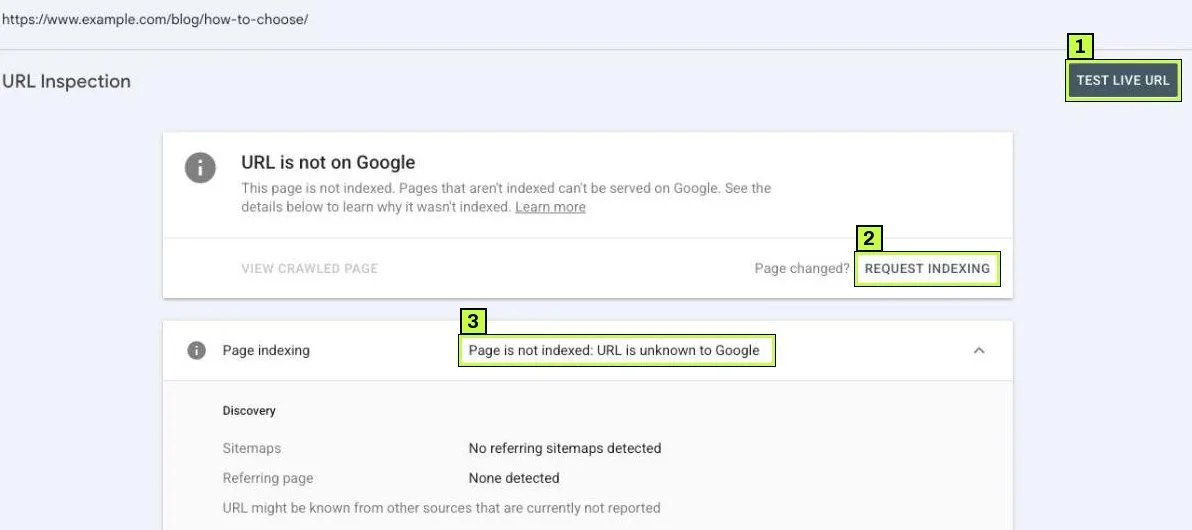
Click Test live URL in the top right. Google fetches the page right now and tells you whether it could be indexed. The verdict you want is URL is available to Google. Expand Page indexing in the live result and check these fields:
- Crawl allowed? should say Yes.
- Page fetch should say Successful.
- Indexing allowed? should say Yes.
These are the same fields you'll see under Crawl in the indexed result once Google has visited the page.
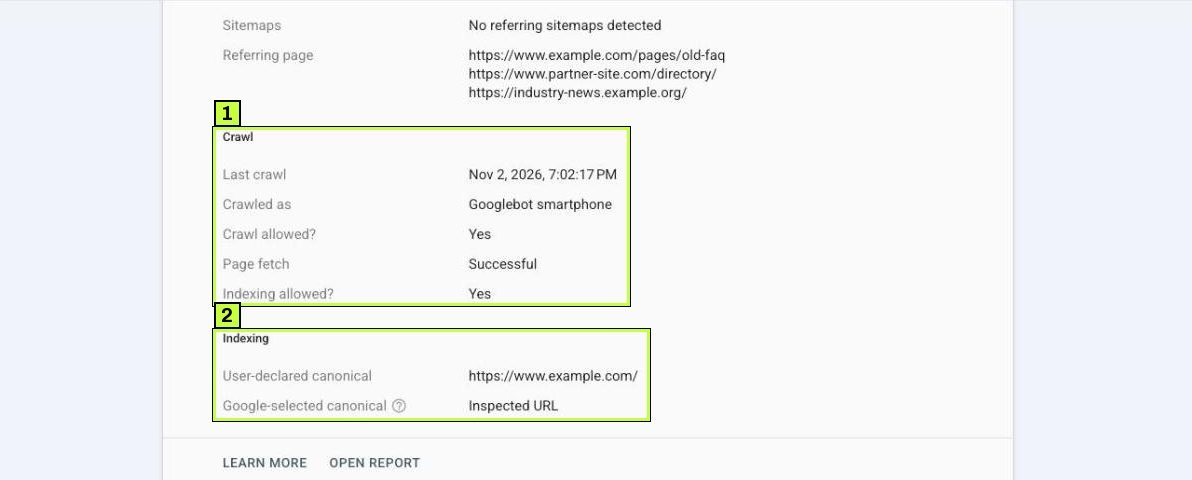
If all three pass, click Request indexing. A short check runs, then Search Console confirms the request. Google's help says you can't request indexing if the live test finds the page non-indexable, and that a request doesn't guarantee indexing.
Repeat for your five to ten most important pages: services, contact, key products. Google sets a daily limit per property on these requests (and a separate one on live tests) without publishing the number, so don't try to submit every URL by hand. For anything beyond a handful, the sitemap does the job.
Requesting the same URL over and over won't speed things up. Google's recrawl documentation says so directly.
Step 5: Remove anything that blocks Google
Most "my site isn't on Google" cases come down to a setting someone forgot to switch off, so check each of these.
Platform privacy settings
- WordPress: Settings > Reading. Make sure Discourage search engines from indexing this site is unchecked, since developers often tick it during the build.
- Shopify: a store with a password page can't be crawled. Remove the password in the online store preferences when you launch.
- Squarespace: check that the site isn't private or password-protected, and that key pages don't have the option to hide the page from search results turned on in the page's SEO settings.
- Wix: check the SEO settings for the site and each page to confirm indexing is allowed.
Labels move around between platform updates, so search your platform's help if you can't find the option.
The noindex tag
View your page source (right-click > View page source) and search for noindex. If you find this, Google won't index the page:
<meta name="robots" content="noindex">
Remove it in your SEO plugin or page settings, then run the live test again to confirm Indexing allowed? now says Yes. Our guide on fixing robots.txt and noindex blocks covers this in detail.
robots.txt
Open example.com/robots.txt in a browser. This pair of lines blocks your whole site:
User-agent: *
Disallow: /
A safe default for most small sites looks like this:
User-agent: *
Disallow:

Sitemap: https://www.example.com/sitemap.xml
On a Domain property, Settings > robots.txt > Open report lists the robots.txt file Google fetched for each host and protocol, with its status and any issues.
Step 6: Give Google reasons to crawl your pages
Technical access is only half of it. Google also decides, page by page, how much attention a site deserves. A brand-new domain with five thin pages and no links gets little.
Do these to help:
- Link every important page from your homepage or main menu. Pages with no internal links (orphans) are hard for Google to find and look unimportant when it does.
- Write real, specific content. A service page with two sentences and a stock photo gives Google little reason to index it. Explain what you do, for whom, and how.
- Get a few real links from elsewhere. Your Google Business Profile, social profiles, industry directories and partner sites all help Google discover you.
- Pick one version of your domain and stick with it. Redirect
httptohttpsand non-wwwtowww(or the reverse) so Google sees one site, not four.
Still not working? Common causes
| Symptom | Likely cause | Fix |
|---|---|---|
| Verification fails every time | TXT record not live yet, added to the wrong domain, or value copied with spaces | Wait 24 to 48 hours, check the record with a DNS lookup tool, re-copy the value |
| Sitemap shows Couldn't fetch | Wrong URL, sitemap blocked by robots.txt, or server error | Open the sitemap in a browser, then run a live URL inspection on it |
| Sitemap shows Has errors | Some entries are malformed or point outside the property | Click the sitemap row, fix the listed errors, resubmit |
| Sitemap is Success but few pages indexed | Google hasn't crawled yet, or pages are low value | Wait two weeks, improve content, add internal links |
| Request indexing fails or won't run | Live test shows the page isn't indexable, or you hit the daily limit | Fix the error the live test reports, try again tomorrow |
| Live test says Indexing allowed? No | A noindex tag or X-Robots-Tag header |
Remove it in your platform or server config |
| Live test says Crawl allowed? No | robots.txt disallows the URL | Edit robots.txt, then recheck |
| Only the homepage is indexed | Inner pages are orphans or thin | Link them from the menu, expand content |
| Pages show Crawled - currently not indexed | Google saw the page and passed on it | See Fix "Crawled – currently not indexed" |
| Pages show Discovered - currently not indexed | Google knows the URL but hasn't crawled it | See Fix "Discovered – currently not indexed" |
site: search shows the old domain |
Site moved without redirects | Add 301 redirects from old URLs to new ones |
You verified the wrong version
With a URL-prefix property, https://example.com/ and https://www.example.com/ are different properties. If your site redirects to www and you verified the non-www version, most reports will look empty. Add the version your site actually loads on, or switch to a Domain property.
The site is behind a staging or coming-soon page
Coming-soon plugins and maintenance modes often return the same placeholder for every URL, sometimes with a noindex. As a result, Google indexes the placeholder or nothing at all. Turn the mode off and request indexing again.
How to confirm it's fixed
- Search
site:example.comin Google. This rough check shows pages Google has indexed. Counts are approximate, so don't treat them as exact. - Run URL inspection on your homepage again. The result should say URL is on Google, and the Page indexing row should say Page is indexed.
- Open Indexing > Pages. Within a week or two, you should see a number on the Indexed tile, and the chart fills in over time.
- Check Indexing > Sitemaps. The status should be Success with a Discovered pages count close to what you expect.
- Open Performance after a few weeks. Impressions for your brand name are a good sign.
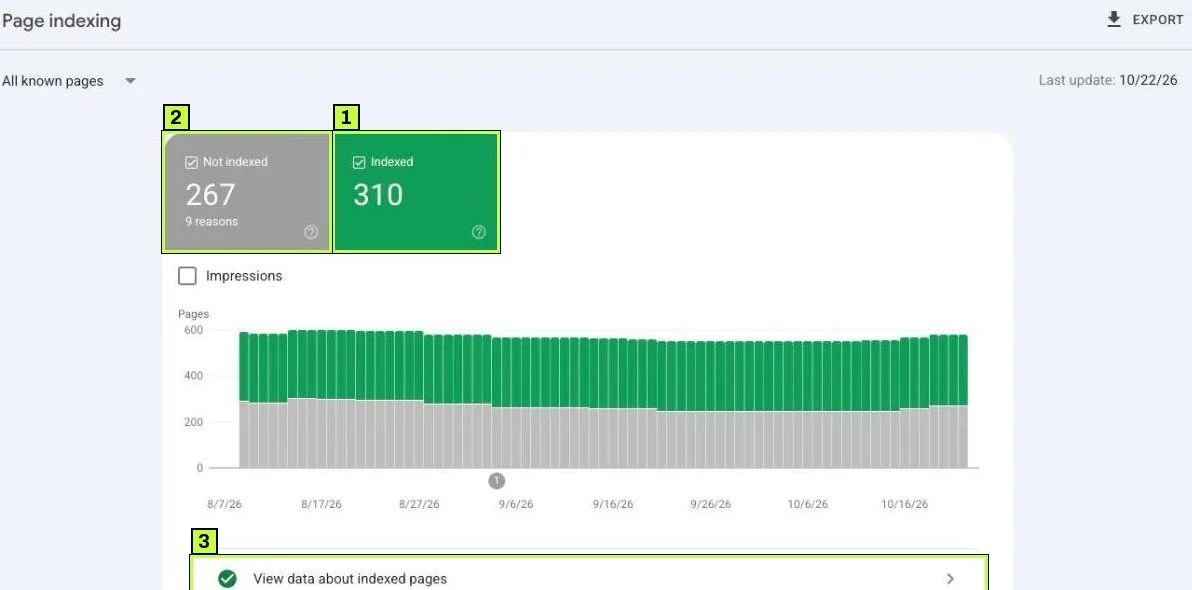
Expect anywhere from a few days to a few weeks for a new site. Google's recrawl docs say crawling can take that long. If nothing is indexed after four weeks and every check above passes, look at content quality and links.
FAQ
How long does it take Google to index a new site?
Usually a few days to a few weeks. It depends on links, content and how easy the site is to crawl. There's no paid way to speed up organic indexing.
Do I have to use Search Console to get indexed?
No, because Google can find you through links alone. But Search Console tells you what's wrong when pages don't show up, so set it up anyway.
Should I request indexing for every page?
No. Request it only for a handful of key pages and let the sitemap cover the rest. The daily quota is limited, and repeat requests don't help.
What are the Instagram, TikTok, X and YouTube options in Add property?
They're newer social channel property types that Search Console added. They don't affect how your website is crawled or indexed, so for this guide choose Add a website.
My site is indexed but doesn't rank. Is that an indexing problem?
Not usually, no. If URL inspection says URL is on Google, it's indexed. Ranking depends on relevance, content quality and competition. Search your exact business name to test.
Do I need a separate property for my Spanish pages?
Not if they're on the same domain. A Domain property covers every path and subdomain on it. Use hreflang tags so Google knows which version is for which language.
Stuck on this one? We fix these for clients every week. Book a free audit
Sources
- developers.google.com: /search/docs/crawling-indexing/ask-google-to-recrawl
- support.google.com: /webmasters/answer/34592
- support.google.com: /webmasters/answer/9008080
- support.google.com: /webmasters/answer/7451001
- support.google.com: /webmasters/answer/9012289
- support.google.com: /webmasters/answer/7440203
