Your keywords look fine, but the clicks come from searches you never wanted. Someone looking for "free plumbing course" lands on your emergency plumber page. A job seeker clicks your ad for "accountant jobs" when you sell accounting services. Each of those clicks costs money and brings nothing back.
This happens because broad and phrase match keywords cover many searches you didn't type yourself. Google matches on meaning, not only on words, which is useful for reach but means you need a regular cleanup.
Negative keywords are that cleanup, because they tell Google which searches should never trigger your ads. The search terms report shows you what people actually typed, so you know what to block. This guide walks you through reading the report, choosing the right negative match type, building shared lists, and covering Performance Max campaigns too.
Quick answer
- Open Campaigns > Insights and reports > Search terms and set a date range of at least 30 days.
- Sort by cost and scan for irrelevant searches: jobs, free, DIY, wrong locations, competitors you don't want, wrong products.
- Check the box next to a bad term and click Add as negative keyword. Choose Campaign or Negative keyword list.
- Fix the match type before you save. The report adds terms as exact match negatives by default, and negatives don't match close variants, so add plurals and synonyms yourself.
- Put recurring negatives (jobs, free, training) in a shared negative keyword list and apply it to all Search and Performance Max campaigns.
- Repeat weekly for new campaigns, then every two to four weeks.
Before you start
Here's what you need to have ready before you open the report.
- Access: Standard or Admin access to the Google Ads account.
- Some data: At least a few weeks of clicks. With very little data, you're guessing.
- Your service list: Know what you sell, where you serve, and what you don't do. This makes decisions fast.
- A spreadsheet: Optional, but helpful for tracking which negatives you added and why.
- Time: About 40 minutes for the first pass, then 15 minutes per review.
Be careful with one thing above all: a negative that's too broad can block good traffic. Before you add a single-word negative like "cheap" or "near", think about every search it would block.
Step 1: Open the search terms report
In Google Ads, click Campaigns in the left menu, then open Insights and reports and choose Search terms. The report has three tabs: Search terms, Search terms and ad combinations and Search terms from Dynamic Search Ads. Stay on the first one.
Pick a date range in the top right. Thirty to ninety days works well, because short ranges hide low-volume terms that still add up.
You can look at the whole account, or use the view selector next to the title to narrow it to one campaign. The report lists each search term with its Match type, the Added/Excluded status, its campaign and ad group, and the usual metrics like clicks, cost and conversions. Terms from Performance Max campaigns show up here too, with Performance Max in the Match type column and no ad group.
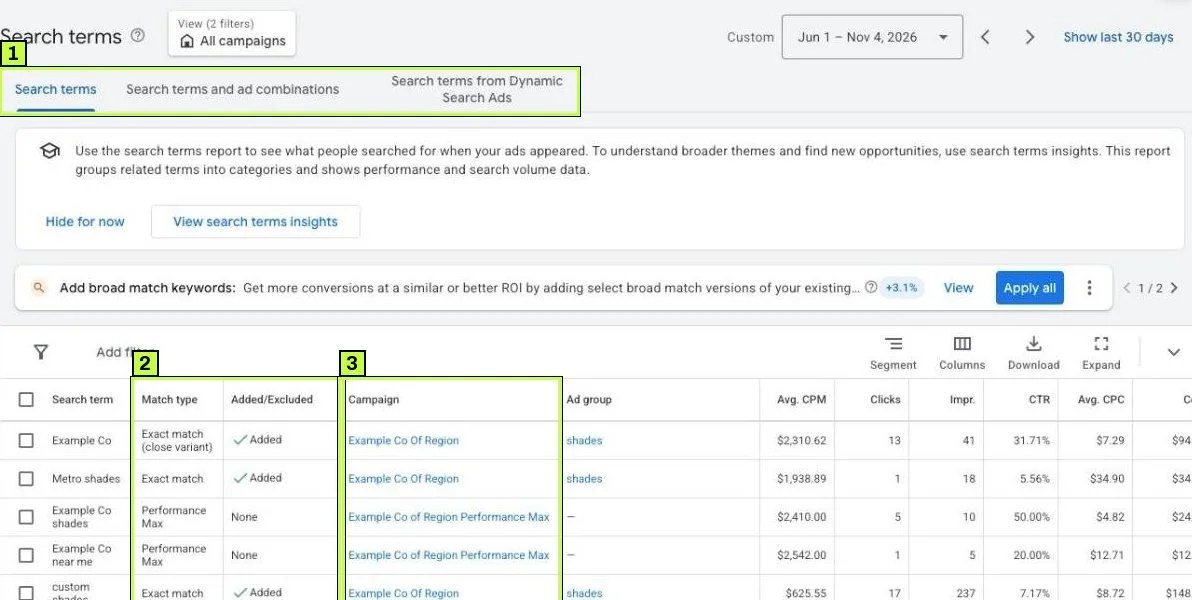
Google only shows terms that enough people searched, and some low-volume terms are hidden for privacy. So the report never shows 100% of your spend, and that's normal.
Step 2: Decide what's irrelevant
Sort by Cost, highest first, then go down the list and ask one question for each term: would I want this person as a customer?
Common patterns worth blocking:
| Pattern | Examples | Why |
|---|---|---|
| Jobs and careers | jobs, hiring, salary, internship | People looking for work, not services. |
| Free and DIY | free, how to, DIY, tutorial, template | They want to do it themselves. |
| Education | course, training, certification, degree | Students, not buyers. |
| Wrong product or service | used, rental, parts, wholesale | You don't offer it. |
| Wrong location | city or country names you don't serve | They can't buy from you. |
| Research only | definition, meaning, what is, examples | Too early to convert. |
Don't block a term just because it has no conversions yet, since a term with three clicks and no conversions isn't proof of anything. Look at whether the intent is wrong, not just whether the numbers look poor.
Watch for terms that convert, too. When a search term converts well and isn't already a keyword, add it as a keyword instead. That gives you more control over its bid and ad text.
Step 3: Add negatives directly from the report
Check the box next to each search term you want to block. A blue bar appears at the top of the table with Add as negative keyword (and Add as keyword for Search rows).
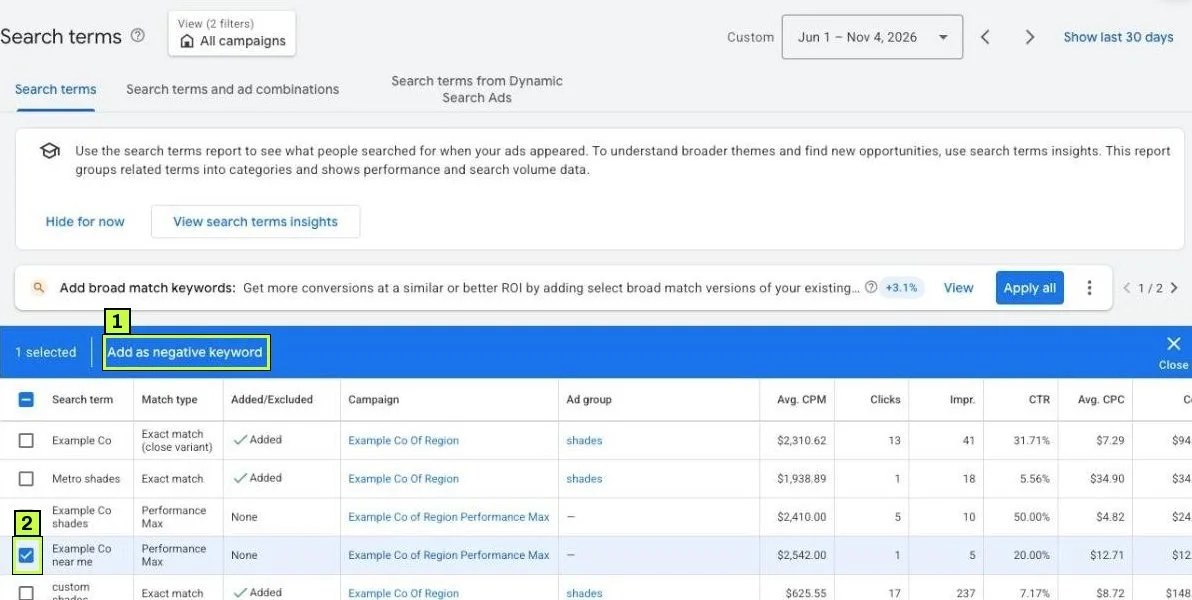
A panel called Add as negative keyword to opens. Choose where the negative goes:
- Campaign: blocks the term in the campaign where the search ran. This is the right choice for most cleanup.
- Negative keyword list: adds the term to a shared list that applies to several campaigns.
The panel shows the term in square brackets, like [example term]. That's because, as Google's note in the panel says, search terms are added as exact match negatives by default. Exact negatives only block that exact search, so edit the text before you save. The report fills in the full search term, like plumber jobs hiring. Usually you want something shorter, like jobs, so you block every job-related search at once.
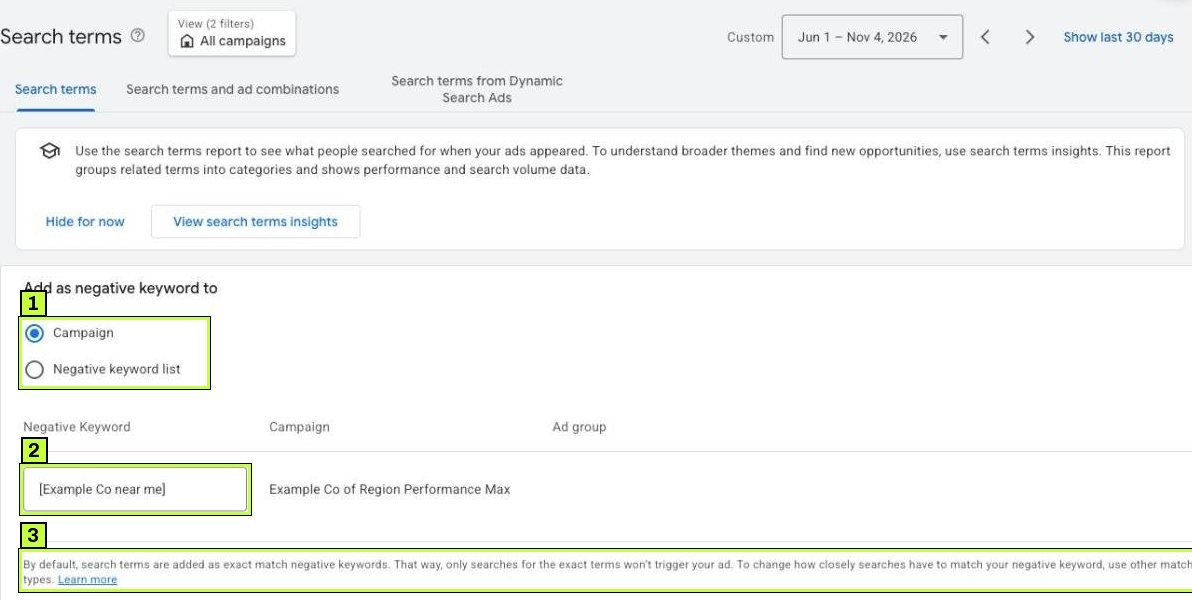
Set the match type with symbols:
jobsis broad match negative."plumbing course"is phrase match negative.[plumber salary]is exact match negative.
Save, and the term shows as excluded in the Added/Excluded column. If you need an ad-group-level negative, the panel we saw didn't offer it. Add those from Campaigns > Audiences, keywords, and content > Keywords > Negative keywords instead.
Step 4: Choose the right negative match type
Negative match types work differently from regular keywords, and Google's help says negatives do not match close variants. That means plurals, misspellings beyond casing, and synonyms are not blocked automatically.
Here's how each one behaves, using the negative "running shoes" as the example from Google's documentation. Note that when you type a negative without symbols, Google's help says broad is the default, but the search terms report pre-fills exact match:
| Negative type | Blocks | Doesn't block |
|---|---|---|
Broad running shoes |
blue running shoes, shoes running | running shoe |
Phrase "running shoes" |
blue running shoes | shoes running |
Exact [running shoes] |
running shoes | blue running shoes |
Some practical rules:
- Use broad negatives for single words that are always wrong for you, like
jobsorfree. - Use phrase negatives for multi-word ideas where word order matters, like
"how to". - Use exact negatives sparingly, to block one specific search without touching variations.
- Add variants yourself. If you block
course, also addcourses. If you blockjob, also addjobs.
A broad negative of a single common word can block a lot. Before you add near or best, think about whether some of those searches convert.
Step 5: Build shared negative keyword lists
Some negatives apply to every campaign: jobs, free, training and competitor names you never want. Put them in a shared list so you only maintain them in one place.
Go to Tools > Shared library > Exclusion lists. The page has two tabs: Negative keyword lists and Placement exclusion lists. The table shows each list with its number of Keywords and Campaigns. Click the blue + button to create a new list and name it clearly, like "Global – jobs and education". Paste your negatives one per line, with match type symbols, and save.
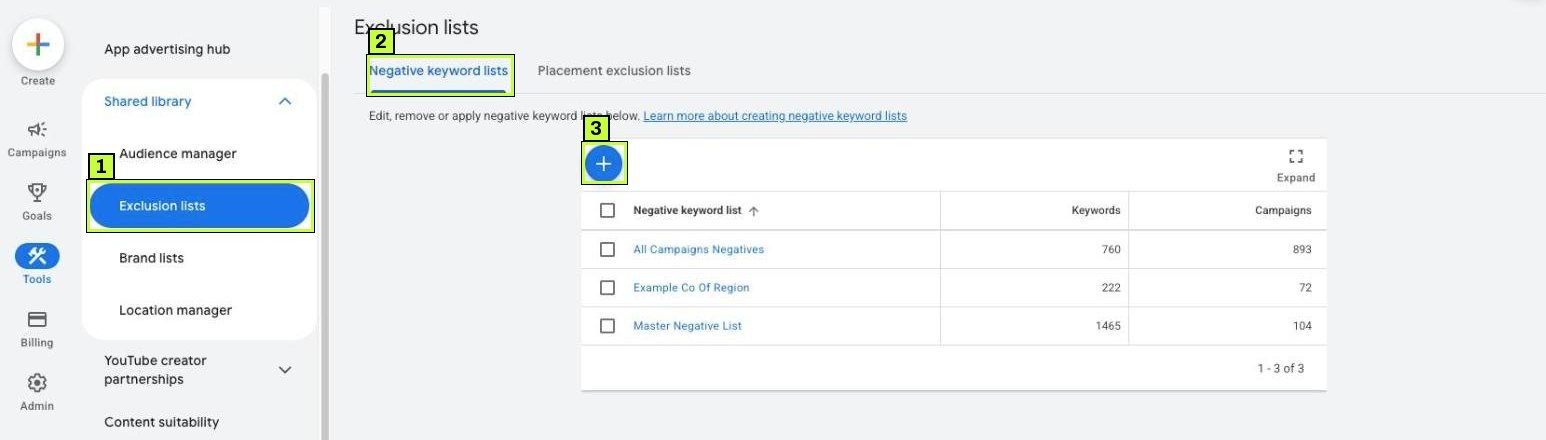
Then apply it. Open the list and look for the option to apply it to campaigns, or go to Campaigns > Audiences, keywords, and content > Keywords > Negative keywords, click +, pick the campaign and choose the list instead of typing keywords. Labels can vary slightly between accounts.
Google's help lists these limits:
- Up to 20 negative keyword lists per account.
- Up to 5,000 negatives per list.
- Account-level negatives: up to 1,000. Find them under Admin > Account settings > Negative keywords. Google's help says they apply to all Search and Shopping inventory, including Performance Max.
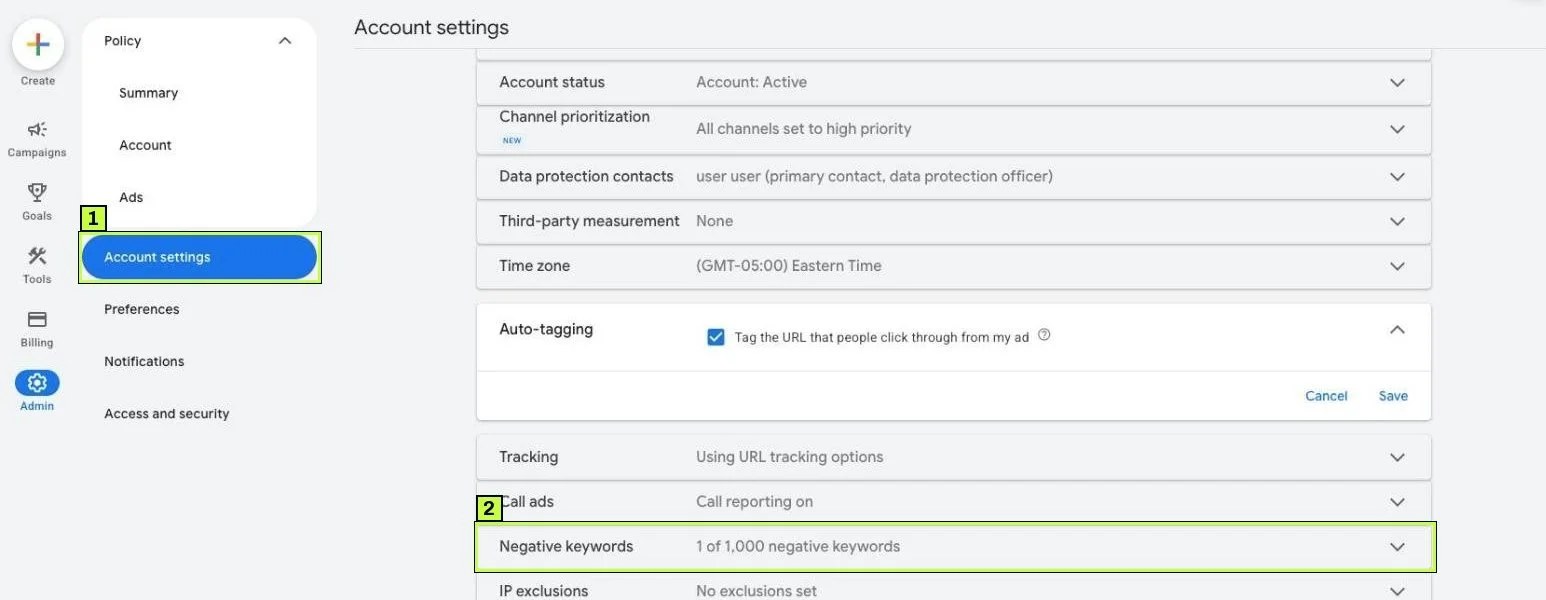
Account-level negatives are good for terms you'll never want anywhere, like adult or unsafe terms. Lists are better for themes you may want to apply selectively.
Step 6: Cover Performance Max
Performance Max used to offer almost no keyword control, but that changed during 2025.
- Campaign-level negative keywords: Google's help says Performance Max negatives apply to Search and Shopping inventory only. Search Engine Land reported in March 2025 that the limit was rising from 100 to 10,000 per Performance Max campaign.
- Shared negative keyword lists: Google's help says you can apply negative keyword lists to Performance Max campaigns.
- Search terms report: Google made search terms reporting available for all Performance Max campaigns.
The fastest route is the one in Step 3. PMax terms appear in the normal search terms report with Performance Max as the match type. Select one, click Add as negative keyword and pick Campaign; the example screenshot in Step 3 shows exactly that, with a Performance Max campaign as the target.
To add negatives by hand, Google's help describes this path: Campaigns > Keywords > Negative keywords tab > +, then select your Performance Max campaign. In the current menu, Keywords sits under Audiences, keywords, and content. You can type keywords one per line or select an existing negative keyword list.
Also check brand exclusions in the PMax campaign settings. If you run a separate brand Search campaign, excluding your brand from PMax keeps them from competing. Brand lists live under Tools > Shared library > Brand lists.
Still not working? Common causes
| Symptom | Likely cause | Fix |
|---|---|---|
| Blocked search still shows up | Negative doesn't match a close variant, or it went in as exact match from the report | Add the plural, singular or synonym as separate negatives. Change exact negatives to phrase or broad where it makes sense. |
| Traffic dropped sharply after adding negatives | A broad single-word negative is too wide | Review recent negatives. Switch broad to phrase or exact. |
| Negative "conflicts" with a keyword | A negative blocks one of your own keywords | Check the Negative keyword conflicts warning or recommendation and remove the overlap. |
| PMax still spends on irrelevant searches | List not applied to PMax, or term is a variant | Apply the list to the PMax campaign from the Negative keywords tab. Add the variants. |
| Can't see many terms in the report | Privacy thresholds hide low-volume terms | Use a longer date range. Expect some spend to stay unlisted. |
| Ad group negative didn't stop the term | Another ad group or campaign still matches | Add the negative at campaign level or to a shared list. |
| Display campaign still shows on related pages | Google says negatives work differently on Display and Video than on Search | Use content and placement exclusions as well. |
| Competitor terms still trigger ads | Brand names not added as negatives | Add competitor names you don't want to a list. |
Negatives after the 16th word
Google notes that your ad may still show when the negative word appears after the 16th word of a very long search. This is rare, and you don't need to do anything about it.
Don't block your own conversions
Before you add a negative, filter the search terms report for that word and check whether any search containing it has converted. A word that looks wrong in one term can be right in another.
How to confirm it's fixed
- Same day: In the search terms report, the terms you blocked show as excluded in the Added/Excluded column.
- After 7 days: Filter the report for the blocked word. New matching searches should not appear, except for variants you didn't cover.
- After 2–4 weeks: Compare cost and conversion rate for the campaign. Wasted spend on irrelevant searches should drop. Total conversions should stay the same or rise.
- Ongoing: Keep a short log of what you blocked and why. When performance dips, you can check whether a recent negative caused it.
FAQ
How often should I check the search terms report?
Weekly for new campaigns or after big changes. Every two to four weeks for stable accounts. Accounts with broad match and large budgets benefit from weekly reviews.
Should I add every irrelevant term as an exact negative?
No, because that's slow and misses variations. Find the word that makes the search irrelevant and add it as a broad or phrase negative.
Do negative keywords work in Performance Max?
Yes. According to Google's help, campaign-level negatives, shared lists and account-level negatives all apply to Performance Max, and only to its Search and Shopping inventory.
What's the difference between negatives and brand exclusions?
Negatives block specific words. Brand exclusions block searches about a whole brand, including variations and misspellings, from Google's brand list.
Can negatives hurt performance?
Yes, if they're too broad, they can block searches that would have converted. Review new negatives against your converting terms and check traffic a week later.
Stuck on this one? We fix these for clients every week. Book a free audit
Sources
- support.google.com: /google-ads/answer/2453972?hl=en
- support.google.com: /google-ads/answer/2472708?hl=en
- support.google.com: /google-ads/answer/2453983?hl=en
- support.google.com: /google-ads/answer/16451273
- support.google.com: /google-ads/answer/15726455
- searchengineland.com: /google-ads-expands-negative-keyword-limits-pmax-453154
- support.google.com: /google-ads/answer/14450499?hl=en
