You add a cookie banner, but Google Ads still shows a consent warning. Or GA4 shows a message that you're not sending consent signals for visitors in the European Economic Area. Or your banner works, yet tags fire before anyone clicks "Accept." All three point to the same thing: your banner and your tags aren't talking through Consent Mode v2.
Consent Mode is Google's way for your site to tell its tags what each visitor allowed. Version 2 uses four signals: ad_storage, analytics_storage, ad_user_data and ad_personalization. The two newer ones tell Google whether user data can be sent for advertising and whether ads can be personalized. Google requires these signals for visitors in the EEA if you want to keep using measurement, remarketing and personalization features with their data.
The setup has three parts. Set a default state before any tag runs. Update it when the visitor makes a choice. Make sure every tag respects the result. Google Tag Manager has built-in tools for all three. This guide covers the GTM side and how to verify it. It isn't legal advice, so confirm the defaults you need with whoever handles privacy for your business.
Quick answer
- Choose a consent banner (CMP) that supports Consent Mode v2 and has a GTM template.
- In GTM, tick Enable consent overview (BETA) under Admin > Container Settings > Additional Settings.
- Add the CMP's template tag with the Consent Initialization - All Pages trigger and set defaults (usually all four signals
deniedin regions that need opt-in). - Decide on advanced (Google tags load and send cookieless pings) or basic (tags blocked until consent).
- Review Consent Settings on every tag, adding additional consent checks to non-Google tags.
- Verify in Tag Assistant: the Consent tab must show On-page Default and On-page Update for all four signals. Later, check Goals > Summary > Diagnostics in Google Ads.
Before you start
- Access: Publish permission in GTM. Access to the GA4 property to view Consent settings.
- A consent management platform (CMP). Most popular banner tools offer a GTM template in the Community Template Gallery. Check that it lists Consent Mode v2 support.
- Your consent policy. Which regions need opt-in, which tools count as analytics or advertising, and how long choices are stored. Legal or privacy staff should sign off.
- Tag Assistant at tagassistant.google.com.
- Time: about an hour, plus at least a week of data before Google can report consent mode impact.
- Backup: Export your container (Admin > Export Container) before you start. Any mistake here can stop all tracking.
Basic or advanced?
| Basic consent mode | Advanced consent mode | |
|---|---|---|
| Before the visitor chooses | Google tags don't load at all | Google tags load with consent denied by default |
| If the visitor declines | No data is sent to Google | Tags send cookieless pings without cookies |
| Conversion modeling | Google uses a general model | Advertiser-specific modeling becomes possible |
| How you build it | Block tags until consent with triggers or consent checks | Let the tags fire and rely on the consent state |
Advanced mode gives Google more to work with for modeling. Basic mode sends nothing before consent. Which one fits your business is a policy decision, not a technical one.
Step 1: Turn on consent overview in GTM
This gives you one screen to review the consent setup of every tag.
- In GTM, click Admin.
- In the container column, click Container Settings. The Edit container panel opens.
- Under Additional Settings, tick Enable consent overview (BETA).
- Click Save at the top right.
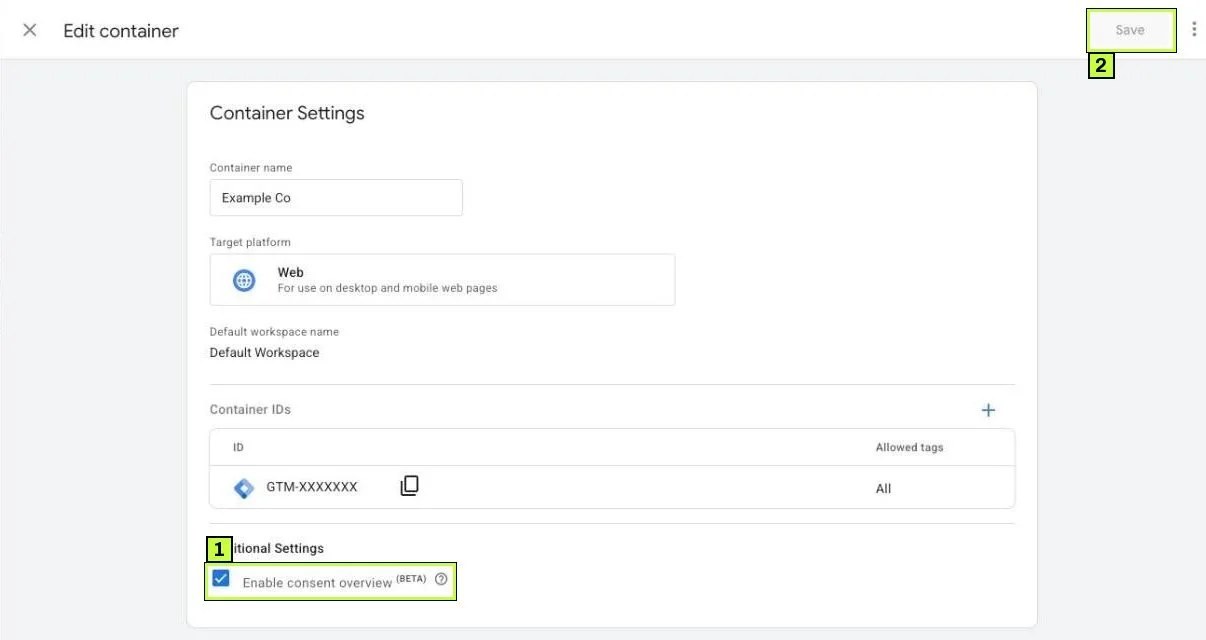
Once it's saved, a Consent Overview button (a shield icon) appears at the top of your Tags list. You'll use it in Step 4.
Step 2: Add the CMP template on Consent Initialization
Your banner must set the default consent state before any other tag runs. GTM has a special trigger for this, Consent Initialization - All Pages. It exists in every web container and fires before everything else, including the Initialization trigger.
- Go to Templates > Tag Templates > Search Gallery. Find your CMP's template and click Add to workspace. (The Consent Overview panel also has a Discover featured Consent Management Platforms box with a Get started button that lists CMPs with a deeper GTM integration.)
- Go to Tags > New and pick that template.
- Enter your CMP account or site ID.
- Set the default consent for each signal. For regions where you need opt-in, set all four to denied. Many templates have a global default plus region-specific rows; others handle regions in the CMP's own dashboard or banner URL.
- If the template offers it, set a wait for update value such as
500milliseconds. This gives the banner time to read a returning visitor's saved choice. - Optional settings many templates include: ads data redaction (hides ad click IDs when
ad_storageis denied) and URL passthrough (passes click info in URLs when cookies are denied). - Under Triggering, choose Consent Initialization - All Pages.
- Save the tag.
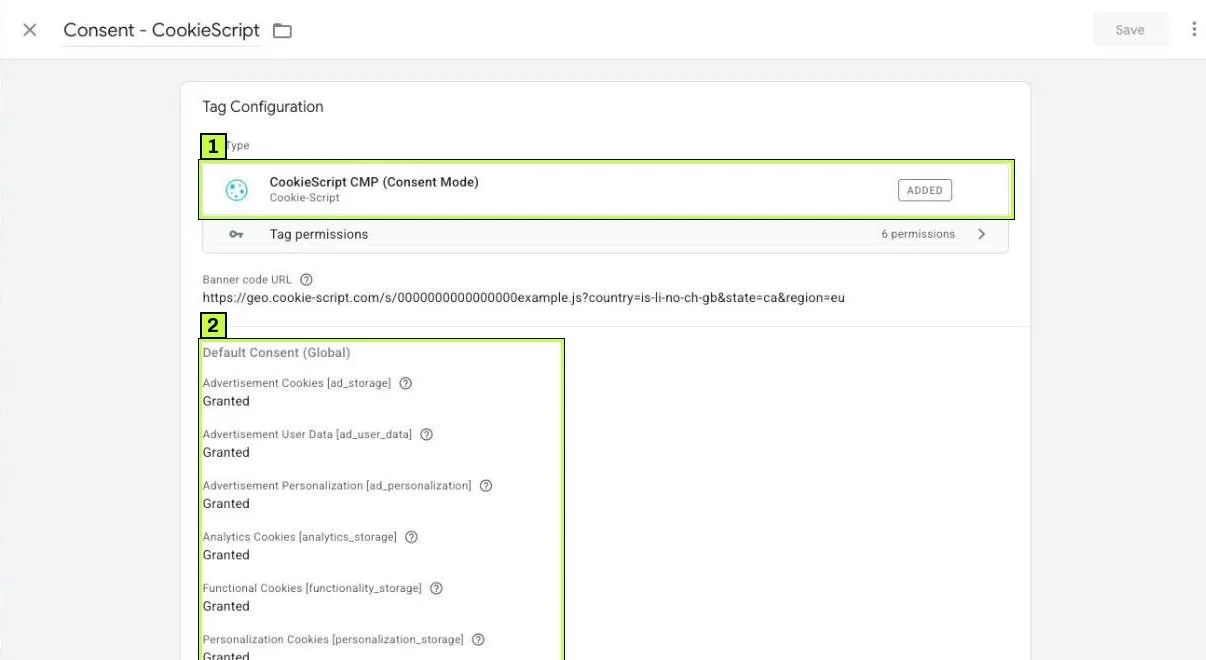
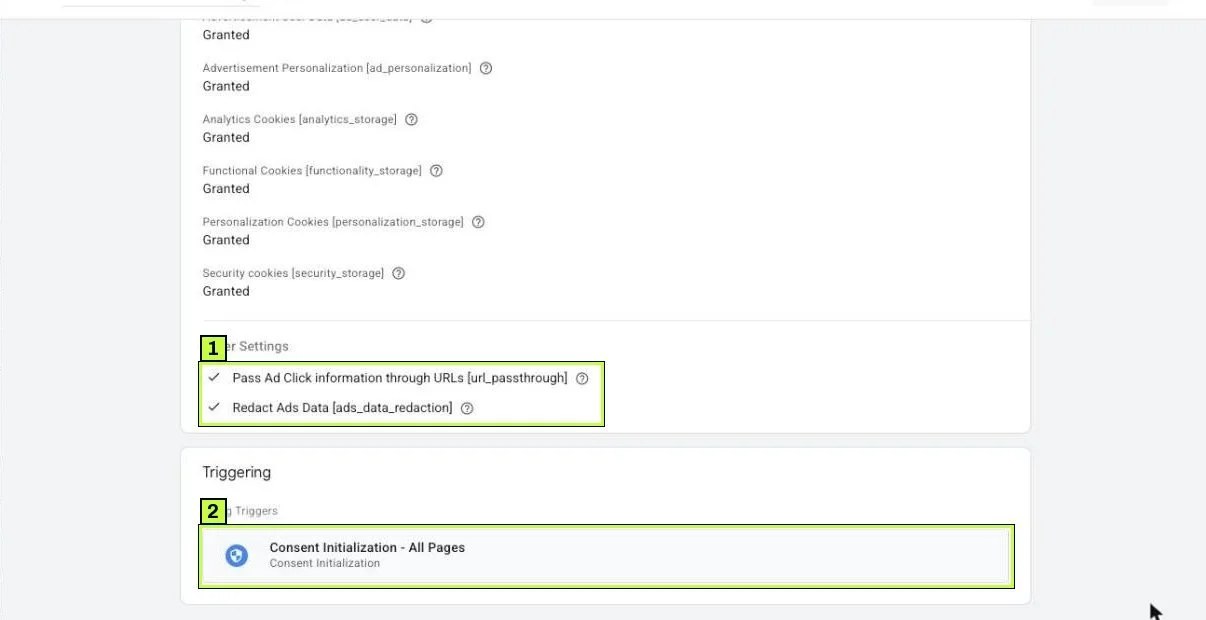
- Default states. The example's all-granted global default isn't a recommendation; pick defaults with whoever owns privacy for your business.
- The trigger must be Consent Initialization - All Pages, never a normal page view.
Field names differ between CMP templates, so match the idea, not the exact label.
Region codes use the ISO 3166-2 format. A default without a region applies to everyone else. The more specific region wins.
No template? Set defaults on the page
If your banner has no GTM template, place the default command in the page <head>, above the GTM snippet. Order matters.
<script>
  window.dataLayer = window.dataLayer || [];
  function gtag(){dataLayer.push(arguments);}
  gtag('consent', 'default', {
    'ad_storage': 'denied',
    'analytics_storage': 'denied',
    'ad_user_data': 'denied',
    'ad_personalization': 'denied',
    'wait_for_update': 500
  });
  gtag('set', 'ads_data_redaction', true);
</script>
<!-- Google Tag Manager snippet goes here -->
Your banner then needs to call an update when the visitor chooses. Google's GTM consent help warns that commands run from Custom HTML tags may not apply before the next trigger fires, and advises using the Tag Manager consent APIs instead. So use a consent template that calls those APIs rather than a Custom HTML tag with gtag('consent', 'update', ...).
Step 3: Make sure the banner sends the update
When the visitor clicks Accept, Reject or saves preferences, the CMP must update the four signals. A good template does this for you. It also reapplies the saved choice on every page for returning visitors.
Check the mapping in your CMP settings. Usually:
| CMP category | Consent Mode signals |
|---|---|
| Statistics / Analytics | analytics_storage |
| Marketing / Advertising | ad_storage, ad_user_data, ad_personalization |
| Necessary / Functional | functionality_storage, security_storage (optional) |
If your CMP only maps ad_storage and analytics_storage, it's a version 1 setup. Update the template or the CMP plan, because the two v2 signals will be missing.
Step 4: Review consent settings on every tag
Open Tags and click the Consent Overview button (shield icon) at the top of the list. A Consent Overview (BETA) panel opens and groups your tags by their consent configuration, with columns for Tag Name, Type, Built-In Consent, Additional Consent and Last Edited.
- Built-in consent checks. Google tags (the Google tag, GA4 events, Google Ads, Floodlight) know about consent. They adjust their behavior on their own. You don't need to add anything to them for advanced mode.
- Additional consent checks. Use these for tags that don't understand consent, such as social pixels, heatmaps or chat widgets. Set Require additional consent for tag to fire and pick the signal, for example
ad_storage. The tag then waits until that signal is granted.
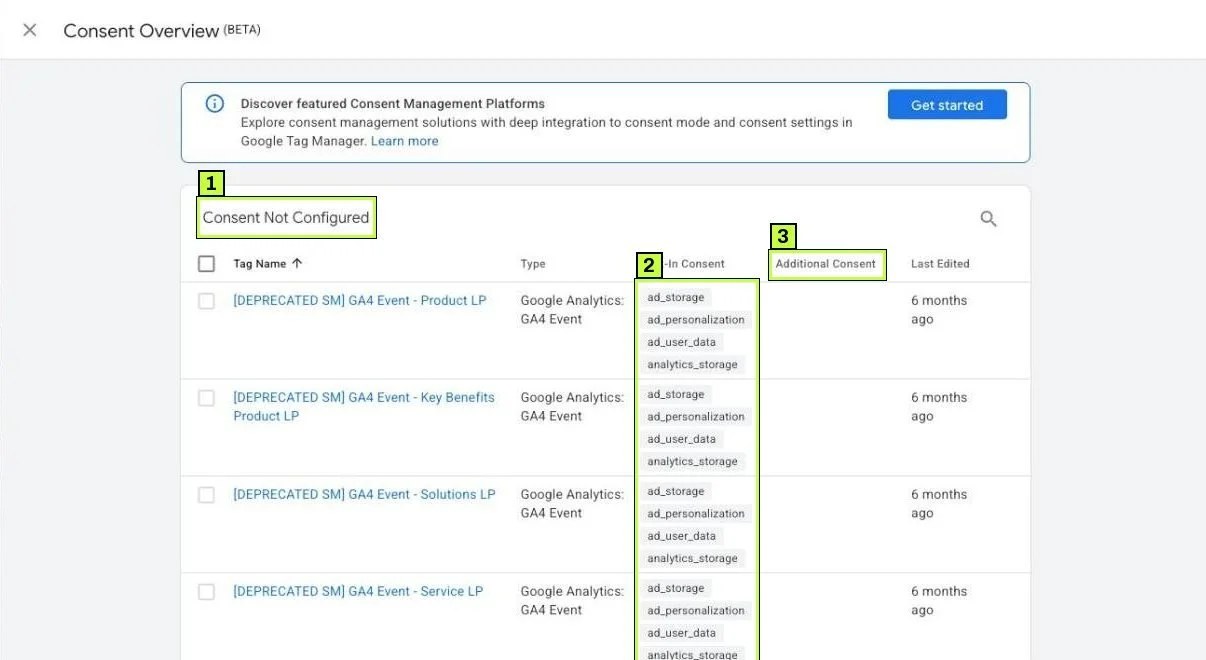
What to do with each group:
- Google tags in Consent Not Configured already have built-in checks. In advanced mode you can mark them No additional consent required so they move out of the group.
- Non-Google tags in that group have no consent awareness at all. They fire regardless of the banner unless you add a check.
- To change several at once, tick their checkboxes and click the Edit Consent Settings icon. Then set Additional Consent Checks and save.
For a single tag, open it and go to Advanced Settings > Consent Settings. You'll see Built-In Consent Checks (read-only) and Additional Consent Checks with three options:
| Option | When to use it |
|---|---|
| Not set (default) | Never leave it here once you've reviewed the tag |
| No additional consent required | Google tags in advanced mode, or tags that set no cookies and send no personal data |
| Require additional consent for tag to fire | Third-party pixels, heatmaps, chat widgets. Click + Add required consent and pick ad_storage, analytics_storage or another signal |
Third-party ad pixels should wait for ad_storage. Use analytics_storage for analytics-type tools.
For basic mode, add additional consent checks to the Google tags too. Require analytics_storage on GA4 tags and ad_storage on Google Ads tags. Then they won't load at all until consent is given.
Also check your triggers. Tags should fire on Initialization - All Pages or later, never on Consent Initialization, except the CMP tag itself.
Step 5: Preview and publish
- Click Preview, enter your URL and connect.
- In a fresh browser profile (no saved consent), load the site. Don't touch the banner yet.
- Then accept all. Then repeat in another fresh session and reject all.
- Check the results as described in the next section.
- When everything looks right, click Submit, name the version (for example "Consent Mode v2 via CMP template"), and Publish.
How to confirm it's fixed
In Tag Assistant:
- Select the earliest Consent event in the left list. In the API call, all four signals should be present with your default values.
- Click a GA4 or Google Ads tag, open the Consent tab. The On-page Default column should show your defaults.
- After you click Accept, select the newest Consent event. The On-page Update column should show
granted. - Open the Tags tab to confirm that tags with additional checks stayed blocked before consent.
- If the Consent tab is empty, Consent Mode isn't set up on that page.
What the Consent tab should look like for a visitor in an opt-in region who clicks Accept:
| Consent type | On-page Default | On-page Update |
|---|---|---|
ad_storage |
Denied | Granted |
analytics_storage |
Denied | Granted |
ad_user_data |
Denied | Granted |
ad_personalization |
Denied | Granted |
If ad_user_data or ad_personalization are missing, your CMP integration is incomplete.
In the network requests (optional): Open Chrome DevTools, Network tab, filter for collect. Click a GA4 request and look for gcs and gcd in the payload. Practitioners decode gcs as G1 plus two digits: the first for ad_storage, the second for analytics_storage. So G100 means both denied, G111 both granted. gcd encodes all four signals. Google doesn't document these values officially, so treat them as a debugging aid.
In GA4: Go to Admin > Data collection and modification > Consent settings. GA4 shows whether it receives ad measurement and personalization signals for EEA traffic. Status messages can take 48 to 72 hours to update.
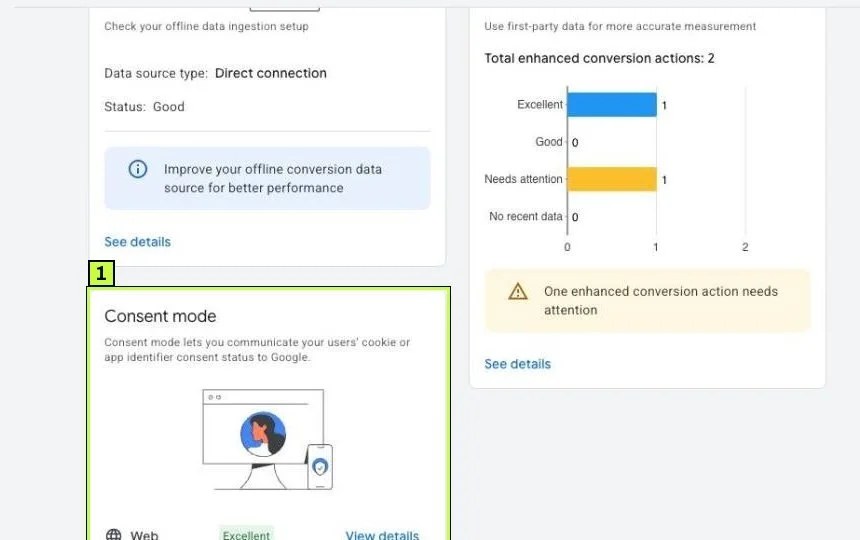
In Google Ads: Open Goals > Summary and click the Diagnostics tab. The Consent mode card shows a status for web (for example Excellent) and a View details link. Google says it needs at least 7 full days of consent mode data, and enough traffic to meet a minimum threshold, before it can report consent mode impact.
Still not working? Common causes
| Symptom | Likely cause | Fix |
|---|---|---|
| Consent tab empty in Tag Assistant | No default set, or CMP tag not firing | Check the CMP tag fires on Consent Initialization - All Pages |
| Tag Assistant flags an error that a tag read consent before a default was set | Default set too late (normal page view trigger, async script, or snippet below GTM) | Move defaults to Consent Initialization, or above the GTM snippet |
Only ad_storage and analytics_storage appear |
CMP or template still on v1 | Update the template and map ad_user_data and ad_personalization |
| Update shows nothing after clicking Accept | CMP category mapping wrong, or update sent on page unload | Fix the mapping. Make sure the update fires right after the click |
| Third-party pixels fire before consent | No additional consent checks on those tags | Require ad_storage (or the right signal) on each one |
| GA4 data drops sharply after launch | Expected in opt-in regions in basic mode, or defaults denied for everyone | Use region-specific defaults. Confirm the policy, then consider advanced mode |
| Returning visitors see the banner state ignored | CMP doesn't reapply saved consent before tags fire | Use wait for update and a template that reads stored consent on load |
| GA4 still warns about missing signals | Status lag, or EEA traffic still missing v2 signals | Wait 72 hours. Re-test with a simulated EEA location |
| Consent changes not recorded on single-page apps | Update fired during a route change that unloads the view | Fire the update on the page where the choice happens, right away |
| Duplicate defaults with different values | Both a template and a hard-coded snippet set defaults | Keep one source of defaults |
Testing regional defaults
If you set defaults by region, your own location decides what you see. Google's debugging guide suggests changing your location in Chrome to test each region you set defaults for. If your CMP detects the region from the IP address, you may need a VPN instead. Check that EEA visitors start as denied and others start with your chosen defaults.
FAQ
Do I need Consent Mode v2 if I have no visitors from Europe?
Google requires it for EEA visitors when you use Google's ad measurement and personalization features. If you have no EEA traffic, it's not mandatory for that reason, but other privacy laws may still require a banner. Check with your privacy adviser.
Is Consent Mode the same as a cookie banner?
No. The banner collects the choice. Consent Mode passes that choice to Google tags. You need both.
Does advanced mode break privacy rules?
Google says tags send cookieless pings with limited data when consent is denied. Whether that fits your obligations is a legal question. Some businesses choose basic mode for that reason.
Do GA4 event tags need additional consent checks?
Not in advanced mode. Google tags have built-in consent checks. In basic mode, add analytics_storage as an additional check so they don't load before consent.
Will this affect my conversion tracking?
Yes, some conversions from visitors who decline won't be observed directly. Google may model part of them once you meet data thresholds. Review Google Ads conversion tracking and enhanced conversions after you launch, and re-check your GTM install if tags stop firing.
Stuck on this one? We fix these for clients every week. Book a free audit
Sources
- developers.google.com: /tag-platform/security/guides/consent
- support.google.com: /tagmanager/answer/10718549
- developers.google.com: /tag-platform/security/guides/consent-debugging
- support.google.com: /google-ads/answer/10000067
- support.google.com: /analytics/answer/14275483
- simoahava.com: /analytics/consent-mode-v2-google-tags
