Your conversion tracking works, but Google Ads keeps nudging you to turn on enhanced conversions. Or you already turned them on, and the Diagnostics tab shows Needs attention, a low coverage rate or an alert you don't understand.
Enhanced conversions add a hashed copy of what the customer typed into your form, such as an email address or phone number, to the conversion tag. Google hashes it with SHA-256 and matches it to signed-in Google accounts. That recovers conversions that cookies alone miss, for example when someone clicks on a phone and buys later on a laptop.
The setup has three parts: accept the customer data terms and switch the feature on in Google Ads, tell your tag where to find the data, and then read the diagnostics to see what's broken. Most problems live in that middle step, because the tag looks for an email that isn't there when it fires.
Quick answer
- In Google Ads, go to Goals > Conversions > Conversion settings, expand Enhanced conversions, check Turn on enhanced conversions, accept the terms, pick your method (for example Google Tag Manager) and click Save.
- In GTM, open your Google Ads conversion tag (or Google tag) and turn on user-provided data with a User-Provided Data variable.
- Choose how to collect the data: automatic detection, CSS selectors, or a code/data layer variable. Code is the most reliable.
- Test a conversion and check the network request for an
emparameter that starts withtv.1~emfollowed by a long hash. - After a day or two, open Goals > Summary > Diagnostics, click See details on the Enhanced conversions card and fix any alerts.
Before you start
Have these ready before you change anything.
- Working conversion tracking: The base conversion tag must already fire correctly. If it doesn't, fix that first with our conversion tracking guide.
- Admin access in Google Ads: The safest level for accepting the customer data terms and changing conversion settings. If you have less, ask an admin to do Step 1.
- Publish access in GTM: Or access to edit the Google tag if you don't use GTM.
- A form that collects an email or phone number: Google needs at least an email, or first name, last name, postal code and country. A phone number alone can work, but it matches better with an email.
- Privacy review: Make sure your privacy policy covers sharing hashed data with Google, and that your Consent Mode setup passes ad_user_data correctly.
- HTTPS on every page: Hashing fails on insecure pages.
Export your GTM container from Admin > Export Container before you start. It takes ten seconds and saves you from guessing what changed.
A note on the 2026 changes
Google's help says enhanced conversions for web and for leads are being combined into a single on/off setting, rolling out from June 2026, and that you will no longer need to choose one implementation method. Existing users who already accepted the customer data terms are migrated automatically.
In the accounts we checked in November 2026, the screen still looked like the one in this guide: separate Enhanced conversions for leads and Enhanced conversions rows, and a method dropdown with Google Tag, Google Tag Manager and Google Ads API. Your account may show either version. If you don't see a method dropdown, just turn the setting on and accept the terms. The tag work in GTM is the same either way.
Step 1: Turn on enhanced conversions in Google Ads
Click the Goals icon in the left menu. Open Conversions and click Conversion settings. You'll see a list of rows: Call conversion action, Customer data terms, Enhanced conversions for leads, Enhanced conversions and a few more.
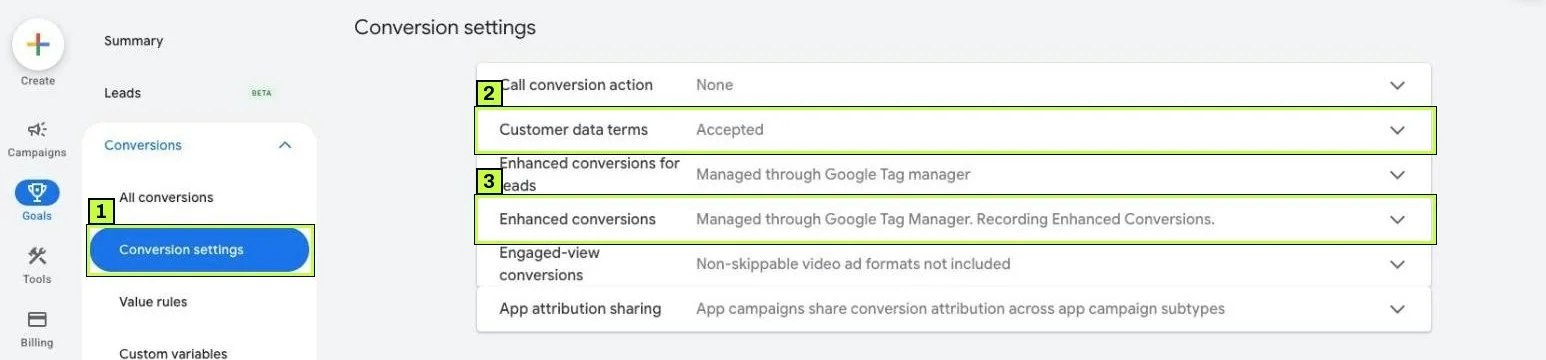
Click the Enhanced conversions row to expand it. Check Turn on enhanced conversions. If you haven't accepted the customer data terms yet, Google shows a compliance statement about the Google Ads Data Processing Terms and its customer data policies. Read it and click Agree.
Under Choose a method for setting up and managing user-provided data, open the dropdown and pick Google Tag, Google Tag Manager or Google Ads API. Pick the one you actually use, because Google's help warns that data sent through a different method may not be processed. Not sure? Click Which method should I use? and Google suggests one for your domain. With Google Tag Manager selected, a box shows View instructions and Go to Google Tag Manager. Click Save.
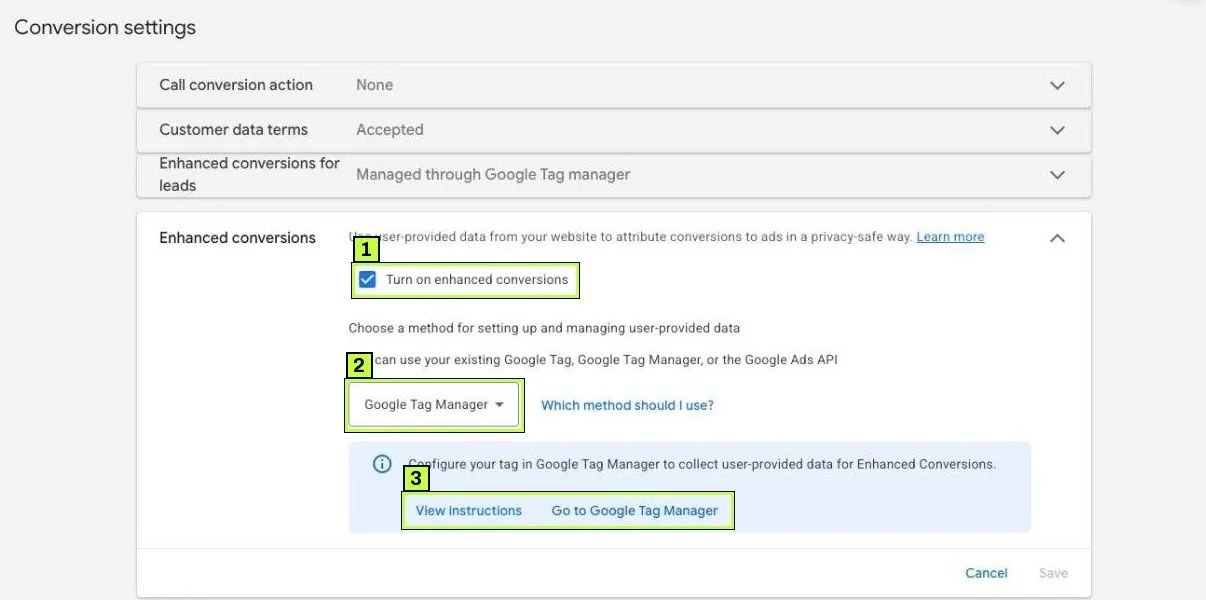
The account-level setting covers your website conversion actions by default. Google's help says data sent before you accept the terms isn't processed, so do this first, before you publish any tag changes.
Step 2: Decide where the user data comes from
Before you open GTM, look at your site. Where is the email address at the moment the conversion tag fires?
- On the thank-you page: for example, "We sent a confirmation to ana@example.com." Automatic detection or a CSS selector can read it from the page.
- Only in the form, on an earlier page: the data is gone once the page changes. You need either the Google Ads User-Provided Data Event tag on form submit, or a data layer push.
- In the data layer: your developer or ecommerce platform pushes the email with the purchase or lead event. This is the best case.
Google offers three collection methods:
| Method | How it works | When to use it |
|---|---|---|
| Automatic | The tag scans the page for email, phone and address patterns. | Quick start; data visible on the page. |
| Manual (CSS selectors) | You point the tag at specific page elements. | Stable page markup with clear IDs. |
| Code | A JavaScript or data layer variable returns the data as an object. | Most reliable; works across page changes. |
Google says code-snippet data takes priority when you combine methods. Many accounts run automatic detection as a safety net and add code for the main conversions.
Step 3: Configure the conversion tag in GTM
Open GTM and go to Tags. Click your Google Ads Conversion Tracking tag for the action you want to enhance.
Check Include user-provided data from your website. In the User-provided data field, choose New Variable. GTM creates a User-Provided Data variable. Pick the type:
- Automatic collection: nothing else to set. You can add exclusions later.
- Manual configuration: for each field, such as Email, pick or create a DOM Element variable. Set Selection Method to CSS Selector and paste the selector. Leave Attribute name blank.
- Code: pick a Custom JavaScript or data layer variable that returns the object shown below.
Label names in GTM can vary slightly between container versions. If you don't see the checkbox on the conversion tag, Google's current guide also lets you add a user_data event parameter on the Google tag with the same variable.
For the code method, the variable must return an object with these keys. Remove any field you don't collect. Don't send empty strings.
function() {
  return {
    email: {{DLV - user.email}},
    phone_number: {{DLV - user.phone}},   // E.164 format, e.g. +525512345678
    address: {
      first_name: {{DLV - user.first_name}},
      last_name: {{DLV - user.last_name}},
      postal_code: {{DLV - user.zip}},
      country: 'MX'                         // 2-letter ISO code
    }
  };
}
You can send plain text, and Google normalizes and hashes it in the browser. You can also send values you already hashed with SHA-256, using keys like sha256_email_address. All values must be strings.
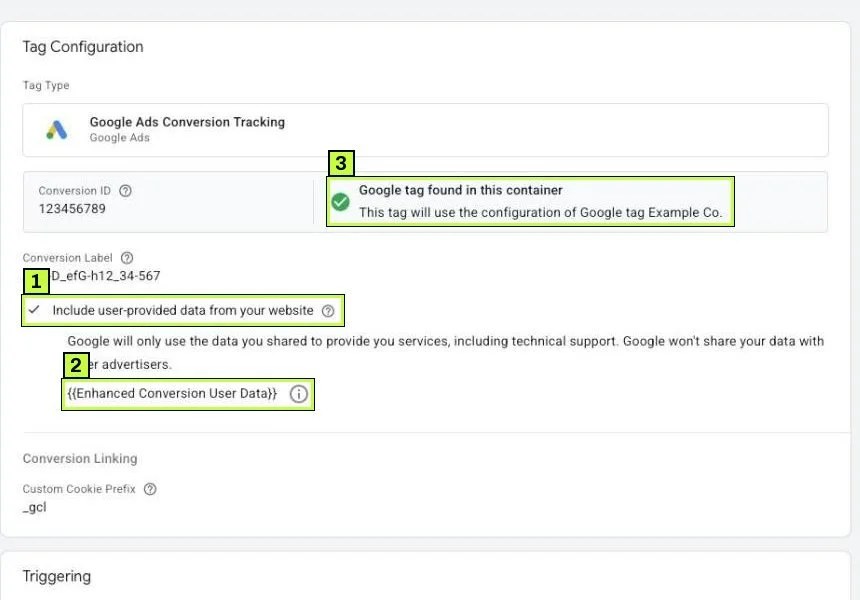
The checkbox adds the hashed user data to the conversion hit. The variable tells the tag where to find the email, phone and address.
Step 4: Handle forms where the data disappears
This step matters when the email lives on the form page and the conversion fires on the next page.
Option A is the cleanest. Ask your developer to push the data to the data layer when the form submits successfully:
window.dataLayer = window.dataLayer || [];
dataLayer.push({
  event: 'generate_lead',
  user: { email: 'ana@example.com', phone: '+525512345678' }
});
Then fire the conversion tag on the generate_lead custom event, and read the values with data layer variables. See form tracking with GTM for the trigger side.
Option B needs no developer. Create a tag: Tags > New > Google Ads > Google Ads User-Provided Data Event. Enter the same conversion ID. Choose Automatic or Manual for the data variable. Use a Form Submission trigger on All Forms. Google says form submission is required for this tag. It stores the hashed data in a first-party cookie and attaches it to the conversion later in the session.
Here's what a finished User-Provided Data variable looks like when it uses Manual configuration with data layer variables. Each field points to a variable that reads the value your developer pushed.
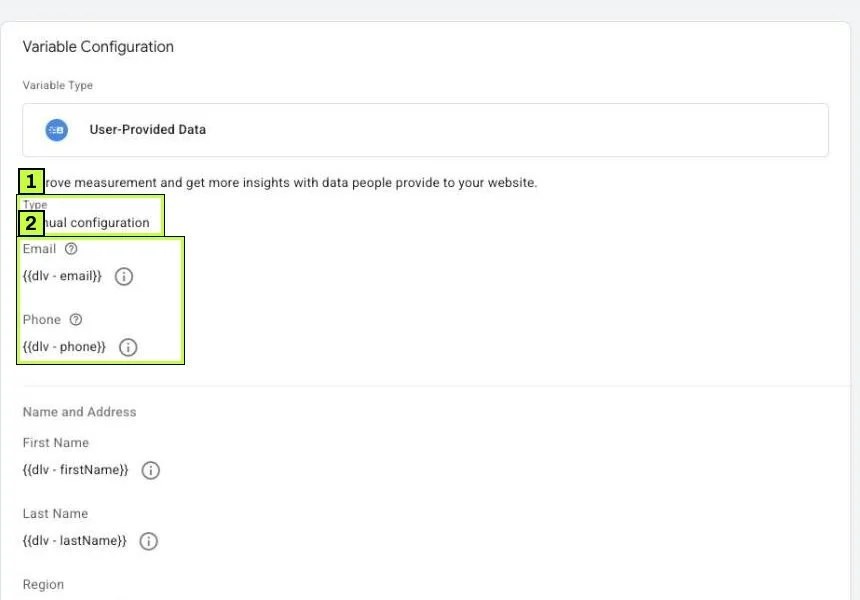
Manual configuration with data layer variables is as reliable as the Code type, because both read the data layer instead of the page markup. Use whichever is easier for you to maintain.
Step 5: Test before you publish
Click Preview in GTM and connect to your site. Submit the form with a real-looking test email you control.
In Tag Assistant, click the conversion event. Open the conversion tag and check that the user-provided data shows values, not undefined. Then open Variables and check your User-Provided Data variable on that same event.
Next, check the actual request. Google's guide describes this method:
- On the conversion page, right-click and choose Inspect.
- Open the Network tab and search for
google. - Find the request to
googleadservices.com/pagead/conversion/(some browsers showgoogle.com/pagead/1p-conversion/). - Open Payload and find the
emparameter.
A value starting with tv.1~em followed by a long string means hashed email was sent. Phone shows as tv.1~pn. If you see tv.1~em with nothing after it, the variable was empty when the tag fired.
When the hash is there, Submit and Publish the container.
Here's what a passing request looks like in the Payload tab (values shortened):
label: AbC-D_efG-h12_34-567
em: tv.1~em.Q2xJb0t0bWZ2cHRxN2RnZm...
value: 50
A long hash after tv.1~em is a pass. An empty value or an error code right after em. needs fixing.
Step 6: Read the Diagnostics report
Google's help says coverage data shows up within hours of the first tagged conversions, and the match rate updates within 24 hours. Alerts are based on the past day of data, or the past 7 days when one day isn't enough, and they don't appear at all with fewer than 20 conversions in 7 days. Give it a day or two before you judge anything.
Go to Goals > Summary and click the Diagnostics tab at the top. Under Overview you'll find cards for offline conversions, Enhanced conversions and Consent mode. The Enhanced conversions card counts your enhanced conversion actions in four bars:
- Excellent: active and fully set up.
- Good: active, but Google sees improvements you could make, such as sending more fields.
- Needs attention: active with errors, such as missing data.
- No recent data: no enhanced conversions in the last 7 days.
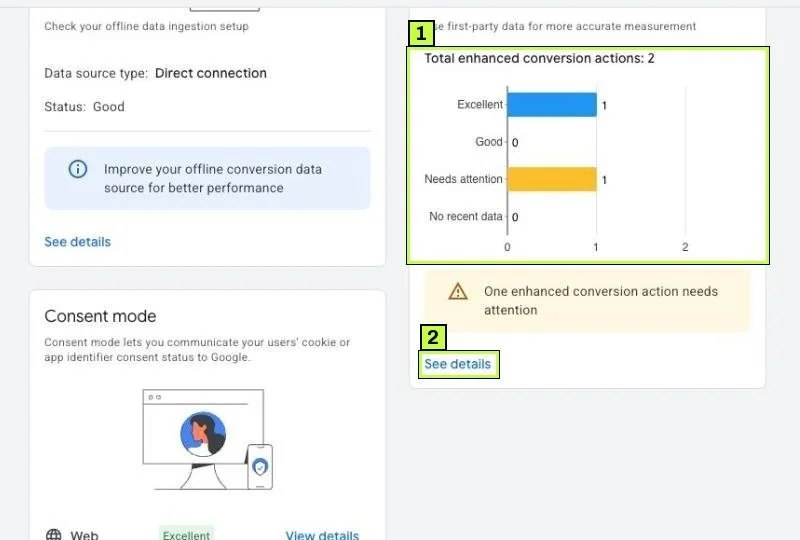
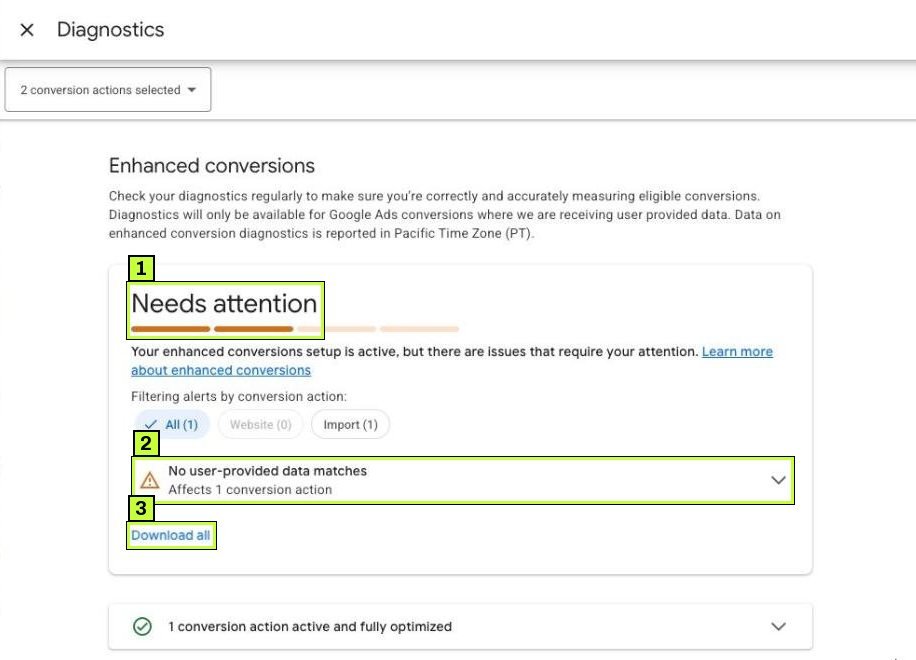
Click See details. A Diagnostics panel opens with the overall status, a filter for All, Website or Import conversion actions, and one row per alert. Click an alert to see which actions it affects. Download all exports the list. Google notes this data is reported in Pacific Time, so a fix made late in your day may show up a day later.
Google's help also describes an Enhanced conversions coverage rate: the share of conversion events that carried user-provided data. It defaults to 7 days and can switch to 30. For the first 30 days after setup, the report can also show an estimated conversion uplift. The exact layout of these metrics can vary by account.
Still not working? Common causes
These are the alerts and symptoms you'll see most, and how to fix them.
| Symptom or alert | Likely cause | Fix |
|---|---|---|
| Enhanced conversions not in use | Customer data terms not accepted, or the setting is off | Goals > Conversions > Conversion settings > Enhanced conversions, check the box, accept, Save. |
| Missing user data fields | The tag fires on some pages without the user data parameter | Check every conversion page in Tag Assistant. Add the variable to all conversion tags for that action. |
| Missing user-provided data | The parameter is sent but empty | The data isn't on the page, or the selector breaks on some devices. Switch to a data layer variable. |
| No user-provided data matches | Data arrives but doesn't match Google accounts | Check formatting (lowercase, trimmed email, E.164 phone). Send more than one identifier. Check that the method you selected matches how data is sent. |
| Setup has incorrect data formatting | Email without "@", phone without country code | Send phone in E.164 format (+52...). Trim spaces from emails. |
| Setup is missing required address fields | Sending a name without postal code or country | Send all four: first name, last name, postal code, country. Or just send email. |
| User address data field is incorrectly formatted | Full country name instead of ISO code | Use 2-letter codes like MX or US. |
| Low number of matched conversions | Only one identifier is sent | Add phone and address alongside email. |
tv.1~em.e0 in the request |
Value failed validation | Fix the input format. |
tv.1~em.e3 in the request |
Page isn't on HTTPS | Serve the conversion page over HTTPS. |
| Status No recent data | No conversions, or tag changes not published | Publish the container. Check that the base conversion still fires. |
| Coverage is low | Some conversion paths don't collect email | Collect email on every form, or add phone fields. |
Automatic detection picks up the wrong email
Automatic collection reads the page. If your footer has a newsletter field or your support address is printed in the page, the tag might grab that instead. Add exclusions for those selectors, or switch to the code method.
Consent blocks the data
When ad_user_data is denied, Google won't use the user data for that conversion. That's expected. If coverage looks much lower than your consent rate suggests, check that your banner updates consent before the conversion tag fires.
Two methods are fighting
If you set up automatic detection in the Google tag and manual or code in GTM, Google prioritizes the code snippet. That's normally fine. If your data looks inconsistent, simplify to one method per action.
How to confirm it's fixed
- Same day: In a test conversion, the request payload shows
tv.1~emfollowed by a long hash. - After a day or two: the Enhanced conversions card under Goals > Summary > Diagnostics shows the action in a bar other than No recent data. Any alerts you fixed should clear in the following days.
- After a week: Coverage should be stable. Compare it with the share of conversions where you actually collect an email.
- Within the first 30 days: check the uplift estimate in the diagnostics report, if your account shows it.
Don't change several things at once. Fix one alert, wait a few days, then check again.
FAQ
Is enhanced conversions data sent in plain text?
The tag hashes it with SHA-256 in the browser before sending, unless you send values you already hashed yourself. Google says it uses the hash only to match conversions.
Do I need enhanced conversions for leads too?
It depends on what your account shows. Google's help says web and leads are moving to one switch from June 2026. Until your account shows the merged setting, Enhanced conversions for leads is its own row in Conversion settings, used when you import offline conversions (for example from a CRM) and match them with hashed lead data.
Will enhanced conversions change my numbers?
They can add conversions that cookies missed. Results vary a lot by account, so don't expect a fixed percentage.
Can I use GA4 instead of GTM?
Yes. GA4 has its own user-provided data collection setting. If you import GA4 key events into Google Ads, see GA4 key events and turn on user-provided data in GA4 too.
Why does Diagnostics say "Needs attention" when everything fires?
Usually because some conversions arrive without data, like a phone lead with no email. Read the specific alert. A few empty conversions are normal.
Stuck on this one? We fix these for clients every week. Book a free audit
