You open GA4, look for your "Conversions" report and it isn't there. Or you see a Key events column full of zeros while leads are clearly arriving in your inbox. Both are common, and both have the same root: GA4 only counts what you tell it to count.
In 2024 Google renamed GA4 conversions to key events. The word "conversion" now belongs to Google Ads conversions, which can be built from key events. So a key event is simply an event you marked as important: a lead form, a booking, a purchase, a phone click.
Setting one up takes three things. The event must already reach GA4. You flip a star next to it. Then you test it and, if you run ads, import it into Google Ads. This guide covers each part, plus the tricks for events that don't exist yet.
Quick answer
- Make sure the action already sends an event to GA4 (check Reports > Realtime overview or DebugView).
- Go to Admin > Data display > Events and click the star next to the event to mark it as a key event.
- If the event doesn't exist yet, click Create event, name it, turn on Mark as key event and build it from an existing event (for example,
page_viewon your thank-you URL). - From the event's three-dot menu, check the counting method (Google labels Once per event as recommended) and set a default value if you need one.
- Test it in DebugView, then wait up to 24 hours for standard reports.
- Optional: import the key event into Google Ads from Goals > Conversions > All conversions > New conversion.
Before you start
- Access: Marketer role or higher on the GA4 property. Google's role definitions say Marketers can create, edit and delete events and key events (Editor and Administrator include that too).
- A working GA4 tag. If GA4 shows no data at all, fix that first with our GA4 troubleshooting guide.
- A list of your real business actions. Write them down before you click anything. Most sites need 2 to 5 key events, not 20.
- Time: about 30 minutes, plus a day of waiting for standard reports.
- Nothing to back up. Marking or unmarking a key event doesn't delete data. It only changes how future events are labeled.
Keep in mind the limit. A standard GA4 property allows 30 key events; Analytics 360 allows 50. That sounds like a lot until someone marks every scroll and click.
Pick the right events
A key event should be something you would celebrate. A good test: would you pay money for this action? A contact form, a quote request, a completed booking or a purchase pass. A page view of your homepage does not.
| Business type | Good key events | Usually not a key event |
|---|---|---|
| Lead generation | generate_lead, form submit, phone link click |
scroll, file download of a brochure |
| E-commerce | purchase |
view_item, add_to_cart (keep as events) |
| Bookings | booking_complete or the thank-you page view |
opening the booking engine |
| Content | newsletter sign_up |
page views, time on page |
Google may mark some events for you. purchase is a key event by default. If Google Ads is linked with ads personalization on, events like add_to_cart can be marked too. Review the list and unstar what you don't want.
Step 1: Confirm the event reaches GA4
You can't mark an event GA4 has never received. So first, perform the action yourself.
Open your site, submit the form or click the phone link, then go to Reports > Realtime overview. Scroll to the Event count by Event name card. Your event should appear within a minute or two.
For a clearer view, use Admin > Data display > DebugView with Tag Assistant connected. Each event shows up in a timeline with its parameters. That is where you confirm the event name is spelled the way you expect. GA4 event names are case sensitive, so Generate_Lead and generate_lead are two different events.
If your test event is missing from Realtime and DebugView, it's a tagging problem, not a key event problem. Marking an event that never arrives does nothing.
If you track forms with Google Tag Manager, set that up first with our form tracking guide. Then come back here.
Step 2: Mark an existing event as a key event
This is the most common path.
- Click Admin (the gear at the bottom left).
- Under Data display, click Events.
- Click the Recent events tab and find your event. You can also use the search box on the right.
- Click the star next to the event name. It turns solid, and the event moves to the Key events tab.
That's it. GA4 starts counting the event as a key event from now on. It does not rewrite history, so last month's form fills won't suddenly appear as key events.
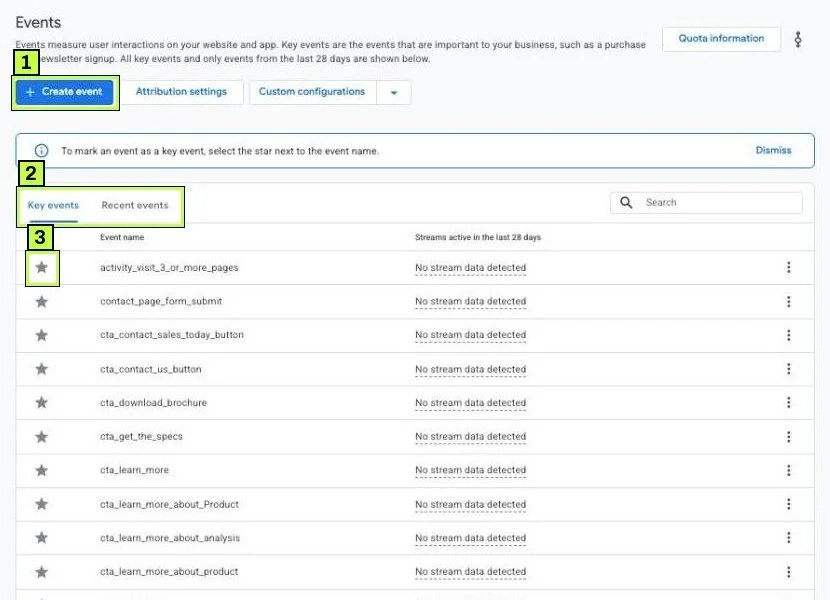
The blue note at the top says it plainly: To mark an event as a key event, select the star next to the event name. The Streams active in the last 28 days column helps you spot old key events that no longer receive data; in the example account several show No stream data detected, which is a sign to clean up.
New events can take up to a day to appear in this list. If you just started sending one, it may not be there yet. You don't have to wait: use Create event (Step 3), type the exact event name, and turn on Mark as key event. Google says GA4 then treats it as a key event as soon as it's collected.
Step 3: Create a key event from a thank-you page
Many sites have no special event for a lead. They only have a thank-you page. You can turn a page view of that URL into its own event and mark that.
- Go to Admin > Data display > Events.
- Click Create event. A single Create an event panel opens.
- Under Provide an event name that indicates what it is being measured, type a name such as
generate_lead. Use letters, numbers and underscores only. - Turn on the Mark as key event toggle. The arrow next to it opens the key event options, where Google lets you set a default value and counting method.
- Under Choose how to create an event, keep Create without code.
- Select a data stream where you want to track the event (your web stream).
- Under Identify an existing event to use as the trigger for the new event, set Event name to
page_view, keep Matches when as URL contains, and type the thank-you path in URL, for example/thank-you. - Read the summary line under the fields. It should say something like Log event generate_lead when someone loads a page on your website that contains /thank-you.
- Click Create at the top right.
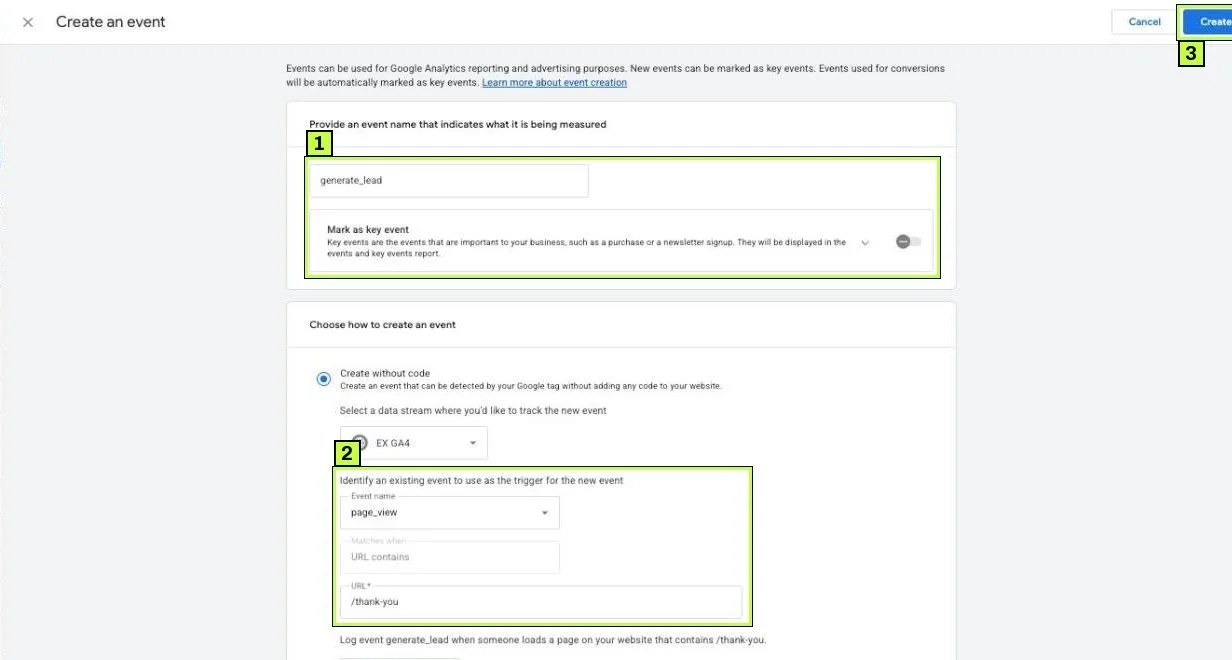
The panel also has View more options below the summary for extra conditions. You need the Marketer role or above to create events and mark key events.
Older properties may also have custom events built the previous way, under Admin > Data streams > your web stream > Create custom events. They show matching conditions such as event_name equals page_view and page_location contains /success/. They still work. Check that list before you create a duplicate under a new name.
A word of caution. If people can reach the thank-you page by refreshing it or from a bookmark, you'll count those as leads. Make the URL condition specific enough that only the real thank-you page matches. Better still, make the URL hard to reach without submitting the form, or use a real form event instead.
Step 4: Set the counting method and value
Each key event has its own counting method and an optional default value. To change them, go to Admin > Data display > Events, open the Key events tab, and click the three-dot menu at the end of the event's row.
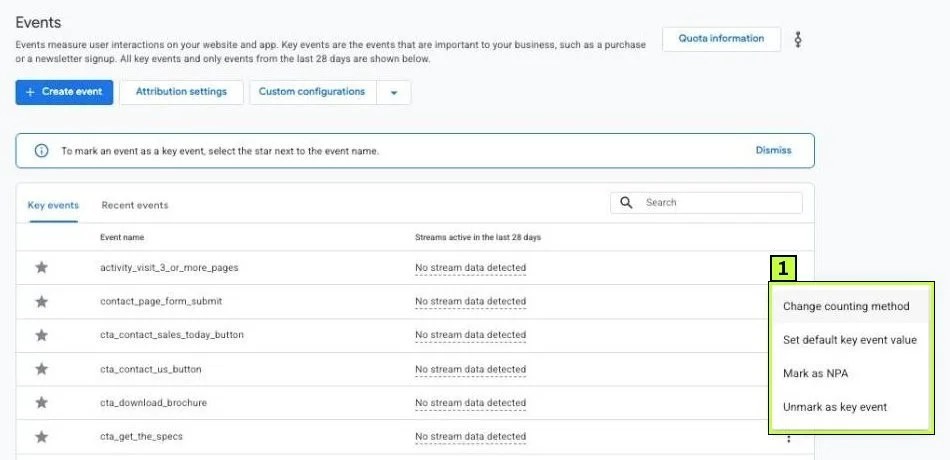
The menu has four options:
- Change counting method. Opens the panel below.
- Set default key event value. A fallback value used when the event doesn't send its own
valueparameter. If a lead is worth roughly a set amount to you, add it here with your currency. - Mark as NPA. Marks the event as non-personalized ads, so it isn't used for ads personalization. Leave it off unless you have a privacy reason.
- Unmark as key event. Same as clicking the star again.
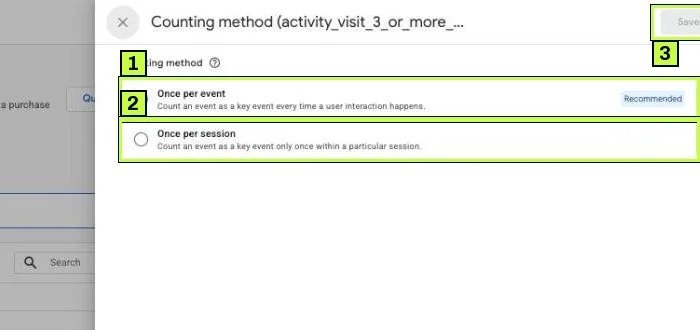
Google labels Once per event as Recommended. It counts the key event every time the interaction happens, which is right for purchases and for most actions. Once per session counts it at most once per visit. It's an option for lead forms where a double submit or a page refresh would otherwise turn one lead into two, but it also hides a real second lead from the same visit. Pick it on purpose, not by habit.
Step 5: Send the key event to Google Ads (optional)
If you run Google Ads, you'll want this key event to drive bidding. You do that by creating a Google Ads conversion from it.
First, link the accounts. In GA4 go to Admin > Product links > Google Ads links and link your Ads account. You need admin access in Google Ads and Editor in GA4.
Then, in Google Ads:
- Click Goals in the left rail, then Conversions > All conversions.
- Click + New conversion. A three-step flow opens: Get started, Create conversion actions, Summary.
- Under Choose data sources to measure conversions, tick Conversions on a website ("For any web conversions that'll be measured with a Google tag or imported from Google Analytics").
- If the card only lists your site via Google Tag, click Edit data sources to look for your linked Google Analytics property. If it isn't offered, check the link first (below the steps, the older Import path also works).
- Click Save and continue, then select your key event on the next step and finish the flow.
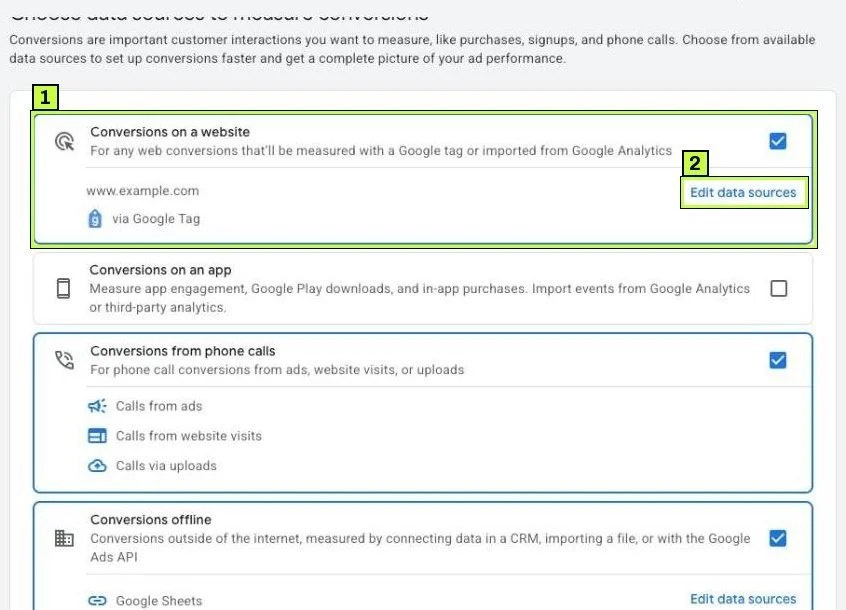
The screens after this step change often and depend on what's already linked, so follow the prompts and look for your GA4 key event by name. Google's help also describes the older path (+ New conversion action > Import > Google Analytics properties > Web) and an option inside GA4 under Advertising > Conversion management. Conversions created from the GA4 side start as Secondary.
When it's done, the key event shows up in All conversions:
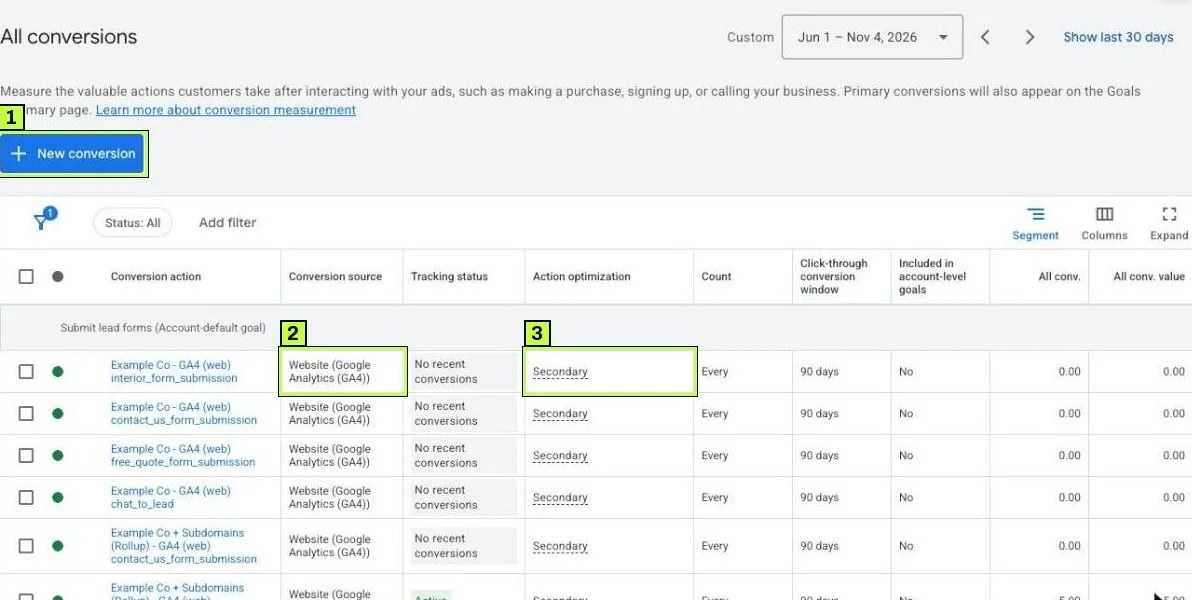
Imported actions are named after the property, the stream and the event. Click Secondary or Primary in the Action optimization column to change how Google Ads uses the action for bidding.
Choose carefully. If you already track the same lead with a Google Ads conversion tag, importing the GA4 version as Primary too will double count. Keep one as Primary and the other as Secondary. For the tag-based method, see our Google Ads conversion tracking guide.
Still not working? Common causes
| Symptom | Likely cause | Fix |
|---|---|---|
| The event isn't in the Recent events list | GA4 hasn't received it yet, or it's new (list updates within a day) | Check Realtime or DebugView. Or use Create event with Mark as key event on. |
| Key event shows 0 in reports | Reports lag up to 24 hours, or you marked it after the action | Wait a day. Remember marking doesn't apply to past data. |
| Key event count is double the leads | Two events for one action (enhanced measurement form_submit plus a GTM event) |
Mark only one. Unstar the duplicate. |
| Count far higher than real leads | Thank-you page refreshes, or a trigger firing on failed submissions | Fix the trigger first; consider Once per session for that lead event. Test a failed submit. |
Generate_Lead and generate_lead both appear |
Inconsistent case in the event name | Fix the tag so only one name is sent. Mark the correct one. |
| Created event never appears | Matching condition never true (typo, wrong operator) | Check the URL in DebugView's page_location and match it exactly. |
| Key event missing from Google Ads import | Accounts not linked, or key event too new | Link under Admin > Product links > Google Ads links. Wait for the event to collect data. |
| Numbers differ between GA4 and Google Ads | Different attribution models, windows and counting | Expected. Compare trends, not exact totals. |
| Key events drop sharply in some countries | Consent banner denying analytics storage | Review Consent Mode v2. |
Enhanced measurement form events are messy
GA4's enhanced measurement can send form_submit automatically. It can't tell a successful submission from a failed one, and it sometimes misses AJAX forms entirely. It also fires for search boxes and newsletter widgets. Marking the generic form_submit as a key event is usually a mistake. Create a specific event instead.
You hit the 30 key event limit
Unstar events nobody uses for decisions. Unstarring stops future counting. Data already collected still shows as key events in reports.
How to confirm it's fixed
- Trigger the action yourself. Use a test email so the sales team knows to ignore it.
- Watch DebugView. In Admin > Data display > DebugView, key events appear with a distinct icon (labels and colors may vary). Click it and check the parameters.
- Check Realtime overview. The Key events by Event name card updates within minutes.
- Wait up to 24 hours and open Reports > Acquisition > Traffic acquisition. Select your key event in the Key events column dropdown. You should see your test.
- In Google Ads, open Goals > Conversions > All conversions and check the Tracking status column. A new import can show No recent conversions for a day or more before it turns Active. That is normal.
Compare a week of key events against what really happened (form emails, CRM records, orders). A small gap is normal because of consent and ad blockers. A big gap means a trigger problem.
FAQ
Is a key event the same as a conversion?
In GA4, yes. Google renamed conversions to key events in 2024. "Conversions" now refers to Google Ads conversions, which you can create from key events.
Will my old conversion data move to key events?
Events you had already marked as conversions became key events automatically. Data stays in place. Only the label changed.
Can I mark an event as a key event retroactively?
No. Marking an event only affects data from that point forward. Past events stay as plain events.
How many key events should I have?
Most sites do well with 2 to 5. Pick the actions that represent real business value. Keep micro-actions like scrolls as regular events.
Why doesn't my key event appear in the Google Ads import list?
The GA4 and Google Ads accounts must be linked, and the key event needs some recent data. Also check that you're importing from the right GA4 property.
Stuck on this one? We fix these for clients every week. Book a free audit
