Your contact form sends emails every day, yet GA4 shows almost nothing. Or the opposite happens: GA4 reports twice as many leads as you received, because it counts every click on the submit button, including the ones that failed validation. Both problems come from the same place. Form tracking looks simple, but forms are built in many different ways, and each one needs a different listener.
Google Tag Manager gives you several ways to catch a submission. The built-in Form Submission trigger works for classic HTML forms that reload the page. Many modern forms (WordPress plugins, HubSpot embeds, Squarespace blocks, custom React forms) submit in the background with AJAX, so that trigger never fires. For those, you watch for a thank-you page, a success message, or a dataLayer event that your developer adds.
This guide shows you how to identify your form type, choose the method that matches it, send a clean generate_lead event to GA4, and prove that it only fires on a successful submission.
Quick answer
- Submit the form in GTM Preview mode and see which events appear (Form Submit, a page view of a thank-you URL, or nothing).
- Pick the method: Form Submission trigger, thank-you page view, Element Visibility on the success message, or a developer
dataLayer.push. - Create a Google Analytics: GA4 Event tag named
generate_leadwith useful parameters such asform_name. - Attach the trigger, test a successful and a failed submission, and check DebugView.
- Publish the container, then mark
generate_leadas a key event in GA4.
Before you start
- Access: Publish rights in Google Tag Manager (or someone who can publish for you) and Editor access in GA4.
- GTM installed and working. If you are not sure, follow our guide to installing Google Tag Manager first.
- A Google tag for GA4 in the container, firing on all pages with your
G-XXXXXXXXXXmeasurement ID. - Test details. Use a test email address and tell whoever receives leads, so nobody calls a fake prospect.
- Time: 30 to 60 minutes, depending on the form type.
- Backup: GTM keeps every published version, so you can roll back under Versions. Still, name your workspace changes clearly.
Check one more thing before you build. In GA4, go to Admin > Data collection and modification > Data streams, open your web stream and look at Enhanced measurement. If Form interactions is on, GA4 already sends form_start and form_submit on its own. Those automatic events can't tell success from failure, and they can also fire on other forms on the page, such as search or newsletter boxes. If you build your own lead event, keep the automatic one but don't mark it as a key event, or turn Form interactions off to avoid confusion.
Step 1: Find out how your form submits
Open GTM and click Preview. Enter your page URL and connect Tag Assistant. Now fill in the form with test data and submit it. Watch the event list on the left side of Tag Assistant.
What you see tells you the form type:
| What appears in Tag Assistant | What it means | Best method |
|---|---|---|
Form Submit event (gtm.formSubmit) |
Classic submit event the browser can see | Form Submission trigger (Step 2A) |
A new page load with a URL like /thank-you |
Form redirects after success | Page View trigger on that URL (Step 2B) |
| Nothing new, but a "Thanks!" message shows on the page | AJAX form, message injected after success | Element Visibility trigger (Step 2C) |
A custom event like form_success |
Your developer or plugin already pushes to the data layer | Custom Event trigger (Step 2D) |
If you see nothing at all, first make sure the form-related built-in variables are on. Go to Variables > Configure under Built-In Variables and tick Form Element, Form ID, Form Classes, Form Target, Form URL and Form Text. GTM only listens for form submits once a Form Submission trigger exists, so the absence of an event can also mean you haven't created one yet. Create a test trigger in Step 2A and repeat the submission.
When you click the Form Submit event in the timeline and open the Variables tab, look for values like these (yours will differ):
| Variable | Example value | Use it for |
|---|---|---|
| Event | gtm.formSubmit |
Confirms the classic trigger can work |
| Form ID | contact-form |
The best filter, if the form has an ID |
| Form Classes | wpcf7-form init |
A fallback filter when there's no ID |
| Form URL | https://example.com/contact/#wpcf7 |
Rarely useful on its own |
Write down the Form ID or a stable class. You'll use it to target this one form. If Tags Fired is empty at this point, that's expected; you haven't built the tag yet.
Step 2A: Use the Form Submission trigger (classic forms)
Use this method only when Step 1 showed a real Form Submit event.
- In GTM, go to Triggers > New.
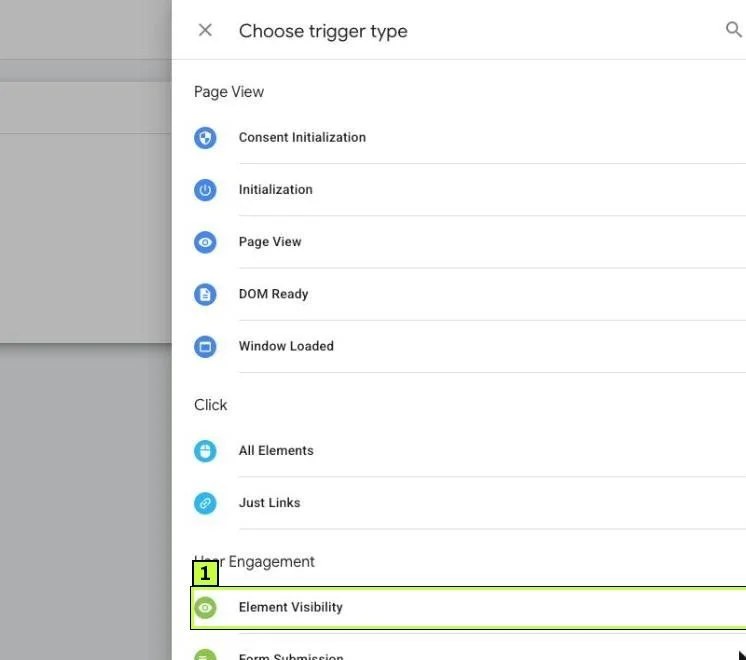
- Click Trigger Configuration. In Choose trigger type, scroll to the User Engagement group and choose Form Submission.
- Tick Check Validation. With it on, GTM ignores submits that the page blocks, such as a form with empty required fields.
- Leave Wait for Tags unticked unless your GA4 hits get lost on page reload. If you enable it, keep the default max wait time.
- Under Enable this trigger when all of these conditions are true, add Page URL contains
/contact(or Page URL matches RegEx.*for all pages). - Under This trigger fires on, choose Some Forms and add Form ID equals
contact-form. - Name it
Form Submit - Contactand save.
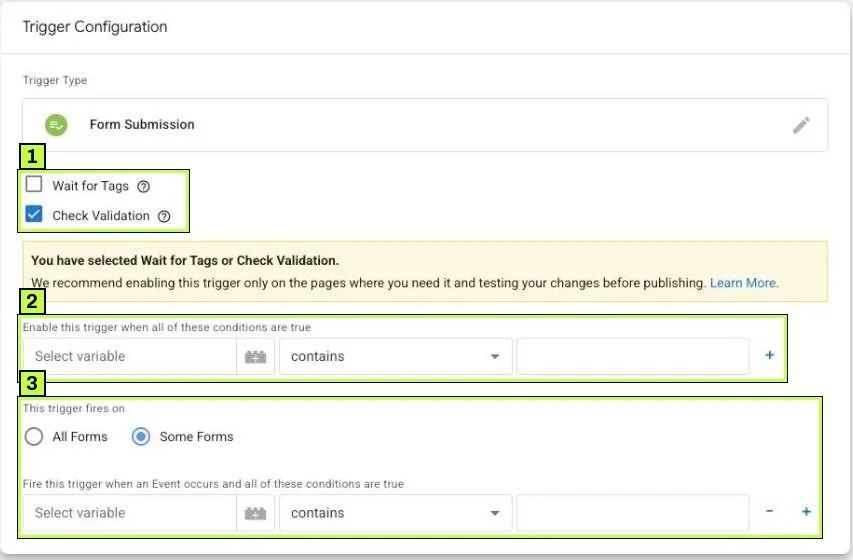
- Check Validation stops submits that the page cancels from firing the tag.
- When you tick Wait for Tags or Check Validation, GTM shows a yellow note recommending you enable the trigger only on the pages that need it. That's what the Enable this trigger when all of these conditions are true row is for.
- Some Forms with a Form ID filter targets only your contact form.
A caution: some forms run their own validation in JavaScript after the submit event. In that case the trigger can still fire on a failed attempt. That's why Step 4 includes a failed-submission test.
Step 2B: Use the thank-you page (redirect forms)
If your form sends people to a confirmation page, this is the simplest and most reliable option.
- Go to Triggers > New > Page View (or DOM Ready).
- Choose Some Page Views.
- Set Page Path equals
/thank-you(use your real path). - Save it as
Pageview - Thank You.
Make sure people can't reach this page any other way. Remove it from your menu and sitemap, set it to noindex, and don't link to it from emails. Otherwise every visit counts as a lead.
Step 2C: Use Element Visibility (AJAX forms with a success message)
Most WordPress form plugins, page builders and many embedded forms submit with AJAX. The page doesn't reload. Instead a message such as "Thanks, we'll be in touch" appears. You can fire on that message.
- Submit the form once, then right-click the success message and choose Inspect.
- Find a stable selector. Look for a class like
.form-successor an ID. (Older guides mention Contact Form 7's.wpcf7-mail-sent-ok; current versions no longer use that class, so inspect your own page.) Avoid auto-generated class names that change on each build. - In GTM, create a trigger of type Element Visibility.
- Set Selection Method to ID (if the message has an ID) or CSS Selector, and enter the ID or selector.
- Set When to fire this trigger to Once per page.
- Tick Observe DOM changes. This is essential, because the message didn't exist when the page loaded.
- Under Advanced, Minimum Percent Visible defaults to 50. Lower it to something like 1 if the message is small or partly off-screen.
- Save as
Visibility - Form Success.
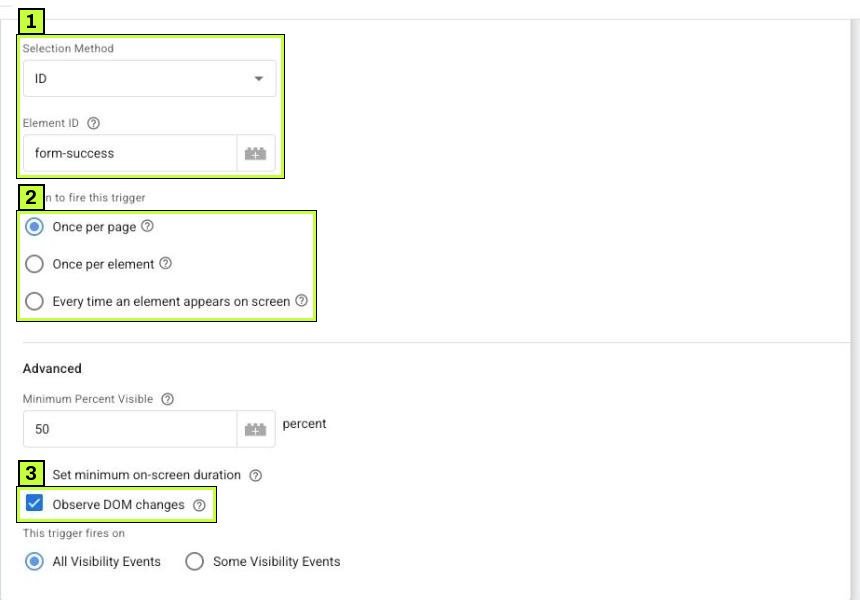
- The ID (or CSS selector) of the message that only appears after a successful send.
- Once per page stops repeat fires if the message is shown again.
- Observe DOM changes lets GTM see elements added after page load.
If the success message is hidden off-screen or appears in a modal that closes instantly, Element Visibility can miss it. In that case ask for the dataLayer method below.
Step 2D: Use a dataLayer event (the most reliable method)
The cleanest setup is when the site itself tells GTM about a successful submission. A developer adds a small push to the form's success callback. Many form plugins have a hook or a JavaScript event for this.
window.dataLayer = window.dataLayer || [];
window.dataLayer.push({
  event: 'form_success',
  form_name: 'contact',
  form_location: 'footer'
});
Never push personal data such as the email address or phone number into these fields. GA4 policies forbid sending personally identifiable information.
Then in GTM:
- Go to Variables > New > Data Layer Variable. Enter
form_nameas the name. Repeat forform_location. - Go to Triggers > New > Custom Event. Set Event name to
form_successand save asCE - form_success.
Step 3: Create the GA4 event tag
Now build one tag that sends the lead to GA4. You can reuse it with any of the triggers above.
- Go to Tags > New > Tag Configuration > Google Analytics > Google Analytics: GA4 Event.
- In Measurement ID, enter
G-XXXXXXXXXX(or a constant variable that holds it). If the container already has a Google tag with that ID, GTM shows Google tag found in this container and reuses its settings. - Event Name:
generate_lead. This is a GA4 recommended event name, so reports understand it. - Under Event Parameters, add
form_namewith{{DLV - form_name}}or a fixed value likecontact. - Under Triggering, choose the trigger from Step 2.
- Save as
GA4 - generate_lead.
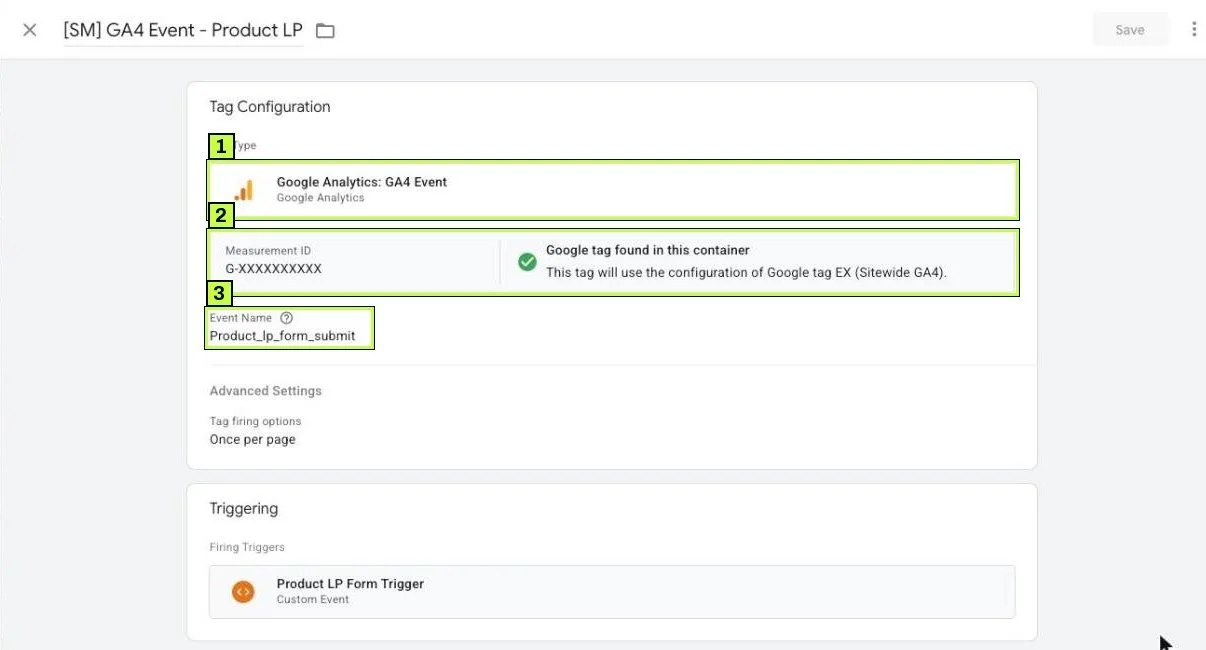
- Use
generate_leadrather than a custom name likeContact Form Sent. Recommended names get better support in GA4 reports. - Parameters (under Event Parameters, not shown in the example) let you split leads by form. Register them as custom dimensions in GA4 to see them in reports.
- The example fires on a Custom Event trigger, which is what the
dataLayermethod in Step 2D produces.
To report on form_name, go to GA4 Admin > Data display > Custom definitions > Create custom dimension, scope Event, parameter form_name.
Step 4: Test success and failure
Click Preview again and run two tests.
Test 1, the failed submit. Leave a required field empty or enter an invalid email. Click send. The tag should show under Tags Not Fired.
Test 2, the successful submit. Fill the form correctly and send. The tag should show under Tags Fired on the right event.
Then open GA4 Admin > Data display > DebugView. GTM Preview sessions are sent in debug mode, so your device should appear under Debug Device and show generate_lead with the form_name parameter.
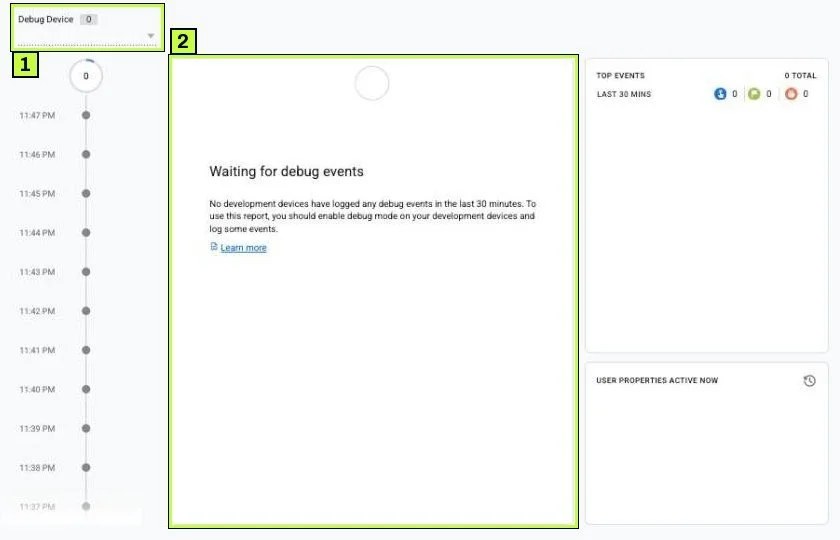
What to check once events arrive:
generate_leadshows up once, after the successful submit, not after the failed one.- Click the event. Its parameters should have readable values (no
undefined).
When both tests pass, click Submit in GTM, add a version name like "Contact form lead tracking", and Publish.
Step 5: Mark it as a key event
Go to GA4 Admin > Data display > Events. Once generate_lead has been collected, it shows on the Recent events tab. Click the star next to it.
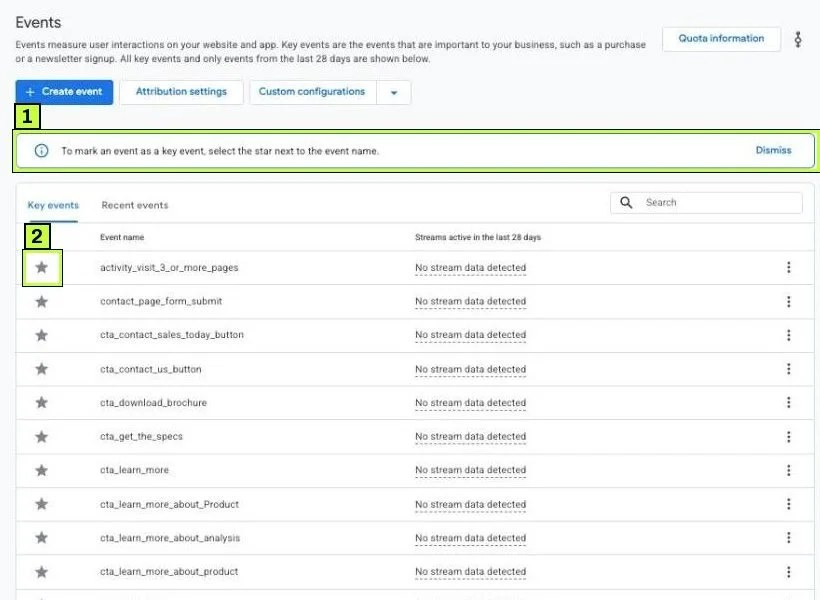
New events can take up to a day to appear in this list. Our GA4 key events guide explains counting methods and the Google Ads import.
Still not working? Common causes
| Symptom | Likely cause | Fix |
|---|---|---|
| No Form Submit event in Preview | AJAX form calls preventDefault, so the browser submit never happens |
Use Element Visibility or a dataLayer push |
| Form Submit appears but tag doesn't fire | Check Validation blocks it because the script cancels the native submit | Test with Check Validation off once to confirm, then switch methods instead of leaving it off |
| Tag fires on failed submissions | Trigger listens to the click or the submit attempt, not the success | Fire on the success message or a success dataLayer event |
| Leads counted twice | Enhanced measurement form_submit and your tag both marked as key events |
Mark only generate_lead. Optionally disable Form interactions |
| Form is inside an iframe (embedded third-party form) | GTM on the parent page can't see inside another domain's iframe | Use the form provider's own GA4 integration or a postMessage listener, or redirect to a thank-you page |
| Element Visibility never fires | Selector wrong, or Observe DOM changes off | Re-inspect the element, test the selector in the Console with document.querySelector('.form-success') |
| Tag fires in Preview but not live | Container not published, or published to the wrong environment | Check Versions for the live version |
Event in GA4 but form_name is (not set) |
Custom dimension not registered, or data layer variable name typo | Register the dimension. Match the key exactly, including case |
| Leads drop to near zero for some visitors | Consent banner blocking analytics, or ad blockers | Expected in part. Review Consent Mode v2 |
A note on Wait for Tags
Wait for Tags delays the form's navigation until the tags finish, up to the max wait time. On classic forms that reload, it can help a GA4 hit leave before the page unloads. GA4 uses a transport method designed to survive page unloads, so most sites don't need it. Turn it on only if you see lost hits in testing.
Multi-step forms
For forms with several steps, track the final step only as your key event. You can also send a form_step event with a step_number parameter if you want to find where people quit.
How to confirm it's fixed
- Run both tests in Preview (failed and successful) and save screenshots of Tag Assistant for your records.
- Check DebugView for one
generate_leadper successful submit. - Wait 24 hours, then open Reports > Engagement > Events and find
generate_lead. - Compare a full week of
generate_leadcounts with the emails or CRM entries you received. Some difference from consent and ad blockers is normal. Double counts or many more events than leads point to a trigger problem. - Recheck after any site change. A new form plugin, a theme update or a redesign often changes form IDs and success message classes.
FAQ
Why doesn't the GTM Form Submission trigger work on my form?
Your form probably submits with AJAX and cancels the browser's normal submit. GTM never sees a submit event. Use the success message or a dataLayer event instead.
Should I use GA4 enhanced measurement form tracking instead?
It's fine for a rough idea of form use. It can't confirm success and fires on many kinds of forms, so it's a poor key event. Build a dedicated generate_lead event for lead counting.
Can I send the email address to GA4 so I know who converted?
No. GA4 doesn't allow personally identifiable information. Use your CRM for names and emails. For Google Ads matching, look at enhanced conversions, which hash the data.
What event name should I use?
generate_lead is Google's recommended event for lead forms. Use sign_up for account or newsletter sign-ups and purchase for orders.
Do I need a separate tag for every form?
No. Use one tag and pass form_name as a parameter. Add triggers for each form, or one trigger that matches all of them.
Stuck on this one? We fix these for clients every week. Book a free audit
Sources
- support.google.com: /tagmanager/answer/6106716
- support.google.com: /tagmanager/answer/7679316
- support.google.com: /tagmanager/answer/7679410
- support.google.com: /analytics/answer/9216061
- developers.google.com: /tag-platform/tag-manager/datalayer
- analyticsmania.com: /post/google-tag-manager-form-tracking/
