You check your GA4 traffic report and find that your best "referral" source is your own booking engine, or a payment gateway, or your second domain. Purchases and leads that started with a Google Ads click now show up as referrals from the checkout. Your ad reports look weak while the payment processor looks like a star.
This happens when a visitor moves between domains during one visit. GA4 identifies users with a first-party cookie, and cookies don't travel across domains. So when someone leaves example.com for book.example-booking.com, GA4 sees a new visitor arriving from a referral. When they come back from a payment page, the referrer is the gateway.
There are two separate fixes, and people mix them up. Cross-domain measurement joins domains that you own and tag with the same GA4 tag, so one visit stays one visit. Unwanted referrals tells GA4 to ignore sites you don't control, like payment gateways, so they never get credit. Most sites with a checkout or booking step need one or both.
Quick answer
- List every domain in the user journey and mark which ones you control and can tag.
- Put the same GA4 tag (
G-XXXXXXXXXX) on every page of each domain you own. - In GA4, go to Admin > Data collection and modification > Data streams > your web stream > Configure tag settings > Configure your domains and add each domain.
- In the same settings list, click Show more, open List unwanted referrals and add third-party domains such as payment gateways.
- Test: click a link between domains and confirm the URL carries
_gl=. - After a few days, check Traffic acquisition for your domains and gateways as sources.
Before you start
- Access: Editor role or higher on the GA4 property, and access to the tag on each domain (GTM or the site code).
- A map of the journey. Click through a real purchase or booking and write down every domain you pass. Include redirects and payment pages.
- Tag Assistant (tagassistant.google.com) to watch hits across domains.
- Time: about 45 minutes, plus a few days of data to confirm.
- No backup needed in GA4, but note the current settings in case you want to revert.
Sort your domains into these groups.
| Domain type | Example | Fix |
|---|---|---|
| Your own domains with your tag | example.com, shop-example.com |
Cross-domain measurement |
| Subdomains of your site | blog.example.com, shop.example.com |
Usually nothing, GA4 handles them by default |
| Third-party sites you can't tag | payment gateways, card verification pages, a bank's 3-D Secure step | Unwanted referrals |
| Third-party tools you can tag | some booking engines or event ticketing platforms | Cross-domain, if they let you add your GA4 ID |
Subdomains of the same root domain share the cookie by default, so they don't need cross-domain setup. Google still suggests adding them to the domain list to prevent self-referrals in edge cases.
Step 1: Use the same GA4 tag on every domain
Cross-domain measurement only works if every domain sends data to the same web data stream. Open each domain and confirm the tag ID.
The fastest way is Tag Assistant. Connect to example.com, then browse to your second domain in the same window. Tag Assistant follows you and shows the tag on each domain. Look for the same G-XXXXXXXXXX on both.
If the second domain is a third-party booking engine or store builder, look in its settings for a field like "Google Analytics measurement ID" or "Google tag." Enter your G- ID there. If it only accepts an old Universal Analytics ID (UA-), it can't help with GA4 and you'll treat it as a third party instead.
In Tag Assistant, each domain you pass through shows up as its own page in the session, with the tag IDs found on it. Click the second domain and check that the same G- ID is listed there. If it's different or missing, fix that first. Nothing else in this guide works until both domains send to the same web data stream.
Step 2: Configure your domains in GA4
Now tell the Google tag which domains to link. GA4 will then add a _gl parameter to links between them, carrying the client and session IDs across.
- In GA4, click Admin.
- Under Data collection and modification, click Data streams.
- Click Web, then your web data stream.
- At the bottom, click Configure tag settings.
- In Settings, click Configure your domains.
- If GA4 has already seen your tag on other domains, it may list them under Recommendations. Click Add to accept one.
- Under Include domains that match the following conditions, set a Match type and enter the Domain, such as
example-booking.com. Click Add condition for each extra row. Rows use OR logic, and Google allows up to 100 of them. - Add all your domains, including the main one, then click Save at the top right.
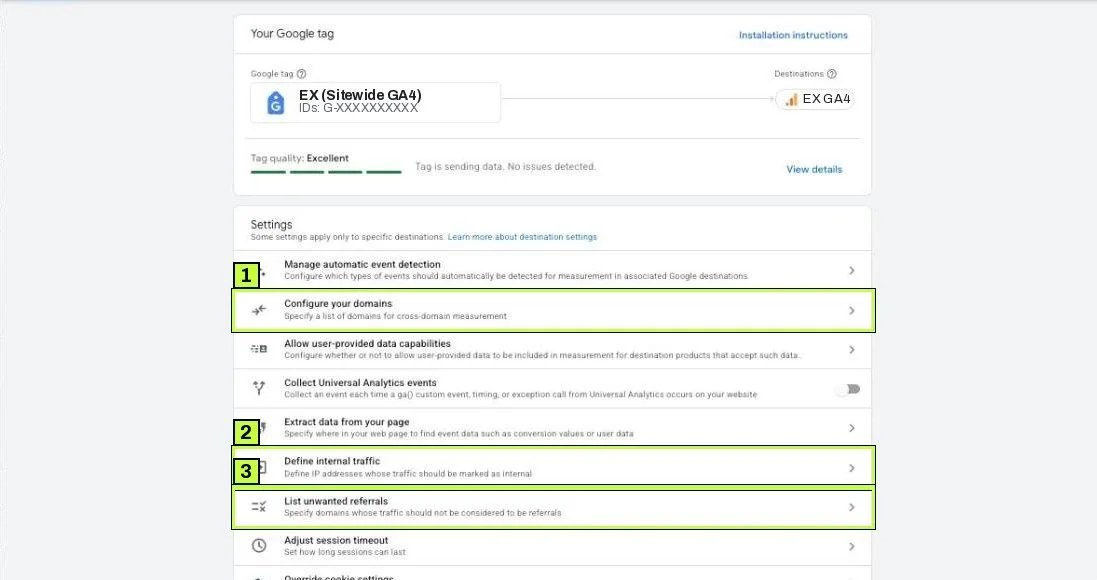
Click Configure your domains and this panel opens:
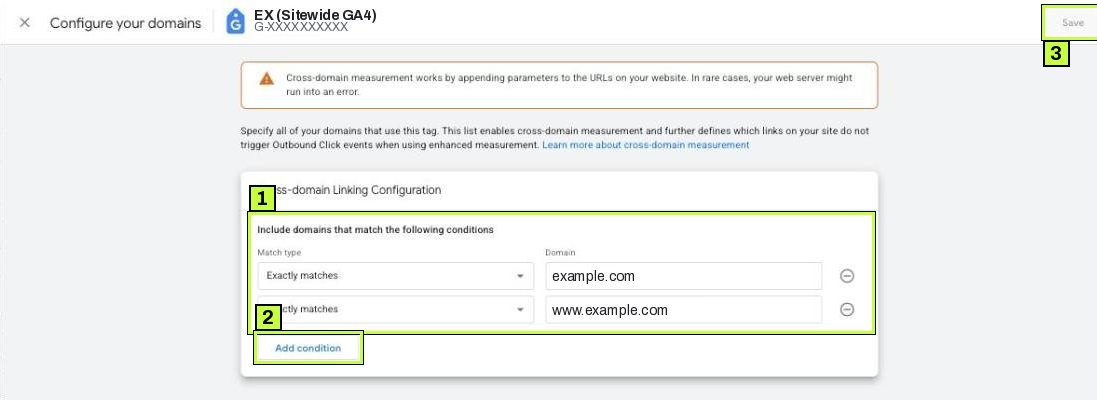
Pick the match type that fits. Exactly matches with one row per host is precise, as in the example above. A "contains" style match on the root domain also covers its subdomains. The orange warning at the top is normal: cross-domain linking works by adding a parameter to your URLs, and in rare cases a strict web server rejects it.
A note for GTM users. If GA4 runs through a Google Tag in GTM, this admin setting applies automatically, because the Google tag loads its settings from GA4. You don't need extra linker fields in GTM.
Some older containers set the linker by hand instead, as a linker parameter in the Google tag's Configuration settings. Check yours before you change anything:
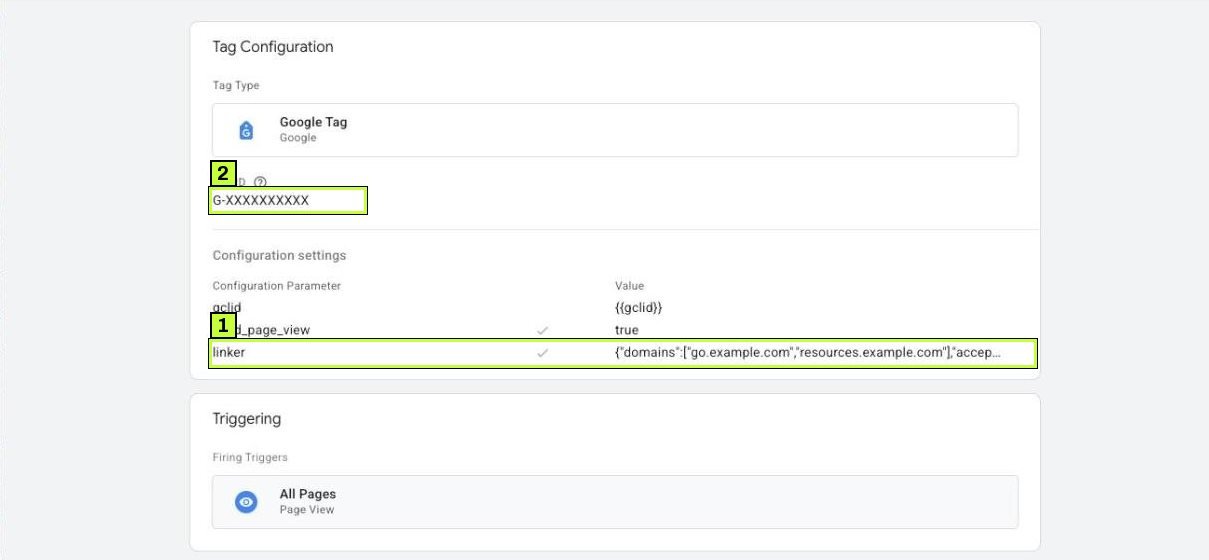
If you find a manual linker parameter and also set up Configure your domains, make the two lists match or remove the GTM parameter. Two different lists make testing confusing.
Step 3: List unwanted referrals
Next, handle sites you can't tag. A payment gateway sends the buyer back to your thank-you page. Without a fix, that return looks like a referral.
- Go back to Configure tag settings for the same stream.
- In Settings, click Show more to see the full list. Google's help page calls this link Show all; the label can vary.
- Click List unwanted referrals.
- Under Ignore referrals that match ANY of the following conditions as traffic sources, pick a match type such as Referral domain contains and enter the domain, for example
paypal.comor your gateway's checkout domain. - Click Add condition for each extra domain, then Save.
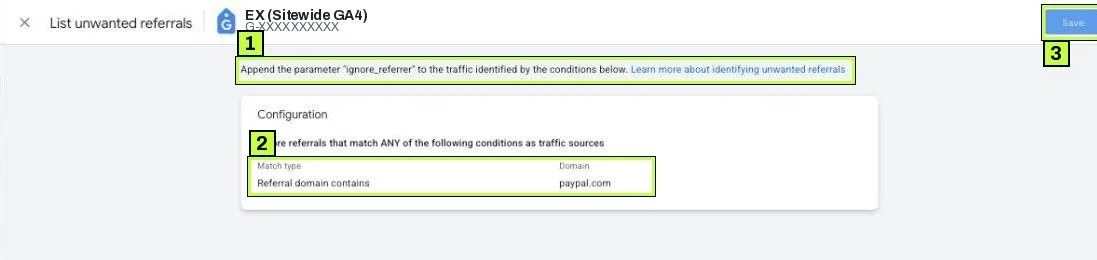
GA4 adds ignore_referrer=true to events that match. The referrer is ignored, and the visit keeps its original source. You can add up to 50 unwanted referrals per stream, and conditions use OR logic. One catch from Google's docs: attribution uses the last non-direct click, so a buyer who later returns directly can still be credited to an excluded domain they clicked through before.
Don't add your own booking or shop domain here as a shortcut when you can tag it. Listing it as unwanted hides the referral but doesn't join the user and session, so you still get two users and broken journeys. Use cross-domain for domains you can tag.
To find gateway domains you missed, open Reports > Acquisition > Traffic acquisition. The report opens on Session primary channel group (Default Channel Group). Use the dimension dropdown above the first column to switch to Session source / medium, then type referral in the search box.
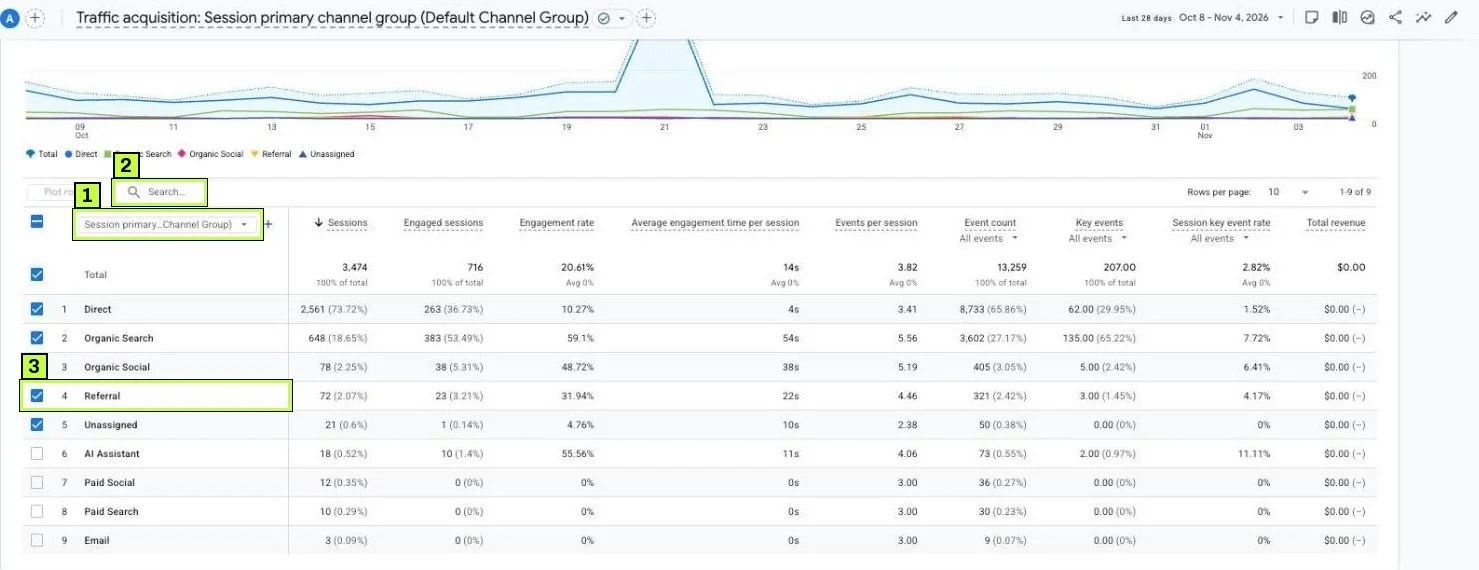
A payment, bank or verification domain with lots of key events belongs in unwanted referrals. Your own booking or shop domain belongs in cross-domain. Don't read the example's numbers as a benchmark; every site's mix is different.
Step 4: Test the link decoration
Open your main site in a fresh browser window. Click a link or submit a form that takes you to the second domain. Look at the address bar on arrival. You should see a parameter like this:
https://book.example-booking.com/?_gl=1*1abc2de*_ga*MTIzNDU2Nzg5LjE3MDAwMDAwMDA.*_ga_XXXXXXXXXX*MTcwMDAwMDAwMC4xLjEuMTcwMDAwMDAwMC4wLjAuMA..
The value will look different, which is fine. What matters is that _gl= is present.
If _gl is missing in the address bar of the destination page, the link isn't being decorated, the domain doesn't match your conditions, or a redirect stripped it. If your site offers file downloads, also check that a download still starts from a page that carries _gl, as Google suggests.
The linker only decorates links and forms the user clicks or submits. It won't decorate navigation triggered by JavaScript, like window.location = ... in a button script. It also fails when a script stops click events from bubbling up. See the troubleshooting table below.
Step 5: Watch out for iframes and redirects
Embedded booking widgets. Many booking engines load inside an iframe on your page. The cross-domain linker decorates links, not iframes. An iframe on another domain also can't read your cookies in most browsers. Ask the vendor whether they support passing the GA4 client ID into the iframe, or if they can send purchase data to your GA4 property themselves. Otherwise, link out to the booking domain instead of embedding it.
Redirects. If your link goes through a redirect (a URL shortener, a language redirect, an http to https hop), the redirect may drop query parameters. Then _gl never arrives. Fix the server or plugin so it keeps the query string, or link straight to the final URL.
Payment return URLs. Some gateways send the buyer back with a long URL and no referrer. Others send the referrer. The unwanted referrals list covers the second case.
Still not working? Common causes
| Symptom | Likely cause | Fix |
|---|---|---|
| Your own second domain still shows as a referral | Domain not in Configure your domains, or a different tag ID on that domain | Add the domain. Use the same G- ID on both sides |
_gl missing after clicking |
Navigation done by JavaScript, or a script calls stopPropagation() |
Use real <a href> links or forms. Ask the developer to stop blocking clicks |
_gl appears, then vanishes |
Redirect or the destination app strips unknown query parameters | Preserve query strings through redirects. Ask the vendor to allow _gl |
_gl arrives but users still double |
Destination page loads the tag before it reads the URL, or uses another stream | Confirm the same data stream. Make sure no extra Google tag with different settings runs |
| Payment gateway still gets purchase credit | Gateway domain not listed, or listed with a typo or wrong match type | Check the exact domain in Traffic acquisition. Add it with Referral domain contains |
| Old sessions still show the gateway | Unwanted referrals don't rewrite past data | Judge from new data after the change |
| Booking widget in an iframe shows no purchases | Iframe on another domain can't share the cookie or gets no _gl |
Use vendor GA4 support, client ID passing, or link out |
| Subdomain shows as a referral | Custom cookie domain set to one subdomain | Use the default (auto) cookie domain. Add the root domain to the domain list |
Lots of (direct) / (none) on thank-you pages |
Gateway sends no referrer and the session expired during payment | Normal for slow payments. Keep the session timeout default or longer |
Cross-domain vs unwanted referrals in one line
If you can put your GA4 tag on it, use cross-domain. If you can't, list it as an unwanted referral.
How to confirm it's fixed
- Run Tag Assistant across both domains. Start on
example.com, click to the second domain, finish a test conversion. Each hit should carry the same client ID. You can see it as thecidparameter in thecollectrequests in Chrome DevTools, on the Network tab. - Check Realtime. Your test visit should appear as one user moving across both domains.
- Wait 3 to 7 days, then open Reports > Acquisition > Traffic acquisition with Session source / medium. Your own domains and the gateways should drop sharply or disappear as referral sources.
- Compare key events by channel before and after. Paid and organic channels often gain the credit that the gateway used to take. Treat this as a direction, not a precise number.
- Re-test after site changes, such as a new booking vendor or checkout redesign.
For a full GA4 data check, see our GA4 troubleshooting guide. If ad clicks lose their source on the way, read the UTM guide too.
FAQ
Do I need cross-domain tracking for subdomains?
Usually not. GA4 sets its cookie on the root domain by default, so www.example.com and shop.example.com share it. Add the root domain to the list anyway if you see self-referrals.
Can I fix PayPal showing as a referral with cross-domain measurement?
No. You can't put your tag on PayPal. Add it under List unwanted referrals instead.
Will this fix my old data?
No. Both settings apply only to data collected after you save them.
My booking engine is in an iframe. What can I do?
Ask the vendor if they support GA4 cross-domain or client ID passing. If not, link to the booking domain instead of embedding it, and make sure the vendor page carries your GA4 tag.
Does the _gl parameter hurt SEO?
It's added only on clicks between your linked domains, not in the HTML search engines crawl. Keep canonical tags on your pages so any shared URL with _gl still points to the clean version.
Stuck on this one? We fix these for clients every week. Book a free audit
