Your campaigns are spending money, but the Conversions column says zero. Or the conversion action you set up last month now shows a yellow or red status in Goals. Either way, Smart Bidding is flying blind, because it can only optimize toward the conversions Google Ads actually receives.
Most broken setups come down to a few things. The conversion tag never fires, it fires on the wrong page, it fires before the Google tag loads, or consent settings stop it from sending data. Sometimes nothing is broken at all: the action is just new, or the campaign simply got no conversions from ad clicks this week.
This guide walks you through a clean setup: create the conversion action in Google Ads, add the matching tags in Google Tag Manager (GTM), test them in Preview, publish, and confirm the status changes. Then it covers every common status problem and how to fix it.
Quick answer
- In Google Ads, go to Goals > Conversions > All conversions, click + New conversion, choose Conversions on a website and create the action manually. Pick Use Google Tag Manager in tag setup.
- Copy the Conversion ID and Conversion label.
- In GTM, add a Google tag with your
AW-ID on Initialization - All Pages, plus a Conversion Linker tag. - Add a Google Ads Conversion Tracking tag with the ID and label, triggered only on the real conversion (thank-you page or form event).
- Test in Preview with Tag Assistant, then Submit and publish the container.
- Wait a few hours, then check the Tracking status column in All conversions. Hover over the status if it doesn't turn Active.
Before you start
You need a few things in place before you touch any tags.
- Google Ads access: Admin or Standard access to the account. Read-only users can't create conversion actions.
- GTM access: Publish permission on the container that runs on the site. If you only have Edit, someone else must publish.
- GTM installed correctly: The container snippet must be on every page, including the thank-you page. If you're not sure, follow our GTM install guide first.
- A clear definition of the conversion: "Lead form submitted" or "purchase completed." Know which page or event proves it happened.
- Consent setup: If you run a cookie banner, make sure Consent Mode is configured. See Consent Mode v2 with GTM.
- Time: About 45 minutes, plus a few hours of waiting for Google Ads to update.
Back up first. In GTM, go to Admin > Export Container and save the JSON file somewhere safe. If a publish goes wrong, you can also roll back to the previous live version from Versions.
Step 1: Create the conversion action in Google Ads
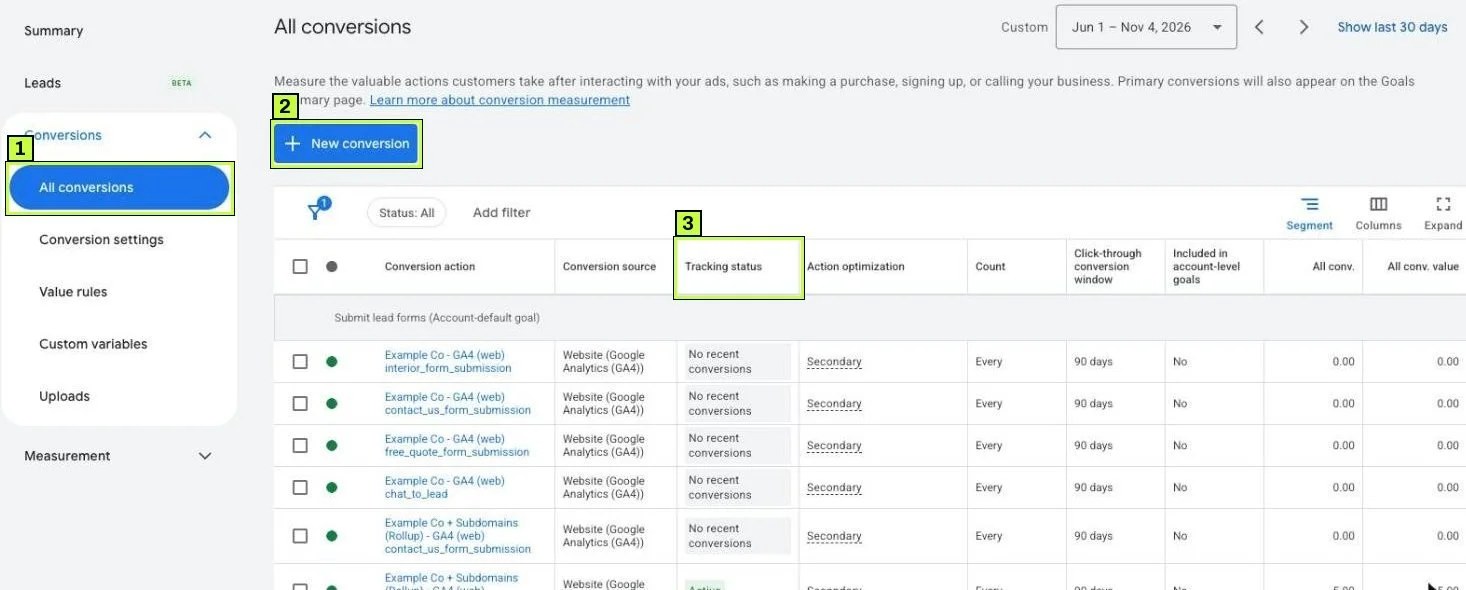
Click the Goals icon in the left rail. In the menu, open Conversions > All conversions. (Some older help pages still call this page Summary.) Click + New conversion.
A three-step flow opens: Get started, Create conversion actions and Summary. The first screen is Choose data sources to measure conversions. It lists:
- Conversions on a website: web conversions measured with a Google tag or imported from Google Analytics. It shows your domain and how it's measured, for example "via Google Tag".
- Conversions on an app.
- Conversions from phone calls: calls from ads, calls from website visits, or calls via uploads.
- Conversions offline: data from a CRM, a file or the Google Ads API.
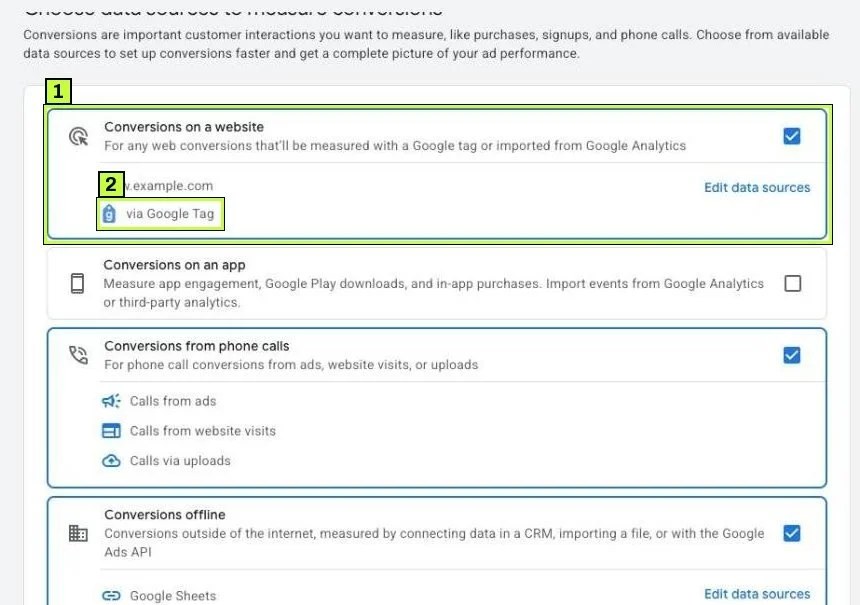
Tick Conversions on a website, check the domain, and click Save and continue. On the next step, Google may suggest actions it can create automatically from page views or events. Skip those for anything you want to control in GTM and add a conversion action manually instead. The exact wording on this step changes from time to time, so look for the manual option.
Fill in the settings:
- Goal and action optimization: Pick the category that fits, such as Submit lead form or Purchase.
- Conversion name: Something clear like "Lead form – contact page."
- Value: Use the same value for each conversion, a different value per conversion (for ecommerce), or no value.
- Count: One for leads, so repeat submissions by one person count once, and Every for purchases.
- Click-through conversion window: The default is fine for most accounts.
Save, and finish the flow through Summary.
Why create it manually? Google's Tag Manager help notes that automatically created actions don't give you a standalone conversion label. Without a label, the GTM tag has nothing to point at.
Step 2: Copy the Conversion ID and Conversion label
After you save, Google Ads shows the tag setup options. Choose Use Google Tag Manager. You'll see two values:
- Conversion ID: a number like
123456789. It's the same for every action in the account. With theAW-prefix, it's also your Google tag ID. - Conversion label: a short string like
AbC-D_efG-h12_34-567. It's unique to this action.
Paste both into a text file. If you lose them, open the action from Goals > Conversions > All conversions and expand Tag setup to see them again.
Two things to watch:
- The Conversion ID goes into GTM as a plain number. Only the Google tag uses the
AW-prefix. - A typo in the label is one of the most common reasons nothing records. Copy it, don't retype it.
Step 3: Add the Google tag and Conversion Linker in GTM
Open your container in GTM. Go to Tags > New.
Start with the Google tag. Choose Google Tag as the tag type. In Tag ID, enter AW-123456789 with your own number. Set the trigger to Initialization - All Pages. Save it as "Google tag – Google Ads."
Why bother? Since 2025, GTM loads a Google tag automatically if your Ads tags fire without one, but Tag Assistant can still flag a warning that the Google tag should have been loaded first. An explicit Google tag removes the warning, and the conversion tag editor then confirms it with Google tag found in this container. It also gives you one place to manage settings like user-provided data for enhanced conversions.
Then add the Conversion Linker. Go to Tags > New > Conversion Linker. Use the All Pages trigger. This tag reads the gclid from the landing page URL and stores it in a first-party cookie. When the conversion fires later, Google can tie it back to the ad click.
Google says you can skip the Conversion Linker if a Google tag for the same destination already loads on every page. Most practitioners keep it anyway, because it's harmless and it makes the setup obvious to the next person who opens the container.
If your checkout or booking engine sits on a different domain, open the linker's Linker Options and turn on Enable linking across domains. Add both domains to Auto Link Domains. For more on this, see cross-domain tracking.
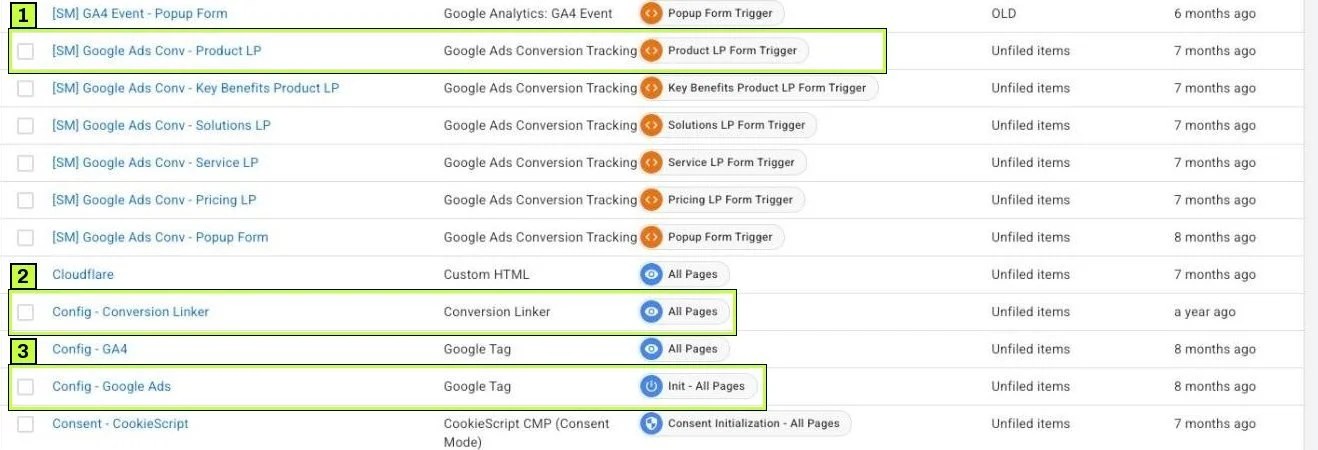
- Each conversion tag has its own narrow trigger, never All Pages.
- The linker fires on every page so it can store the click ID wherever someone lands.
- The Google tag with your
AW-ID loads first on every page.
Step 4: Build the conversion tag and its trigger
Go to Tags > New > Tag Configuration. Choose Google Ads > Google Ads Conversion Tracking.
Fill in:
- Conversion ID:
123456789(noAW-prefix here). - Conversion Label: paste the label exactly.
- Conversion Value: optional. For a fixed lead value, type a number such as
50. For ecommerce, use a data layer variable like{{DLV - ecommerce.value}}. - Transaction ID: optional but useful for purchases. It stops duplicate conversions when someone reloads the order page.
- Currency Code: for example
USDorEUR. Use it whenever you send a value. - Include user-provided data from your website: a checkbox for enhanced conversions. Leave it off for now unless you've already built a User-Provided Data variable.
- Conversion Linking > Custom Cookie Prefix: leave the default unless your site uses a custom prefix.
Google's GTM help says an empty or undefined value gets sent as zero. If you expect revenue in reports, check that the variable actually resolves on the order page.
Now set up the trigger, and pick the one that matches the real conversion:
- Thank-you page: a Page View trigger where Page Path equals
/thank-you. Simple and reliable, if only people who converted can reach that page. - Form event: a Custom Event trigger listening for something like
generate_leadthat your form pushes to the data layer. See tracking form submissions in GTM. - Purchase: a Custom Event trigger on
purchasefrom your ecommerce data layer.
Never use All Pages on the conversion tag, because that counts every visit as a conversion and poisons your bidding data.
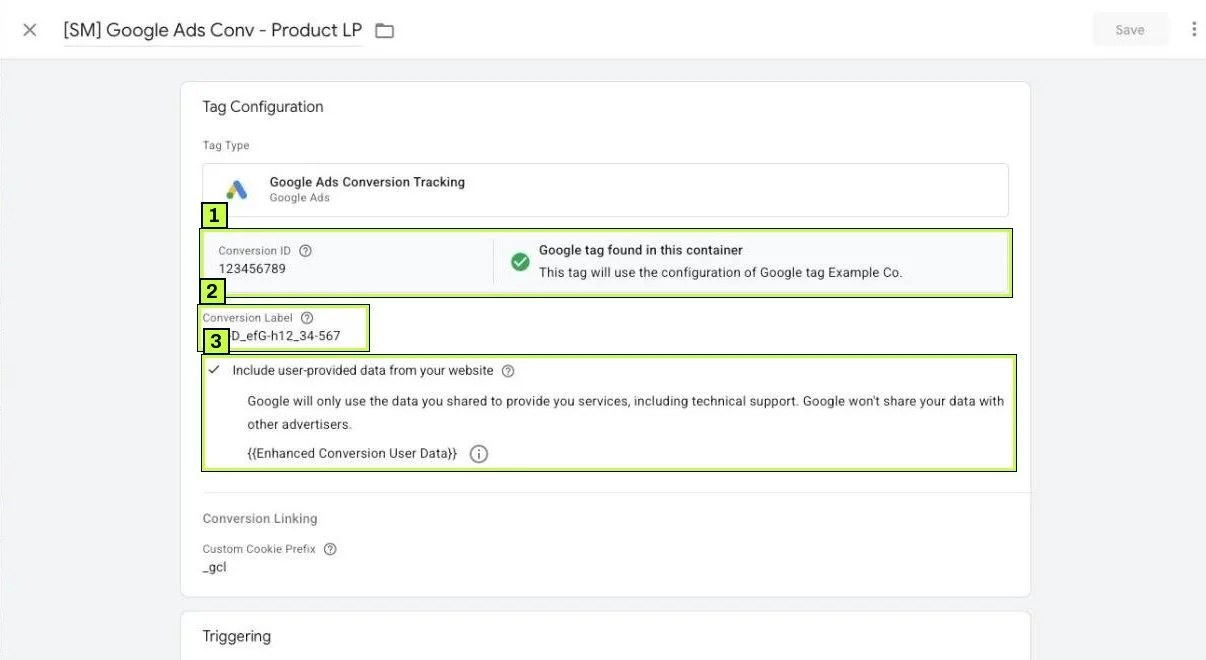
- Number only, no
AW-. The label goes in the next field. - Paste the label exactly. It's case-sensitive.
- User-provided data is optional and covered in the enhanced conversions guide.
Step 5: Test in Preview, then publish
Click Preview in GTM (top right of the workspace), enter your site URL and click Connect. Tag Assistant opens your site in a new tab and records every event.
Add ?gclid=test123 to the landing page URL before you start. That simulates an ad click so you can check the linker cookie.
Then complete the conversion like a real visitor would: submit the form, or place a test order if your store allows it. Go back to the Tag Assistant tab and look at the event list on the left.
You should see:
- Google tag – Google Ads under Tags Fired on the first event of every page.
- Conversion Linker fired on page views.
- Ads – Lead form fired only on the thank-you page or form event, and nowhere else.
Click the conversion tag to open its details and check the ID, label, value and currency. If a variable shows undefined, fix it before you publish.
When it looks right, go back to GTM. Click Submit, add a version name like "Google Ads lead conversion," and click Publish.
If something looks off, here's what Tag Assistant usually tells you:
| What you see | What it means |
|---|---|
| Conversion tag under Tags Fired on one event | Correct |
| Conversion tag fired twice on one page | Two triggers or a duplicated tag |
| Conversion tag under Tags Not Fired after converting | Trigger condition doesn't match |
Variable shows undefined |
Data layer key is wrong or not pushed yet |
| A warning that the Google tag wasn't loaded first | No explicit Google tag with your AW- ID |
Step 6: Check the status in Google Ads
Go back to Goals > Conversions > All conversions. Find your action and look at the Tracking status column. The table also shows Action optimization (Primary or Secondary), Count (Every or One) and the click-through conversion window.
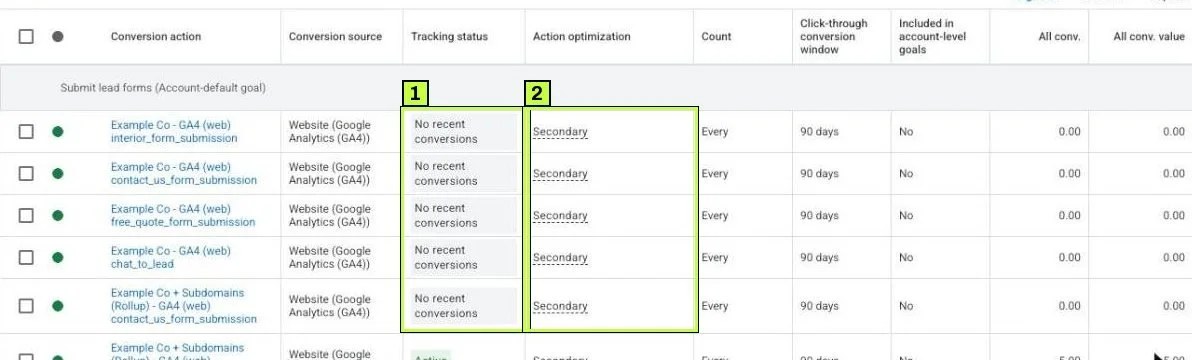
Google's current troubleshooting help uses a newer set of five status labels:
| Status | What it means | What to do |
|---|---|---|
| Active | Conversions are recording normally. | Nothing. |
| Needs attention | Data is recording, but Google found an issue. | Hover over the status for details. |
| Misconfigured | Recording stopped because of a setup error or broken tag. | Hover, follow the steps, test with Tag Assistant. |
| Awaiting conversions | No conversions recorded in the last 7 days. | Check age of the action, paused campaigns, traffic. |
| Removed | The action was deleted or archived. | Restore it or ignore it. |
Many accounts still show the earlier labels, as the example above does. Unverified means the tag hasn't fired yet. Tag inactive and No recent conversions mean no recent conversions were recorded. Treat those like Awaiting conversions or Misconfigured, depending on whether your tag fires.
A brand-new action often needs a few hours before Google Ads shows any change, so give it until the next day before you panic.
Hover over a problem status to see Google's explanation. Where Google offers a troubleshooting link, it opens Tag Assistant on your site and walks you through a test conversion. Google says verified results from that session take about 30 minutes to show in the account.
Still not working? Common causes
Work through this table from top to bottom, since the first rows cover most of the cases we see.
| Symptom | Likely cause | Fix |
|---|---|---|
| Tag never fires in Preview | Trigger condition doesn't match (wrong path, trailing slash, query string) | Use Page Path contains thank-you, or switch to a data layer event. |
| Tag fires on every page | Conversion tag uses All Pages | Change the trigger to the thank-you page or form event only. |
| Fires in Preview, nothing in Google Ads | You forgot to publish | Submit and Publish the workspace. Check Versions for the live one. |
| Status shows Misconfigured after a site redesign | GTM snippet missing on new templates or thank-you page moved | View source on the thank-you page and look for your GTM- ID. Update the trigger path. |
| Conversions in GTM but Awaiting conversions | No ad clicks converted this week, or campaigns paused | Check campaign status and clicks. A test conversion without an ad click won't show as an ad conversion. |
| Wrong conversion count, doubles | Two conversion tags, or a Google Ads auto-created action counting the same event | Keep one tag per action. Set duplicates to Secondary or remove them. |
| Value shows 0 | Value variable is undefined on the order page | Check Variables in Tag Assistant on the conversion event. Fix the data layer key. |
| Tag fires but status won't change | Consent denied; tags wait for ad_storage consent | Test with consent accepted. Review your Consent Mode setup. |
| Warning about Google tag not loaded first | Ads tags fire without an explicit Google tag | Add a Google tag with your AW- ID on Initialization - All Pages. |
| Clicks don't link to conversions | Conversion Linker missing, or checkout on another domain | Add the linker on All Pages. Enable linking across domains and add both domains. |
| Thank-you page reachable without converting | Bookmarked or linked page inflates conversions | Use a form or purchase event instead of a page view. |
The label or ID is wrong
This is more common than you'd think. Copy-paste can grab a trailing space, and an old label might come from an action somebody deleted. Compare the label in the GTM tag with the one under Tag setup in Google Ads, character by character.
The trigger fires too early
Some forms redirect before the thank-you page finishes loading, and others use AJAX and never load a new page at all. If the page view trigger is unreliable, ask the developer to push a generate_lead event to the data layer when the form succeeds. Fire the conversion from that.
You're testing without an ad click
Google Ads only attributes conversions that follow an ad interaction. A test with ?gclid=test123 checks the cookie and tag, but it won't show as a real ad conversion. Don't expect your own test submission to appear in the Conversions column.
Consent and ad blockers
When a visitor declines ads cookies, Consent Mode changes how the tag behaves, and your own browser may also block Google Ads requests with an extension. Test in a clean profile with no extensions, and accept consent on the banner.
How to confirm it's fixed
Run these checks in order:
- Tag Assistant: Do a full test conversion in Preview. The conversion tag fires once, on the right event, with the right ID and label.
- Network check: In Chrome DevTools, open the Network tab on the thank-you page and filter by
pagead. You should see a request togoogleadservices.com/pagead/conversion/with your ID in the URL. - Troubleshoot in Google Ads: From Goals > Conversions > All conversions, hover the status and follow the troubleshooting link if one is offered. It runs a Tag Assistant session. Google says results from this session show in the account after about 30 minutes.
- Status: Within a day, the action should move to Active or Awaiting conversions. Awaiting conversions is fine if no ad clicks have converted yet.
- Conversions column: Once real ad clicks convert, numbers appear in Campaigns under Conversions. Conversions are reported against the click date, so yesterday's numbers can still grow.
Check again after seven days, because problems often show up after the first week. If the status flips back to Misconfigured, something on the site changed. Start with the thank-you page and the trigger.
FAQ
Do I still need the Conversion Linker if I have a Google tag?
Not strictly. Google says a Google tag for the same destination on every page handles click storage. Keeping the linker on All Pages does no harm and keeps the setup clear.
Should I import GA4 key events instead?
You can, and it works well for many accounts. Importing GA4 key events is simpler to maintain. The native Google Ads tag usually records conversions faster and supports enhanced conversions directly. Many accounts use the Ads tag as Primary and GA4 imports as Secondary.
How long until the status updates?
Usually a few hours, sometimes up to a day. Tag Assistant troubleshooting results show after about 30 minutes, according to Google.
Why do I see conversions in GTM but fewer in Google Ads?
GTM fires for every visitor who converts. Google Ads only counts conversions linked to an ad interaction within your conversion window. Consent choices and blockers also remove some data.
What does "Awaiting conversions" mean if my tag works?
It means no conversions were recorded in the last seven days. That's normal for new actions, paused campaigns or low-traffic sites. It is not a tag error on its own.
Stuck on this one? We fix these for clients every week. Book a free audit
Sources
- support.google.com: /tagmanager/answer/6105160?hl=en
- support.google.com: /google-ads/answer/1722022?hl=en
- support.google.com: /tagmanager/answer/7549390?hl=en
- support.google.com: /google-ads/troubleshooter/13455130?hl=en
- support.google.com: /google-ads/answer/10989978?hl=en
- lovesdata.com: /blog/fix-google-tag-warning/
